EasyManua.ls Logo

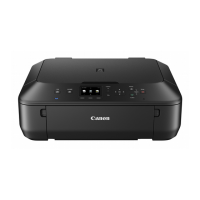
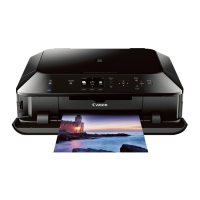
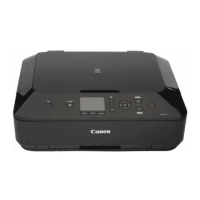
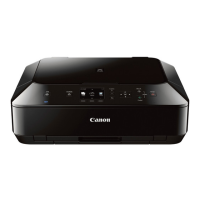
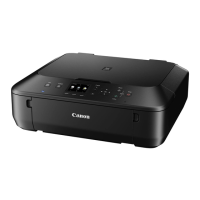
Canon MG5500 series - User Manual

Canon MG5500 series
215 pages
Print Icon
To Next Page IconTo Next Page
Loading...
MG5500 series
Online Manual
Scanning
English

Table of Contents

Questions and Answers

  • K
    Katelyn MoranAug 2, 2025
    What to do if my Canon MG5500 All in One Printer cannot communicate with the machine with USB connection?
    • A
      Alexander GonzalesAug 2, 2025
      If your Canon All in One Printer cannot communicate via USB, ensure that the machine is turned on and that the USB cable is properly connected. Also, avoid starting the IJ Network Tool while printing, and do not attempt to print while the IJ Network Tool is running.
  • J
    John EllisAug 7, 2025
    Why my Canon MG5500 cannot be powered on?
    • C
      candace50Aug 8, 2025
      If your Canon All in One Printer does not power on, try the following: First, press the ON button. If that doesn't work, ensure the power plug is securely connected to the machine's power cord connector, and then turn it on again. As a last resort, unplug the printer from the power supply, wait at least 3 minutes, then plug it back in and try turning it on.
  • H
    Heather BarberAug 13, 2025
    Why does my Canon All in One Printer turn off unintendedly?
    • M
      martinpeterAug 13, 2025
      If your Canon All in One Printer turns off unexpectedly, try deactivating the automatic turn-off setting. To do this, open Canon IJ Printer Utility, select Power Settings, and then disable Auto Power Off on Auto Power. This should prevent the machine from turning off automatically.
  • P
    Patricia ScottAug 20, 2025
    How to fix LCD if it cannot be seen at all on Canon All in One Printer?
    • B
      Brittany CarterAug 20, 2025
      If the LCD screen on your Canon All in One Printer is not visible, check the POWER lamp. If it's off, the machine isn't powered on; connect the power cord and press the ON button. If the POWER lamp is lit, the LCD might be in screen-saver mode; press any button on the operation panel to exit screen-saver mode.
  • L
    Leslie EstradaAug 27, 2025
    What to do if an unintended language is displayed on the LCD of Canon All in One Printer?
    • D
      David WilkersonAug 27, 2025
      If an incorrect language appears on the LCD of your Canon All in One Printer, press the HOME button and wait for about 5 seconds. Then, select Setup on the HOME screen, followed by Device settings. Press the OK button, then press the button three times and press OK again. Finally, use the button to select the correct language for the LCD and press the OK button.

Summary

Scanning

Scanning from a Computer

Instructions for scanning documents from a computer.

Scanning with IJ Scan Utility

Detailed guide on using the IJ Scan Utility software for scanning.

What Is IJ Scan Utility (Scanner Software)?

Explanation of the IJ Scan Utility application and its capabilities.

Starting IJ Scan Utility

Step-by-step instructions on how to launch the IJ Scan Utility.

Easy Scanning with Auto Scan

Simple scanning process utilizing automatic item type detection.

Scanning Photos

Guide to scanning photographs with appropriate settings.

Extracting Text from Scanned Images (OCR)

Process for converting scanned text into editable data using OCR.

Scanning with Application Software that You are Using (ScanGear)

Using ScanGear for advanced image correction and color adjustments.

What Is ScanGear (Scanner Driver)?

Introduction to ScanGear, the scanner driver software.

Scanning in Advanced Mode

Detailed scanning configurations using ScanGear's Advanced Mode.

Correcting Images and Adjusting Colors with ScanGear (Scanner Driver)

Techniques for enhancing image quality and adjusting colors in ScanGear.

Scanning from the Operation Panel of the Machine

Procedures for scanning directly from the machine's control panel.

Forwarding Scanned Data to the Computer Using the Operation Panel of the Machine

How to send scanned data to a computer from the machine's panel.

Network Scan Settings

Configuring network settings for scanning.

Canon MG5500 series Specifications

General IconGeneral
Print TechnologyInkjet
Max Print Resolution4800 x 1200 dpi
Scanner TypeFlatbed
Scanner Optical Resolution1200 x 2400 dpi
ConnectivityUSB, Wi-Fi
FunctionsPrint, Scan, Copy
Borderless PrintingYes
Mobile PrintingYes
Paper SizesA4, A5, B5, Letter, Legal, Envelopes
Input Capacity100 sheets
Dimensions (W x D x H)455 x 369 x 148 mm
Weight6.3 kg
Supported Operating SystemsWindows, Mac
Print Speed (Black)Approx. 12.2 ipm
Print Speed (Color)Approx. 8.7 ipm

Related product manuals