>
Scanning
>
Scanning with the Bundled Application Software
> Useful MP Navigator EX Functions
>
Correcting/Enhancing Images Automatically
Correcting/Enhancing Images Automatically
MP Navigator EX will analyze and correct/enhance scanned images automatically.
1.
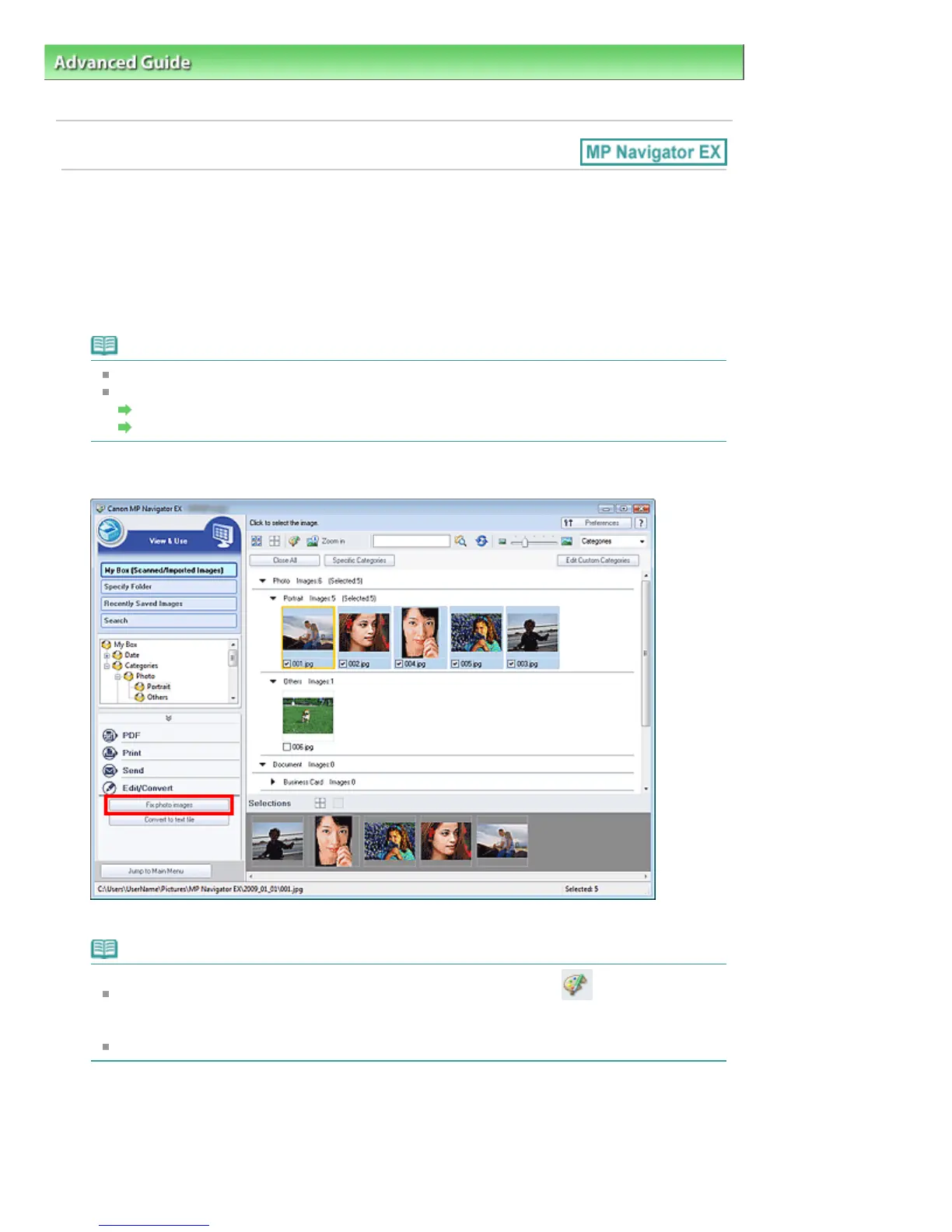
Scan documents into MP Navigator EX and save them, then open the View & Use
window from the Navigation Mode screen and select the photos you want to correct/
enhance.
Note
See "
Let's Try Scanning
" to scan images into MP Navigator EX.
You can also select images saved on a memory card or computer.
Importing Images Saved on a Memory Card
Opening Images Saved on a Computer
2.
Click Edit/Convert, then click Fix photo images on the list.
The Correct/Enhance Images window opens.
Note
The Correct/Enhance Images window can also be opened by clicking (Image Correction/
Enhancement) on the Toolbar or in the Zoom in dialog box. In that case, only the target image
(outlined in orange) can be corrected/enhanced.
See "
Correct/Enhance Images Window " for details on the Correct/Enhance Images window.
3.
Select the image you want to correct/enhance from the thumbnail list.
The selected image appears in Preview.
Page 366 of 726 pagesCorrecting/Enhancing Images Automatically





 To Next Page