2. LIST OF ERROR DISPLAY / INDICATION
Errors and warnings are displayed by the following ways:
1. Operator call errors are indicated by the Alarm LED lit in orange, and the error and its solution are displayed on the LCD in
text and by icon.
2. Messages during printing from a computer are displayed on the MP driver Status Monitor.
3. Error codes are printed in the "operator call/service call error record" area in EEPROM information print
Buttons valid when an operator call error occurs:
1. ON/OFF button: To turn the machine off and on again.
2. OK button: To clear and recover from an error. In some operator call errors, the error will automatically be cleared when
the cause of the error is eliminated, and pressing the OK button may not be necessary.
3. Stop/Reset button: To cancel the job at error occurrence, and to clear the error.
2-1. Operator Call Errors (by Alarm LED Lit in Orange)
MP970 TABLE OF CONTENTS
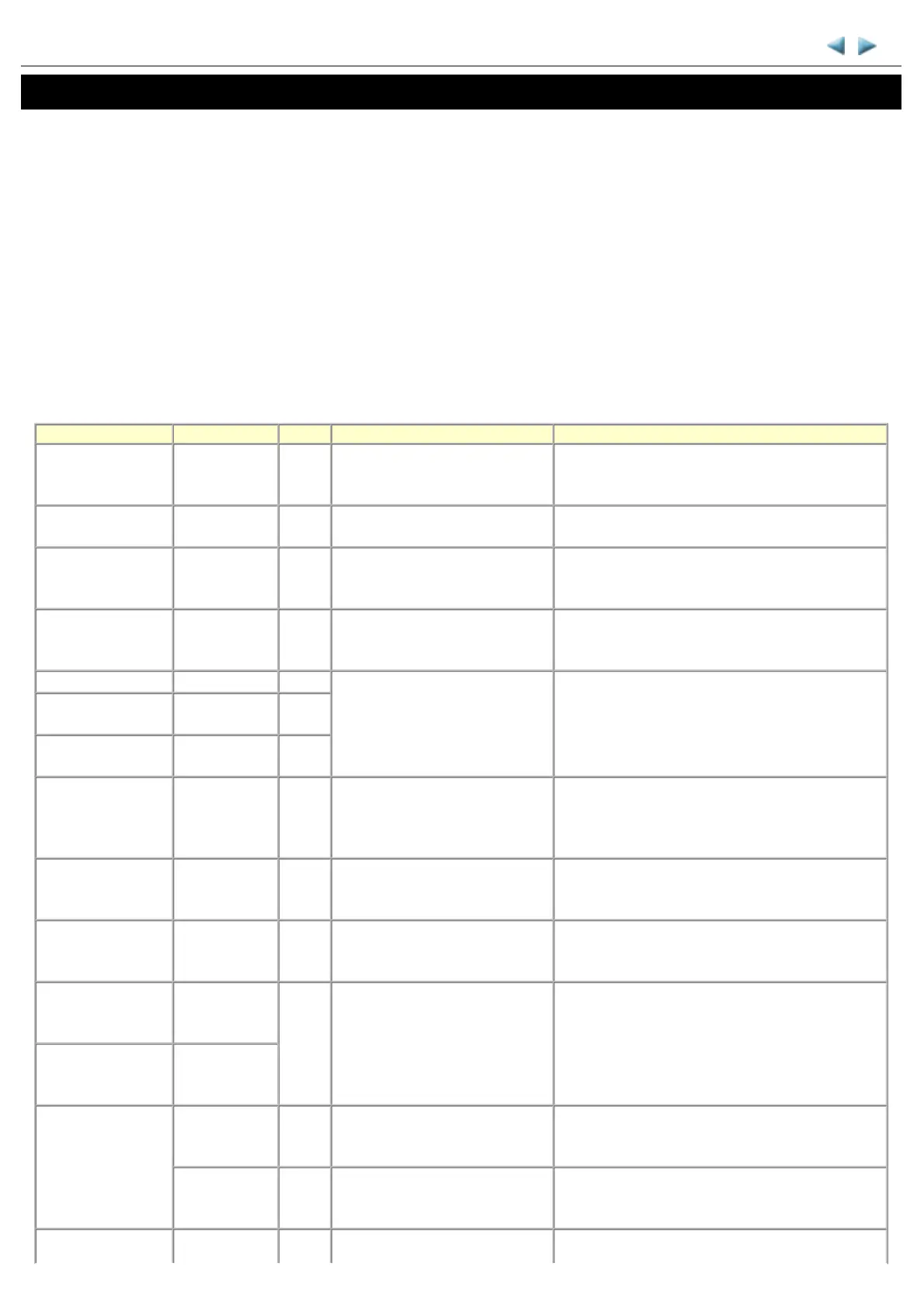
Error Error code U No. Messa
e on the LCD Solution
o paper in the rear
tray.
[1000] --- Rear tray.
There is no paper. Load paper
and press [OK].
Confirm that the rear tray is selected as the paper
source. Set the paper in the rear tray, and press the
OK button.
o CD / DVD
tra
*1
.
[1001] --- There is no CD-R tray. Attach the
tray and press [OK].
Set the CD / DVD tray, and press the OK button.
o CD or DVD
*1
.
[1002] --- Printable disc is not set. Correctly
place a disc in the CD-R tray and
press [OK].
Set a CD or DVD in the CD / DVD tray, and inset
the CD / DVD tray in the proper position. Then,
press the OK button.
o paper in the
cassette.
[1003] --- Cassette.
There is no paper. Load paper and
press [OK].
Confirm that the cassette is selected as the paper
source. Set the paper in the cassette, and press the
OK button.
Paper jam. [1300] --- The paper is jammed. Clear the
paper and press [OK].
Remove the jammed paper, and press the OK
button.
Paper jam in the rear
guide.
[1303] ---
Paper jam in the
under guide.
[1304] ---
Ink may have run
out.
[1600] U041 The following ink may have run
out. Replacing the ink tank is
recommended.
Replace the applicable ink tank, or press the OK
button to clear the error without ink tank
replacement. When the error is cleared by pressing
the OK button, ink may run out during printing.
Ink tank not
installed.
[1660] U043 The following ink tank cannot be
recognized.
(Applicable ink tank icon)
Install the applicable ink tank(s) properly, and
confirm that the LED's of all the ink tanks light red.
Print head not
installed, or not
properly installed.
[1401] U051 Print head is not installed. Install
the print head.
Install the print head properly.
Print head
temperature sensor
error.
[1403] U052 The type of print head is incorrect.
Install the correct print head.
Re-set the print head. If the error is not cleared, the
print head may be defective. Replace the print head.
Faulty EEPROM
data of the print
head.
[1405]
Inner cover error.
[1841
*2
,
1846
*2
, 1851
*1
,
1856
*1
--- Inner cover is open. Close the
inner cover and press [OK].
Close the inner cover, and press the OK button.
[1850
*1
,
1855
*1
]
--- Open the inner cover, place the
CD-R tray and press [OK].
Open the inner cover which functions as the CD /
DVD tray feeder, set the CD / DVD tray in the
feeder, and press the OK button.
Multiple ink tanks of [1681] U071 More than one ink tank of the Replace the wrong ink tank(s) with the correct one


 To Next Page
 Loading...