Need help?
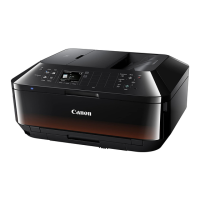
Do you have a question about the Canon MX922 and is the answer not in the manual?
Press the FAX button to put the machine into fax standby mode.
Click Next to continue with the image-friendly fax setup procedure.
Visual diagrams illustrating phone line connections before and after setup.
Plug the provided phone cord into the DSL/Cable Modem.
Plug the provided phone cord into the “LINE” jack on the rear of the multifunction.
Remove the white plug from the upper jack labeled “EXT.”
Plug the second phone cord into the “EXT." jack located on the rear of the multifunction.
Plug the existing phone cord into the phone.
Turn on the MX922 by pressing the ON button if the machine is not powered on.
Press the FAX button to initiate the fax setup.
The fax standby screen will appear on the display.
Press the center FUNCTION button to access settings.
The Receive mode settings screen will appear.
Use UP/DOWN buttons to highlight "TEL priority mode".
Press the FUNCTION button under the Advanced label.
The Advanced screen will appear with options.
Use UP/DOWN buttons to select "User-friendly reception".
Press the OK button to confirm the selection.
The User-friendly reception screen will appear.
Use UP/DOWN buttons to select "ON" for User-friendly reception.
Press the OK button to confirm the ON setting.
Screen flashes "User-friendly reception ON".
The screen will return to the Advanced window.
Press the Back button to return to Receive mode settings.
Confirm "TEL priority mode" is highlighted and press OK.
Return to the fax standby screen with TELpriority displayed.
Steps to follow for successfully receiving a fax document.
 General
| Brand | Canon |
|---|---|
| Model | MX922 |
| Category | Fax Machine |
| Language | English |

 To Next Page