EasyManua.ls Logo

Canon PIXMA IP1500 - User Manual

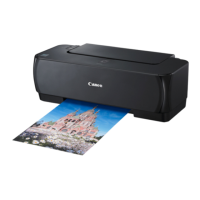
Canon PIXMA IP1500
76 pages
Print Icon
To Next Page IconTo Next Page
Loading...
Photo Printer
Quick Start Guide
QA7-3249-V01 XXXXXXXX ©CANON INC.2004 PRINTED IN VIETNAM
The following ink tanks are compatible with iP1500.
For details on ink tank replacement, refer to “Replacing an Ink Tank” in this guide.
Quick Start Guide
Canon U.S.A., Inc.
One Canon Plaza, Lake Success, NY 11042, U.S.A.
Canon Inc.
30-2, Shimomaruko 3-Chome, Ohta-ku, Tokyo 146-8501, Japan
Canon Canada, Inc.
6390 Dixie Road, Mississauga, Ontario, L5T 1P7, Canada
Canon Latin America, Inc.
703 Waterford Way, Suite 400, Miami, FL 33126, U.S.A.
Canon Mexicana S. de R.L. de C.V.
Periferico Sur No. 4124 Col. Ex-Rancho de Anzaldo, C.P. 01900, Mexico, D.F.

Questions and Answers

  • E
    Elizabeth RomeroAug 8, 2025
    Why is the back of the paper smudged when printing with my Canon PIXMA IP1500 Printer?
    • A
      Andrew AdamsAug 8, 2025
      If the printed surface is scratched or the back of the paper is smudged when using your Canon Printer, it could be due to the media being curled. If the media is curled, its print side may be smudged by touching the Print Head. Uncurl the media. Another reason might be that the inside of the printer is dirty. Periodically clean the inside of the printer with cotton swabs or the like. It could also be due to inappropriate paper type used. Check to see if the paper you are printing on is too thick or curled. Finally, the Paper Feed Roller may be dirty, so clean the Paper Feed Roller.
  • T
    tracy77Aug 13, 2025
    What to do if my Canon PIXMA IP1500 Printer stops during print jobs?
    • L
      linda57Aug 14, 2025
      If your Canon Printer doesn't start or stops during print jobs, it could be due to several reasons. One reason is that the print head has overheated due to long periods of continuous printing. Stop printing and turn the printer off for at least 15 minutes to allow the Print Head to cool down. Another reason may be that you are printing high-resolution photographs and graphics, which can take time. Wait until the print job finishes. The POWER lamp flashes green while the print data is being processed. Also, avoid using USB cables longer than 16.4 feet. If the issue persists, restart your computer. It may solve the problem.
  • M
    Mikayla JonesAug 18, 2025
    Why does my Canon PIXMA IP1500 Printer cause paper to curl?
    • D
      Dr. John Leach DVMAug 18, 2025
      If the printed paper curls or has ink blots when using your Canon Printer, it might be because the paper is too thin. Try using High Resolution Paper or Photo Paper Pro, especially for images that require a lot of ink. Another potential cause is that the color intensity setting is too high. Reduce the Intensity setting in the printer driver and try printing again. To do this, open the Printer Properties dialog box, go to the Main tab, select Manual for Color Adjustment, and then click Set. Drag the Intensity slide bar to adjust the intensity. Alternatively, in the Print dialog box, select Color Option from the pop-up menu and drag the Intensity slide bar.
  • M
    martinkathleenAug 25, 2025
    What to do if Canon PIXMA IP1500 cannot print to end of job?
    • M
      michaelwilliamsonAug 25, 2025
      If your Canon Printer cannot print to the end of the job, ensure that the page size setting matches the size of the paper loaded in the printer. Check the Paper Size setting within your application and the Page Setup tab in the Printer Properties dialog box (for Windows) or the Page Setup dialog box (for Macintosh) to ensure they match the paper size. Also, your operating system may be out of free disk space, so check the available space on your computer’s hard disk.
  • V
    vwoodsOct 28, 2025
    How to fix blurred printing on my Canon Printer?
    • C
      Christopher HernandezOct 28, 2025
      If the ink isn't ejecting correctly, printing is blurred, colors are wrong, white streaks appear, or printed ruled lines are displaced on your Canon Printer, here's what you can do: * First, make sure the ink tanks are firmly seated in the print head. Reseat them if necessary. * Second, print a nozzle check pattern to check for uneven ink output. If a specific color is missing, clean the print head. * Third, align the print head. Also, check that your paper is loaded with the correct print side facing up and that the media type selected in the print settings matches the media loaded. If you're using glossy photo paper other than Canon specialty media, select 'Other Photo Paper' from Media Type. Load one sheet at a time and remove each sheet as soon as it is printed. * Finally, ens...
  • A
    Annette CruzNov 2, 2025
    How to install Canon Printer driver?
    • H
      Heather WilliamsNov 2, 2025
      If you cannot install the printer driver for your Canon Printer, first ensure that you are following the Easy Setup Instructions correctly. If the installation was interrupted, remove the CD-ROM, restart your computer, and reinstall the driver. Other applications running in the background can interfere with the installation, so close all open software before reinstalling. If the installation doesn't start automatically when you insert the CD-ROM, go to 'My Computer,' double-click the CD-ROM icon to start the installation. Also, ensure that there are no problems with the Setup Software & User’s Guide CD-ROM. Use Windows Explorer to ensure that the CD-ROM can be read. If you cannot proceed beyond the Printer Connection screen, click Cancel. When the Installation Failure screen is displayed, ...

Summary

Getting Help from Canon

Help Us Help You Better

Instructions on what information to record before contacting Canon for assistance.

Canon U.S.A. Customer Technical Support Sequence

Steps for contacting Canon USA for technical support via Internet, Email, and Phone.

Copyright and Disclaimer

Copyright Information

Details about the copyright of the manual and its reproduction rights.

Disclaimer

Statements regarding the accuracy and warranty of the manual's content.

Trademarks

List of registered trademarks and their owners.

Basic Printing

Turning on the Printer

Step-by-step guide to powering on the Canon PIXMA iP1500 printer.

Loading Paper

Instructions on how to load plain paper and avoid unsuitable media types.

Loading Envelopes

Procedure for loading envelopes into the printer's auto sheet feeder.

Loading 4 x 6 Papers

Instructions for loading 4" x 6" size photo papers into the printer.

Using Speciality Media

Information on recommended Canon specialty papers for optimal print quality.

Canon Speciality Media Details

Table detailing media names, paper support load limits, and driver settings.

Printing with Windows

Guide to printing documents from Windows operating systems.

Printing with Macintosh

Guide to printing documents from Macintosh operating systems.

Canceling Printing

Steps to cancel a print job in progress using the printer's button.

Advanced Printing

Accessing Printer Driver

Methods to open the printer driver properties from Windows or Start Menu.

Adjusting Print Quality for Photographs

How to control print appearance and quality for photographic images.

Image Optimization Features

Using Photo Optimizer PRO and Vivid Photo for image enhancement.

Reducing Image Noise

Using Photo Noise Reduction to minimize image noise from digital cameras.

Saving and Recalling Driver Settings

How to save and recall custom printer driver settings for future use.

Using the Bundle Software

Overview of photo applications included with the printer software for printing purposes.

Printing Borderless Photographs

Steps to print borderless photos using included photo applications.

Printing Maintenance

When Printing Becomes Faint or Colors are Incorrect

Procedure to clean print head nozzles when print quality degrades.

Printing the Nozzle Check Pattern

How to print a pattern to check for clogged print head nozzles.

Print Head Cleaning

Procedure to unclog print head nozzles when the nozzle check pattern shows issues.

Print Head Deep Cleaning

Performing a more powerful cleaning process when standard cleaning fails.

Aligning the Print Head

Procedure to correct displaced ruled lines or unsatisfactory print results.

Replacing an Ink Tank

Step-by-step guide for replacing empty ink tanks with new ones.

Resetting the Ink Counter

How to reset the printer's ink counter after replacing an ink tank.

Low Ink Warning Settings

Understanding and configuring the low ink warning notifications.

Troubleshooting

When an Error Occurs

Actions to take when the BJ Status Monitor displays an error message.

Cannot Install the Printer Driver

Solutions for problems encountered during printer driver installation.

Print Quality Issues

Troubleshooting steps for poor print quality, blurred prints, or incorrect colors.

Troubleshooting Printer Hardware

Resolving issues related to the printer not starting or stopping during print jobs.

Paper Feed Problems

Steps to resolve issues where the printer does not feed paper properly or jams.

Handling Error Messages

Interpreting and responding to printer error messages indicated by POWER/ERROR lamp flashes.

An Error Message Appears on the Screen

Troubleshooting steps for specific error messages displayed on the computer.

Appendix

Installing Printer Driver on Mac OS 9.x

Instructions for installing the printer driver on Mac OS 9.x systems.

Users Guide Table of Contents Overview

Summary of topics covered in the full User's Guide.

Printer Specifications

Technical details including dimensions, weight, power, and ink tank capacity.

BJ Printer Driver System Requirements

Requirements for Windows and Macintosh computers to install the printer driver.

Safety Precautions

Important safety warnings and cautions for using the printer safely.

Regulatory Information

FCC and Canadian radio interference compliance information for the printer.

Canon U.S.A., Inc. Limited Warranty (USA Only)

Details of the limited warranty terms and conditions for Canon products in the USA.

Canon PIXMA IP1500 Specifications

General IconGeneral
Maximum print size210 x 297 mm
Standard media sizesA4, B5, A5, Letter, Legal, Envelopes, 4 x 6\
Media weight (tray 1)64 - 105 g/m²
Maximum ISO A-series paper sizeA4
Maximum resolution4800 x 1200 DPI
Print speed (black, normal quality, A4/US Letter)18 ppm
Print speed (color, normal quality, A4/US Letter)13 ppm
InterfaceUSB 2.0
Print technologyInkjet
Dimensions (WxDxH)416 x 207 x 165 mm
Power requirements220-240V; 50/60 Hz
Media types supportedPlain Paper, Envelopes, Photo Paper Pro, Photo Paper Plus Glossy, Photo Paper Plus Double Sided, Photo Paper Plus Semi-gloss, Glossy Photo Paper, Matte Photo Paper, High Resolution Paper, Transparency, T-shirt Transfer
Compatible ink types, suppliesBCI-24Bk - Black ink tank /BCI-24C - Colour ink tank
Standard output capacity for transparencies30 sheets
ColorYes
Number of print cartridges2
Minimum RAM64 MB
CompatibilityPC / Mac
Minimum storage drive space50 MB
Minimum system requirementsCD-ROM
Compatible operating systemsWindows 98SE/Me/2000/XP Mac OS 9.x Mac OS X 10.2.1 +
Sound power level (standby)43 dB
Power consumption (standby)1 W
Power consumption (printing)8 W
Total input capacity100 sheets
Bundled softwareEasy-WebPrint Easy-PhotoPrint PhotoRecord Easy-PrintToolBox Easy-PhotoPrint (Mac) Drivers
Operating temperature (T-T)5 - 35 °C
Operating relative humidity (H-H)10 - 90 %
Market positioningHome & office

Related product manuals