EasyManua.ls Logo

Canon PIXMA MG4220 - User Manual

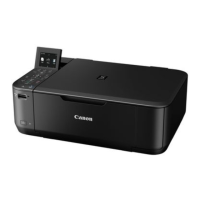
Canon PIXMA MG4220
18 pages
Print Icon
To Next Page IconTo Next Page
Loading...
<< Previous Next >>
Installing Your Multifunction
to Your Network for the First Time
PIXMA MG4220
Macintosh OS
1

Other manuals for Canon PIXMA MG4220

Question and Answer IconNeed help?

Do you have a question about the Canon PIXMA MG4220 and is the answer not in the manual?

Summary

Preparing to Connect to the Network

Network Requirements

Details prerequisites for connecting the machine to the network.

Wireless Connection

Explains computer connection necessity for wireless setup.

Notes on Network Connection

Provides important notes and advice for network connection setup and security.

Installing the Drivers & Software

Software Installation

Explains the process of installing necessary software and drivers onto the computer.

Wireless Network Installation

Guides through wireless setup using the provided CD-ROM or alternative methods.

Installing the Drivers

CD-ROM Setup Steps

Details initial steps for CD-ROM setup, including inserting the disc and running the setup.

Software Download Process

Describes the download procedure, conditions, and handling of download errors.

Download Completion and Saving Files

Details the screen shown upon successful download and the option to save setup files.

Administrator Authentication

Instructs on providing administrator name and password for system changes during installation.

Connection Method Selection

Guides selecting the connection method, specifically 'Wireless Connection'.

Printer Setup and Network Connection

Covers connecting the printer to the network and selecting setup procedures like WPS.

Software Installation List

Allows selection of optional software components to install alongside drivers.

Add the Printer

Adding a Printer via System Dialog

Describes the process of adding a printer via the 'Add Printer' screen and selecting the model.

Selecting Printer Model for Network

Details selecting the printer model and 'Canon IJ Network' in the 'Add Printer' dialog.

Finalizing Printer Setup

Indicates that the printer setup is complete and the product is ready for use.

Install Drivers Using Downloaded Files

Accessing Downloadable Drivers

Provides a link to the Canon download page for drivers and software.

Downloading Software Files

Guides selecting the operating system and downloading the necessary software files.

Running Downloaded Setup

Instructs on running the setup from downloaded files, referencing CD-ROM installation steps.

Overview

This document outlines the installation process for a Canon PIXMA MG4220 multifunction printer, focusing on connecting it to a network and installing the necessary drivers and software. The guide is designed for users operating on a Macintosh OS, with a separate section for Windows OS (though the Windows OS content is not provided in the given pages).

Function Description:

The Canon PIXMA MG4220 is a multifunction device, implying it combines several functions such as printing, scanning, and copying, though the document primarily focuses on its printing capabilities and network connectivity. The core function described is the ability to connect the device to a network, specifically a wireless network, to enable printing from multiple computers without direct cable connections. This allows for shared usage of the printer within a home or small office environment. The installation process ensures that the printer is properly configured to communicate with the network and the connected computers, facilitating wireless printing.

Usage Features:

The installation guide emphasizes ease of use, starting with a step-by-step approach for connecting the multifunction device to a network.

  1. Network Connection: The initial setup involves ensuring the computer is already connected to the network (via an access point or router) before attempting to connect the printer. This foundational step is crucial for successful network integration. The guide clearly illustrates the network setup with a diagram showing the internet, an access point/router, and a computer connected to the network, with the printer then connecting to the same network.
  2. Wireless Connectivity: A key feature highlighted is the wireless connection capability. The PIXMA MG4220 can connect to a Wi-Fi network, allowing users to print without physical cables. The installation routine includes a built-in step-by-step wireless setup. Users are instructed to select "Wireless Connection" during the Connection Method Selection screen.
  3. Ad-hoc Connection Warning: The document explicitly states that an "Ad-hoc connection," which establishes a direct connection to the computer over a wireless connection without using an access point, is not supported. This clarifies a limitation and guides users towards infrastructure mode wireless connections.
  4. Driver and Software Installation: The installation of drivers and software is a central usage feature, enabling the computer to recognize and interact with the printer. The guide details how to install these from a provided CD-ROM or by downloading them from the Canon website. The software package includes essential components like MP Drivers, ScanGear, On-screen Manual, Quick Menu, and Canon IJ Network Tool. The Canon IJ Network Tool is specifically noted as being required for wireless network connection.
  5. Add Printer Process: After the initial software installation, users are guided through adding the printer to their computer's system. This involves selecting "Canon xxx series" with "Canon IJ Network" listed in the Kind column from the Add Printer dialog, ensuring the printer is properly registered and accessible for printing. The document also mentions "Bonjour" as an alternative selection but recommends "Canon IJ Network" for accurate ink level messages.
  6. Downloadable Drivers: For users who do not have the CD-ROM, the guide provides instructions on how to download the "MG4200 series Mini Master Setup" from the Canon website. This downloadable package offers the same step-by-step installation experience, ensuring that all users can set up their printer regardless of CD-ROM availability.
  7. Setup Completion: The installation process concludes with a "Setup Complete" screen, indicating that the product is ready for use.

While the document primarily focuses on initial setup, it includes several points that can be considered maintenance-related or best practices for ensuring smooth operation:

  1. Network Requirements: Before installation, users are advised to ensure their computer's network configuration is complete and connected to the network. This proactive step helps prevent installation issues.
  2. Notes on Wireless Connection:
    • System Environment Variability: The guide highlights that router functions, setup procedures, and security settings vary depending on the system environment. Users are advised to refer to their device's instruction manual or contact the manufacturer for details, emphasizing the importance of understanding their specific network setup.
    • Security Measures: A critical warning is issued regarding connecting to unprotected networks, stating a risk of disclosing personal data. This encourages users to maintain secure network environments.
    • Troubleshooting: If error messages appear or network connection issues arise, users are directed to the "Network Setup Troubleshooting" section of the printed manual, providing a resource for resolving common problems.
    • Network Segment: Users are instructed to place the machine and computer on the same network segment, which is a fundamental networking principle for direct communication between devices.
  3. Software Installation Best Practices:
    • Administrator Privileges: Users must log on as an administrator (or a member of the Administrators group) for software installation, ensuring necessary system permissions.
    • Quit Applications: All running applications should be quit before installation to prevent conflicts.
    • No User Switching: Users are advised not to switch users during the installation process, maintaining a stable environment.
    • Internet Connection: An internet connection may be required during installation, and users are reminded that connection fees may apply, suggesting they consult their internet service provider.
    • Computer Restart: The installation process may require a computer restart. Users are instructed to follow on-screen instructions and not remove the Setup CD-ROM during restarting, as the installation will resume afterward.
    • Firewall Configuration: If a firewall is active, a warning message might appear. Users are advised to set their security software to always allow access for Canon software, ensuring proper communication.
  4. Printer Detection Troubleshooting: If the printer is not detected during the "Add Printer" step, users are prompted to check:
    • If the machine is turned on.
    • If the firewall function of any security software is turned off.
    • If the computer is connected to the access point. These troubleshooting tips help users diagnose and resolve common connectivity issues, ensuring the printer can be successfully added to the system.

Canon PIXMA MG4220 Specifications

General IconGeneral
Duplex printingYes
Print technologyInkjet
Maximum resolution4800 x 1200 DPI
Print speed (black, normal quality, A4/US Letter)9.9 ppm
Print speed (color, normal quality, A4/US Letter)5.7 ppm
All-in-one functionsCopy, Print, Scan
Color all-in-one functionscopy, print, scan
Digital senderNo
Maximum duty cycle- pages per month
Maximum copy resolution- DPI
Scanner typeFlatbed scanner
Input color depth48 bit
Maximum scan area216 x 297 mm
Output color depth24 bit
Maximum scan resolution19200 x 19200 DPI
Optical scanning resolution1200 x 2400 DPI
Total input capacity100 sheets
Total output capacity- sheets
Maximum print size210 x 297 mm
Paper tray media typesEnvelopes, Glossy paper, Matte paper, Photo paper, Plain paper
ISO A-series sizes (A0...A9)A4, A5, A6
Maximum ISO A-series paper sizeA4
DisplayLCD
Product colorBlack
Display diagonal2.5 \
Market positioningHome & office
Standard interfacesUSB 2.0, Wireless LAN
Wi-Fi standards802.11b, 802.11g, Wi-Fi 4 (802.11n)
Mobile printing technologiesApple AirPrint
Internal memory- MB
Compatible memory cardsminiSD, miniSDHC, MMC, MMC+, MS Duo, MS Micro (M2), MS PRO Duo, SD, SDHC
Power consumption (average operating)- W
Mac operating systems supportedMac OS X 10.5 Leopard, Mac OS X 10.6 Snow Leopard, Mac OS X 10.7 Lion
Windows operating systems supportedWindows 7 Home Basic, Windows 7 Home Premium, Windows 7 Professional, Windows 7 Starter, Windows 7 Ultimate, Windows Vista Business, Windows Vista Enterprise, Windows Vista Home Basic, Windows Vista Home Premium, Windows Vista Ultimate, Windows XP Home, Windows XP Professional
Bundled softwareEasy-WebPrint EX, My Image Garden
Sustainability certificatesENERGY STAR
Weight and Dimensions IconWeight and Dimensions
Depth304.8 mm
Width449.58 mm
Height152.4 mm

Related product manuals