EasyManua.ls Logo

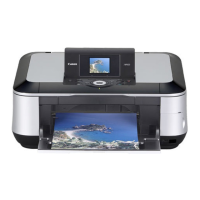
Canon PIXMA MP510 - User Manual

Canon PIXMA MP510
98 pages
Print Icon
To Next Page IconTo Next Page
Loading...
Photo All-in-One
Quick Start Guide
Canon U.S.A., Inc.
One Canon Plaza, Lake Success, NY 11042, U.S.A.
Canon Inc.
30-2, Shimomaruko 3-chome, Ohta-ku, Tokyo 146-8501, Japan
Canon Canada, Inc.
6390 Dixie Road, Mississauga, Ontario, L5T 1P7, Canada
Canon Latin America, Inc.
703 Waterford Way, Suite 400, Miami, FL 33126, U.S.A.
Canon Mexicana
Boulevard Manuel Avila Camacho No. 138 PB
y Pisos 15, 16 y 17, Colonia Lomas de Chapultepec
Delegación Miguel Hidalgo, CP 11000, Mexico D.F.
The following ink tanks are compatible with this product.
QT5-0454-V01 XXXXXXXX ©CANON INC.2006 PRINTED IN VIETNAM

Table of Contents

Other manuals for Canon PIXMA MP510

Questions and Answers

  • C
    Cole BurkeSep 3, 2025
    What to do if Canon PIXMA MP510 Printer scanner is not operating correctly?
    • K
      Kelly GonzalezSep 3, 2025
      If your Canon Printer displays an error message on the LCD because the scanner is not operating correctly, turn off the machine, and unplug the power cord of the machine from the power supply. After a while, plug the power cord of the machine back in, and then turn on the machine.
  • I
    iwilliamsSep 18, 2025
    Why can't I print from my camera, and Canon PIXMA MP510 Printer says printer cover open?
    • J
      James WalshSep 18, 2025
      If you cannot print properly from a digital camera with your Canon Printer because the printer cover is open, close the Scanning Unit (Printer Cover) on the machine.
  • M
    Michele JacksonSep 16, 2025
    How to fix Canon Printer paper error when printing from camera?
    • G
      garyfordSep 16, 2025
      If you cannot print properly from a digital camera with your Canon Printer due to a paper error, load the paper in the Auto Sheet Feeder, press the Paper Feed Switch to select the Auto Sheet Feeder as the paper source.
  • H
    Holly WellsSep 14, 2025
    Why is my Canon PIXMA MP510 Printer not printing from my camera and says no paper?
    • C
      Christopher PriceSep 14, 2025
      If you cannot print properly from a digital camera with your Canon Printer because there is no paper, load paper in the Auto Sheet Feeder and select Continue in the display on your camera.
  • S
    smithmarissaSep 12, 2025
    Why can't I see the display on my Canon PIXMA MP510 LCD?
    • A
      Amanda MaxwellSep 12, 2025
      If you cannot see the display on the LCD of your Canon Printer, and the POWER lamps is off, it means the machine is not powered on. Connect the power cord and press the ON/OFF button.
  • C
    Chris PattersonSep 12, 2025
    Why does my Canon PIXMA MP510 Printer say there are no photos in memory card?
    • S
      Sara SummersSep 12, 2025
      If your Canon Printer displays an error message on the LCD, and the cause is that there are no photos in the memory card, it means there are no image data stored on the memory card that can be read by this machine. The machine may not recognize the file if the file name or the folder path contains certain characters. Use only alphanumeric characters. Photo data edited or processed on a computer must be printed from the computer.
  • B
    Bailey ThorntonSep 9, 2025
    How to adjust Canon PIXMA MP510 LCD contrast?
    • E
      Ernest FullerSep 9, 2025
      If the LCD on your Canon Printer is hard to see, and the display on the LCD is hard to see, adjust the contrast in the Adjust contrast menu in the Maintenance/settings.
  • T
    Tracy MartinezSep 7, 2025
    What to do if Canon PIXMA MP510 Printer displays incompatible device error?
    • J
      Julie RyanSep 7, 2025
      If your Canon Printer displays an error message on the LCD, and the cause is an incompatible device detected, disconnect the cable connecting the machine and the device, and then reconnect it.
  • J
    Juan CohenSep 5, 2025
    What to do if Canon PIXMA MP510 Printer ink tank not installed in proper position?
    • M
      Mary CoxSep 5, 2025
      If your Canon Printer is not printing and you suspect the ink tank is not installed in proper position, open the Scanning Unit (Printer Cover) and check the ink lamps. Confirm that the ink tanks are installed in the appropriate positions.
  • D
    Dr. Amanda Patterson DVMAug 20, 2025
    What to do if Canon PIXMA MP510 Printer says ink ran out?
    • D
      David AlvarezAug 20, 2025
      If the Canon Printer displays an error message on the LCD, and the cause is that the ink has run out, replace the ink tank and close the Scanning Unit (Printer Cover). Printing under the current condition may damage the machine.

Summary

Getting Help from Canon

Customer Technical Support Sequence*

Steps to get technical support via Internet, Email, Phone, and Extended Service.

Before Printing

Turning the Machine On and Off

Procedure to turn the printer on, including checks for readiness.

Turning off the Machine

Procedure to turn the printer off safely to protect the print head.

Handling the Original Document

Original Document Requirements

Specifications for documents to be copied or scanned.

Loading Original Documents

Step-by-step guide to placing documents on the platen glass.

Loading Printing Paper

Paper Handling

Table detailing media types, models, load limits, and front feeder settings.

Loading Paper in the Auto Sheet Feeder

Step-by-step guide for loading paper into the auto sheet feeder.

Loading Paper in the Front Feeder

Step-by-step guide for loading paper into the front feeder.

Paper Source Management

Using the Auto Sheet Feeder and the Front Feeder

Explanation of the two paper sources and their usage.

To Change the Paper Source

How to switch between Auto Sheet Feeder and Front Feeder using the switch.

Changing the Print Settings

How to Change the Settings

Procedure to change settings on the operation panel, using an example.

Printing from Your Computer

Printing with Windows

Procedures for printing from Windows operating systems.

Printing with Macintosh

Procedures for printing from Macintosh operating systems.

Scanning Images

Scanning Methods

Methods for scanning images using the machine or software.

Copying

Making Copies

Basic procedure for making copies.

Printing from a Memory Card

Memory Cards Supported by This Machine

Information on compatible memory cards and printing from them.

Inserting the Memory Card

Step-by-step guide for inserting memory cards into the card slot.

Printing Photographs Directly from a Compliant Device

Connecting a PictBridge Compliant Device

Steps to connect a PictBridge device via USB cable.

Routine Maintenance

Knowing When to Replace Ink Tank

How to identify low or empty ink tanks using LCD symbols and lamps.

Replacing Ink Tanks

Detailed step-by-step instructions for replacing ink tanks.

Print Quality Troubleshooting

When Printing Becomes Faint or Colors Are Incorrect

Troubleshooting steps for print quality issues like faint prints or incorrect colors.

Printing the Nozzle Check Pattern

Procedure to print the nozzle check pattern for diagnosing print head issues.

Print Head Cleaning

Step-by-step guide for cleaning the print head to resolve print quality issues.

Aligning the Print Head

Procedures for automatic and manual print head alignment to correct misalignment.

Printer Cleaning

Cleaning Your Machine

Procedures for cleaning the machine's exterior components.

Cleaning the Paper Feed Rollers (Roller Cleaning)

Steps to clean the paper feed rollers of the auto sheet feeder and front feeder.

Troubleshooting

Error Message Is Displayed on the LCD

Actions to take when specific error messages appear on the LCD.

Print Results Not Satisfactory

Troubleshooting for common issues like incomplete prints or incorrect colors.

Paper Jams

Procedures for safely removing paper jams from various parts of the machine.

Appendix

Reading the On-screen Manuals

How to access and view the on-screen manuals.

Specifications

General Specifications

Detailed technical specifications for the printer.

Minimum System Requirements*1

Windows System Requirements

System requirements for using the printer with Windows.

Macintosh System Requirements

System requirements for using the printer with Macintosh.

Safety Precautions

Choosing a location

Guidelines for selecting a safe and appropriate location for the printer.

Power supply

Important safety information regarding the power supply and cord.

Users in the U.S.A.

Regulatory Information

FCC compliance information for U.S. users.

Canon U.S.A., INC. LIMITED WARRANTY - (USA Only)

Details of the limited warranty for products purchased in the USA.

Ordering Information

Ink Tanks

Information on ordering compatible ink tanks with their order numbers.

Canon Specialty Papers

Information on ordering Canon specialty papers with their order numbers.

Canon PIXMA MP510 Specifications

General IconGeneral
Print TechnologyInkjet
Max Print Resolution4800 x 1200 dpi
Scanner TypeFlatbed
Scanner Resolution1200 x 2400 dpi
ConnectivityUSB 2.0
FunctionsPrint, Copy, Scan
Paper Capacity150 sheets
Ink CartridgesPGI-5BK, CLI-8BK, CLI-8C, CLI-8M, CLI-8Y
Weight17.6 lbs
Copier Speed (Color)17 cpm
Paper SizesLetter, Legal, Envelopes
Operating System CompatibilityWindows, Mac OS
Print Speed (Color)17 ppm
DisplayLCD

Related product manuals