EasyManua.ls Logo

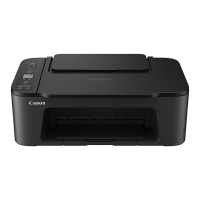
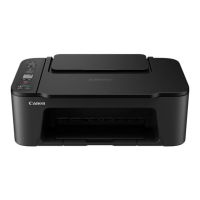
Canon PIXMA TS3520 - User Manual

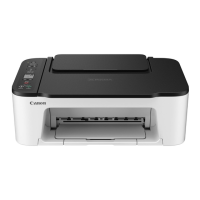
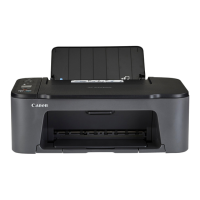
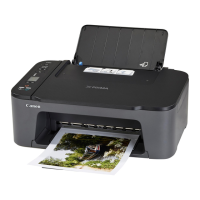
Canon PIXMA TS3520
387 pages
Print Icon
To Next Page IconTo Next Page
Loading...
TS3500 series
Online Manual
English

Table of Contents

Question and Answer IconNeed help?

Do you have a question about the Canon PIXMA TS3520 and is the answer not in the manual?

Summary

Using the Online Manual

Symbols Used in This Document

Explains symbols used in the manual for clarity and safety.

Trademarks and Licenses

Lists trademarks and licensing information for the software and hardware.

Network Connectivity and Setup

Default Network Settings

Details the default network configurations for LAN and Wireless Direct connections.

IJ Network Device Setup Utility

Software for diagnosing, repairing, and configuring network settings.

Performing;Changing Network Settings

Guide to configuring or modifying wired LAN and Wi-Fi connections.

Network Settings and Common Problems

Addresses frequently asked questions and common issues related to network setup.

Printer Maintenance and Paper Handling

Loading Paper

Instructions on how to load various types of paper into the printer.

Replacing a FINE Cartridge

Step-by-step instructions for replacing ink cartridges.

Cleaning Paper Feed Rollers

Procedure to clean paper feed rollers to resolve paper feeding issues.

Cleaning Inside the Printer (Bottom Plate Cleaning)

Method to clean the inside of the printer to prevent paper smudging.

Print Quality Troubleshooting

Maintenance Procedure

Steps to resolve issues like blurred or incorrect print results.

Cleaning the Print Head

Procedure to clean print head nozzles to fix print quality issues.

Aligning the Print Head

Process to adjust print head position for improved print alignment.

Printout Results Are Unsatisfactory

Troubleshooting guide for print issues like streaks, misalignment, or color problems.

Scanning Operations

Scanning from Computer (Windows)

Instructions for scanning documents and photos from a Windows computer.

IJ Scan Utility Features

Overview of the capabilities and functions of the IJ Scan Utility software.

Scanning Using Application Software (ScanGear)

Instructions for using ScanGear scanner driver for advanced scanning.

Summary

Using the Online Manual

Symbols Used in This Document

Explains symbols used in the manual for clarity and safety.

Trademarks and Licenses

Lists trademarks and licensing information for the software and hardware.

Network Connectivity and Setup

Default Network Settings

Details the default network configurations for LAN and Wireless Direct connections.

IJ Network Device Setup Utility

Software for diagnosing, repairing, and configuring network settings.

Performing;Changing Network Settings

Guide to configuring or modifying wired LAN and Wi-Fi connections.

Network Settings and Common Problems

Addresses frequently asked questions and common issues related to network setup.

Printer Maintenance and Paper Handling

Loading Paper

Instructions on how to load various types of paper into the printer.

Replacing a FINE Cartridge

Step-by-step instructions for replacing ink cartridges.

Cleaning Paper Feed Rollers

Procedure to clean paper feed rollers to resolve paper feeding issues.

Cleaning Inside the Printer (Bottom Plate Cleaning)

Method to clean the inside of the printer to prevent paper smudging.

Print Quality Troubleshooting

Maintenance Procedure

Steps to resolve issues like blurred or incorrect print results.

Cleaning the Print Head

Procedure to clean print head nozzles to fix print quality issues.

Aligning the Print Head

Process to adjust print head position for improved print alignment.

Printout Results Are Unsatisfactory

Troubleshooting guide for print issues like streaks, misalignment, or color problems.

Scanning Operations

Scanning from Computer (Windows)

Instructions for scanning documents and photos from a Windows computer.

IJ Scan Utility Features

Overview of the capabilities and functions of the IJ Scan Utility software.

Scanning Using Application Software (ScanGear)

Instructions for using ScanGear scanner driver for advanced scanning.

Canon PIXMA TS3520 Specifications

General IconGeneral
Print TechnologyInkjet
Max Print Resolution4800 x 1200 dpi
Print Speed (Black)7.7 ipm
Print Speed (Color)4.0 ipm
FunctionsPrint, Copy, Scan
ConnectivityUSB, Wi-Fi
Scanner TypeFlatbed
Maximum Copy Resolution600 x 600 dpi
Scanner Resolution600 x 1200 dpi
Paper SizesLetter, Legal, 4 x 6
Display1.5" Segment LCD
Ink Cartridge TypePG-275 (Black), CL-276 (Color)
Mobile PrintingApple AirPrint, Mopria, Canon PRINT app

Related product manuals