EasyManua.ls Logo

Canon PowerShot SD500 Digital ELPH - User Manual

Canon PowerShot SD500 Digital ELPH
195 pages
Print Icon
To Next Page IconTo Next Page
Loading...
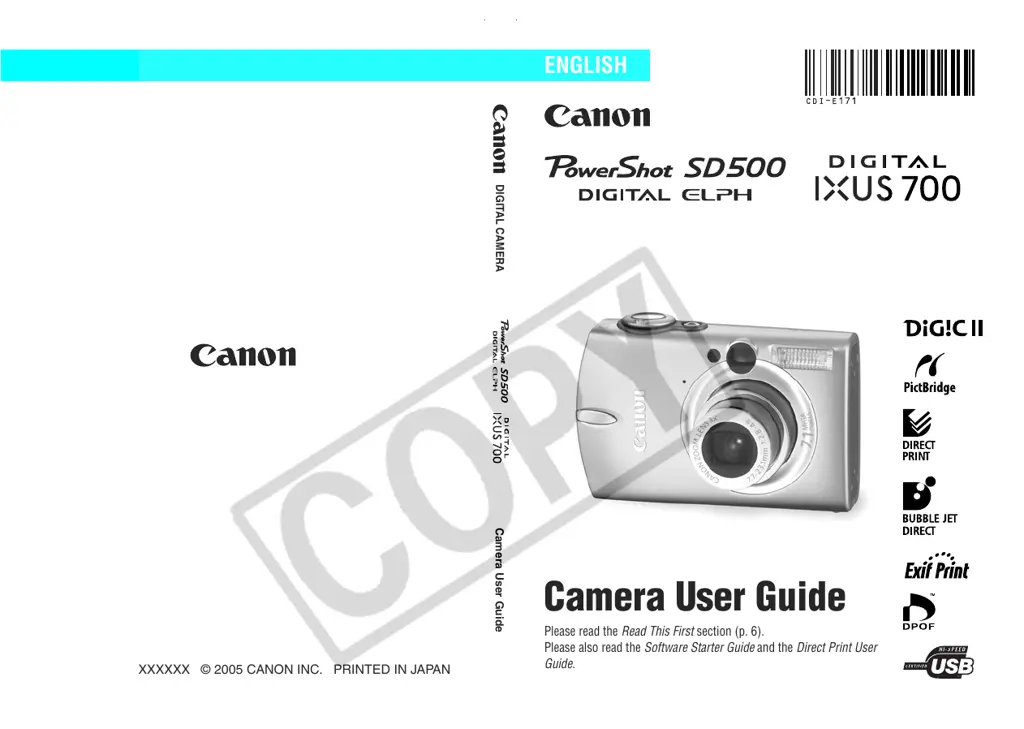
DIGITAL CAMERA
Camera User Guide
Please read the Read This First section (p. 6).
Please also read the Software Starter Guide and the Direct Print User
Guide.
CDI-E171-010 XXXXXXX © 2005 CANON INC. PRINTED IN JAPAN
Camera User Guide
ENGLISH

Table of Contents

Other manuals for Canon PowerShot SD500 Digital ELPH

Questions and Answers

  • K
    kelleykaraAug 17, 2025
    What to do if my Canon PowerShot SD500 Digital ELPH won't record?
    • G
      Gary WelchAug 17, 2025
      If your Canon Digital Camera will not record, first check that the mode dial is set to the correct setting (,, or ). If the flash is charging (blinking in the LCD monitor), wait until the indicator lights orange. If the SD card is full, insert a new SD card or download the images to a computer and erase them from the SD card to make space. Make sure the SD card is formatted correctly. If reformatting does not work, consult the nearest Canon Customer Support Help Desk. Also, ensure that the SD card is not write-protected by sliding the write-protect tab of the SD card upward.
  • X
    xyangAug 20, 2025
    What to do if my Canon PowerShot SD500 Digital ELPH battery pack will not charge?
    • E
      Elizabeth TownsendAug 20, 2025
      If the battery pack will not charge, the battery pack life may be exceeded, so replace it with a new one. Also, ensure that there is good contact between the battery pack and the battery charger by inserting the battery pack securely into the battery charger. Finally, ensure that the battery charger plug is securely plugged into the power outlet.
  • N
    Nichole HollandAug 23, 2025
    What to do if my Canon Digital Camera image is blurred?
    • J
      Jeffrey HernandezAug 23, 2025
      If the image is blurred, ensure that the subject is within the focal range. For normal shooting, stay at least 50 cm (1.6 ft.) from the subject. In macro mode, stay in the range of 30 – 50 cm (1.0 – 1.6 ft.) from the subject, or 5 - 50 cm (2.0 in. – 1.6 ft.) at maximum wide angle. Use infinity mode for distant subjects.
  • J
    jenniferbennettAug 26, 2025
    How to fix a Canon PowerShot SD500 Digital ELPH that will not operate?
    • J
      Julia SchmidtAug 26, 2025
      If your Canon Digital Camera will not operate, make sure that the power is turned on by pressing the power button. Check that the SD card slot/battery cover is securely closed. Ensure that a fully charged battery is inserted into the camera. You can also use the AC Adapter Kit ACK900 (sold separately). Finally, wipe the terminals with a clean dry cloth to ensure good contact between the camera and battery terminals.
  • S
    smiththeresaAug 28, 2025
    Why won't the lens retract on my Canon PowerShot SD500 Digital ELPH?
    • J
      Justin GreenAug 28, 2025
      If the lens will not retract, it may be because the SD card slot/battery cover was opened with the power on or while recording to the SD card. First, close the SD card slot/battery cover and then turn the power off.
  • R
    Ronald JamesAug 31, 2025
    Why is my Canon Digital Camera zoom not working?
    • J
      joelduranAug 31, 2025
      If the zoom does not operate, it might be because the zoom lever was pressed while shooting in a movie mode other than Standard. Operate the zoom before shooting in movie mode.
  • J
    James WilliamsSep 2, 2025
    Why is my Canon PowerShot SD500 Digital ELPH battery draining so fast?
    • J
      john54Sep 3, 2025
      If the battery pack loses its charge quickly at normal temperature, its life may be exceeded. Replace the battery pack with a new one.
  • J
    Jasmine KrauseSep 5, 2025
    Why is my Canon PowerShot SD500 Digital ELPH subject too dark in recorded image?
    • T
      Theresa GillSep 5, 2025
      If the subject in your recorded image is too dark, it might be due to insufficient light. Try setting the flash to on. If the subject is dark in contrast to the background, set the exposure compensation to a positive (+) setting, use AE lock, or use the spot metering function. Ensure that you are within the flash range: within 5.0 m (16.4 ft.) at maximum wide angle or 3.0 m (9.8 ft.) at the telephoto end setting. You can also raise the ISO sensitivity and then shoot.
  • N
    Natalie GibbsSep 8, 2025
    Why is my Canon PowerShot SD500 Digital ELPH subject too bright in recorded image?
    • G
      Gregory KirbySep 8, 2025
      If the subject in the recorded image is too bright, it could be because the subject is too close, making the flash too strong. When using the flash, stay at least 50 cm (1.6 ft.) from the subject. If the subject is bright in contrast to the background, set the exposure compensation to a negative (-) setting, use AE lock, or use the spot metering function.
  • N
    Nichole ReillySep 12, 2025
    Why do I hear sounds coming from my Canon Digital Camera?
    • L
      Laura LoganSep 12, 2025
      Sounds from the camera interior can occur when the camera's horizontal/vertical orientation is changed, as the camera's orientation mechanism is operating. This is normal. Also, be careful not to move the camera while pressing the shutter button. Finally, ensure that the autofocus function is not hampered by obstruction to AF-assist Beam, and be careful not to block the AF-assist Beam with fingers or other items.

Summary

Guide Overview

Conventions Used in the Text

Explains icons and marks used in the manual for clarity and consistency.

Important First Steps

Test Shots

Recommends trial shots to confirm camera operation and correct usage before important photos.

Warning Against Copyright Infringement

Warns against using the camera for purposes that infringe copyright laws and regulations.

Warranty Limitations

Explains warranty effectiveness is limited to the country of sale, with instructions for abroad use.

Safety Guidelines

Storing SD cards

Advises storing SD cards out of reach of children and infants due to swallowing risk.

General Safety Warnings

Lists critical warnings about camera operation, electrical hazards, and physical safety.

Troubleshooting Malfunctions

Avoid Strong Magnetic Fields

Advises keeping the camera away from strong magnetic fields to prevent malfunctions.

Avoid Condensation Related Problems

Explains how to prevent condensation by gradual temperature changes.

If Condensation Forms Inside the Camera

Instructs to stop using the camera if condensation is detected and how to handle it.

Extended Storage

Provides guidance on storing the camera for extended periods, including battery removal.

Handling Cautions

Environmental Precautions

Warns against exposing the camera to extreme temperatures, humidity, or dust.

Handling Precautions

Advises on careful handling to avoid impacts, damage, or burns from the flash.

Camera Components

Front View

Identifies and labels the external components visible from the front of the camera.

Back View

Camera Controls

Shooting Modes Overview

Indicators

Holding the Camera

Camera Setup

Battery Charging

Provides step-by-step instructions and precautions for charging the camera's battery.

Battery Installation

SD Card Installation

Write-Protect Tab

Explains the function of the SD card's write-protect tab and how to use it.

SD Card Installation

Provides step-by-step instructions for inserting the SD card into the camera.

SD Card Formatting

Low Level Format

Explains the purpose and process of low-level formatting for SD cards, including troubleshooting.

SD Card Handling Precautions

Lists essential precautions for handling SD cards to prevent damage or data loss.

Date and Time Setup

Clock Display Function

Language Settings

Core Camera Operations

Power Management

Explains how to turn the camera on and off, including special modes.

Turning On the Power without the Start-Up Sound

Describes how to activate the camera silently by disabling start-up sounds.

Power Saving Function

LCD Monitor Information

Using the LCD Monitor

Explains how the LCD monitor is used for shooting, menus, and playback.

Display Modes

Explains how to change display modes (Standard, Detailed, Off) on the LCD.

LCD Display Information

Lists and explains information shown on the LCD during shooting and playback.

LCD Brightness Adjustment

Instructions on adjusting LCD screen brightness for optimal viewing.

Night Display Feature

Explains the automatic LCD brightening feature in low light conditions.

Histogram Analysis

Viewfinder Usage

Image Seen in Viewfinder vs. Recorded Image

Compares the viewfinder image with the actual recorded image, noting potential differences.

Autofocus System

Describes the camera's AiAF autofocus technology and its operation.

Zoom Operation

Optical Zoom Control

Explains how to use the zoom lever for telephoto and wide-angle shots.

Digital Zoom Feature

Details the use and limitations of the camera's digital zoom feature.

Shutter Button Use

Half-Press Function

Explains the half-press action for focus and exposure setting, including indicator status.

Full-Press Function

Describes the full-press action to capture the image and the indicator status.

AF-Assist Beam

Explains the purpose and operation of the AF-assist beam for focusing in low light.

Navigating Camera Menus

FUNC.;SET Button Menu Access

Guides the user on navigating menus and selecting settings using the FUNC./SET button.

MENU Button Menu Access

Explains how to access and navigate the main menu system using the MENU button.

Menu Settings Reference

Factory Reset

Shooting Modes Overview

Auto Mode Shooting

Explains how to take photos using the camera's automatic shooting mode.

Post-Shot Image Review

Details how images are displayed after shooting and how to change the review duration.

Image Quality Settings

Flash Usage

Flash Mode Selection

Explains the various flash modes (Auto, Red-Eye, On, Off, Slow Synchro).

Red-Eye Reduction Feature

Details how to use the red-eye reduction feature to minimize red eyes in photos.

Special Scene Modes

Specialized Shooting Modes

Macro Shooting

Guides on using macro mode for close-up photography within specific distance ranges.

Infinity Shooting

Explains how to use infinity mode for landscapes and distant subjects.

Digital Macro Shooting

Digital Zoom Operation

Continuous Shooting Mode

Postcard Date Imprint Mode

Self-Timer Function

Movie Recording

Panoramic Image Shooting

Focus Mode Selection

Focusing Assistance

Focus Lock Technique

Guides on using focus lock to maintain focus on subjects that are difficult to lock onto.

AF Lock Technique

Explains how to use AF lock to maintain focus on a specific subject.

AE Lock for Exposure Control

FE Lock for Flash Control

Metering Mode Selection

Exposure Compensation Adjustment

Long Shutter Mode

White Balance Settings

Standard WB Modes

Explains how to set white balance to match light sources for accurate color reproduction.

Custom White Balance Setup

Guides on setting a custom white balance by evaluating a white object.

Photo Effect Selection

My Colors Mode Effects

My Colors Mode Overview

Introduces My Colors modes for easily changing image colors during shooting.

Saving Image Variations

Explains how to save both the original and altered images when using My Colors modes.

ISO Speed Adjustment

Auto Rotate Function

File Number Management

Image Playback Features

Viewing Images Individually

Step-by-step guide on how to view recorded images one by one on the camera's LCD.

Image Magnification

Explains how to zoom in on images for detailed viewing and how to navigate the magnified view.

Index View Playback

Explains how to view multiple images simultaneously in an index format.

Image Jump Search

Movie Playback Operations

Playing Movie Clips

Explains how to play back movie clips recorded by the camera.

Movie Playback Controls

Details the functions available on the movie playback control panel for navigation and editing.

Movie Editing

Image Rotation

Sound Memo Feature

Adding Sound Memos to Images

Explains how to add sound memos to still images and manage them.

Managing Sound Memos

Guides on how to play back and delete attached sound memos from images.

Automated Slide Shows

Starting a Slide Show

Explains how to start an automated slide show of images from the SD card.

Selecting Images for Slide Shows

Guides on how to select specific images for inclusion in slide shows.

Slide Show Settings

Explains how to customize the display duration and repetition of images in a slide show.

Image Protection

Image Deletion

Erasing Single Images

Provides instructions on how to delete individual images from the camera.

Erasing All Images

Printing Options

Printing Overview

Introduces the methods available for printing images directly from the camera.

DPOF Print Setup

Print Style Customization

Image Transfer Settings

Computer Connectivity

Download Methods

Outlines methods for downloading images from the camera to a computer.

System Requirements for Computer Connection

Lists the hardware and software requirements for connecting the camera to a PC or Mac.

Direct Transfer Image Download

SD Card Image Transfer

TV Output Viewing

Camera Customization

My Camera Settings Overview

Guides on customizing start-up images, sounds, and button operations.

Registering Custom Settings

Explains how to save custom settings like start-up images and sounds to the camera.

My Camera Data Specifications

Specifies the data types and formats compatible with My Camera settings.

Error and Status Messages

Troubleshooting Common Problems

Camera Operation Problems

Provides solutions for issues where the camera fails to turn on or function properly.

Recording Problems

Offers solutions for problems related to recording images, SD card errors, or flash issues.

Playback & Image Quality Issues

Addresses problems with playing back images, focus, exposure, and image artifacts.

Appendices

AC Adapter Kit Usage

Provides instructions for connecting and using an AC adapter kit for continuous power.

External Flash Usage

Camera Care and Cleaning

Technical Specifications

Battery Capacity Details

SD Card Capacity Estimates

Photography Tips

Self-timer Usage Tips

Offers advice on using the self-timer for better results, especially with tripods.

Exposure Adjustment Tips

Explains how to adjust exposure compensation for underexposed or overexposed images.

ISO & Macro Photography Tips

Discusses ISO speed effects and advanced techniques for using macro mode with zoom.

Shooting Mode Functionality

Canon PowerShot SD500 Digital ELPH Specifications

General IconGeneral
Image Sensor1/1.8" CCD
Optical Zoom3x
Digital Zoom4x
Shutter Speed15 - 1/2000 sec
Aperture Rangef/2.8-f/4.9
Image ProcessorDIGIC II
Effective Pixels7.1 million
Screen Size2.0"
ISO Range50, 100, 200, 400, Auto
White BalanceAuto, Daylight, Cloudy, Tungsten, Fluorescent
Video Resolution640 x 480
Storage MediaSD card
Battery TypeNB-4L

Related product manuals