EasyManua.ls Logo

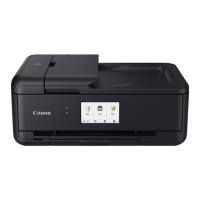
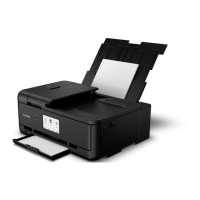
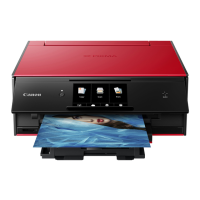
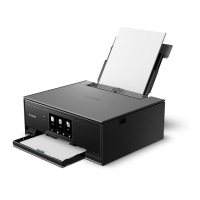
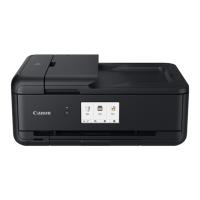
Canon TS9550 Series - User Manual

Canon TS9550 Series
547 pages
Print Icon
To Next Page IconTo Next Page
Loading...
TS9500 series
Online Manual
English

Table of Contents

Question and Answer IconNeed help?

Do you have a question about the Canon TS9550 Series and is the answer not in the manual?

Summary

Using Online Manual

Symbols Used in This Document

Explains the meaning of symbols used throughout the manual for warnings and notes.

Trademarks and Licenses

Lists trademarks and licensing information for software components used in the product.

Touch-enabled Device Users (Windows)

Provides guidance for users operating the system with touch-enabled devices.

Basic Operation

Printing Photos from a Computer

Instructions for printing photos from a computer using Easy-PhotoPrint Editor.

Printing Photos from a Smartphone;Tablet

Steps to print photos using Canon PRINT Inkjet/SELPHY from a smartphone or tablet.

Copying

Instructions for loading originals and copying them to plain paper loaded in the cassette.

Printing Photos from Memory Card

Guide on how to print photos stored on a memory card.

Network

Available Connection Methods

Details on wireless and wired connection methods available for the printer.

Wireless Connection

Connecting the printer and devices using a wireless router.

Wireless Direct

Connecting printer and devices directly without a wireless router.

Handling Paper, Originals, Ink Tanks, Multi-purpose Tray, Memory Card, etc.

Loading Paper

Instructions for loading various types of paper into the printer's rear tray or cassette.

Placing Multi-purpose Tray

Guidance on using and precautions for the multi-purpose tray, including disc printing.

Loading Originals

Information on where and how to load documents, photos, or books for scanning.

Replacing Ink Tanks

Detailed steps and important notes for replacing ink tanks to maintain printer performance.

Overview

Safety

Important safety precautions and information related to the printer's operation and environment.

Handling Precautions

Guidance on precautions for canceling print jobs, legal restrictions, transporting, and maintaining print quality.

Main Components and Their Use

Description of the printer's main components and their functions.

Printing

Printing from Computer

Various methods and options for printing from a computer.

Printing from Smartphone;Tablet

Instructions for printing from mobile devices like smartphones and tablets.

Paper Settings

How to register and manage paper information for the printer to prevent misprinting.

Scanning

Scanning from Computer (Windows)

Steps and utility information for scanning from a Windows computer.

Scanning from Computer (macOS)

Steps and utility information for scanning from a macOS computer.

Scanning Using Smartphone;Tablet

Guidance on scanning from mobile devices using PIXMA/MAXIFY Cloud Link or Wireless Direct.

Frequently Asked Questions

Solve Problems

Comprehensive guide to resolving various printer issues.

Network

Common network-related questions and troubleshooting steps.

Print

Common printing problems and their solutions.

Printing Problems

Printer Does Not Print

Steps to diagnose and resolve issues when the printer does not print.

Ink Does Not Come Out

Troubleshooting steps when ink is not dispensed correctly.

Paper Does Not Feed Properly;No Paper Error

Solutions for paper feeding errors or "No Paper" messages.

Mechanical Problems

Printer Does Not Turn On

Steps to troubleshoot when the printer fails to power on.

Printer Turns Off Unexpectedly or Repeatedly

Solutions for issues where the printer powers off automatically.

USB Connection Problems

Troubleshooting steps for problems related to USB connections.

Errors and Messages

An Error Occurs

General information about error messages and troubleshooting procedures.

Message (Support Code) Appears

Details on error messages and support codes displayed on the computer or printer.

List of Support Code for Error

Support Code Appears on Touch Screen and Computer Screen

Comprehensive list of support codes and their corresponding error messages.

List of Support Code for Error (Paper Jams)

Specific support codes related to paper jam errors and their resolution.

Summary

Using Online Manual

Symbols Used in This Document

Explains the meaning of symbols used throughout the manual for warnings and notes.

Trademarks and Licenses

Lists trademarks and licensing information for software components used in the product.

Touch-enabled Device Users (Windows)

Provides guidance for users operating the system with touch-enabled devices.

Basic Operation

Printing Photos from a Computer

Instructions for printing photos from a computer using Easy-PhotoPrint Editor.

Printing Photos from a Smartphone;Tablet

Steps to print photos using Canon PRINT Inkjet/SELPHY from a smartphone or tablet.

Copying

Instructions for loading originals and copying them to plain paper loaded in the cassette.

Printing Photos from Memory Card

Guide on how to print photos stored on a memory card.

Network

Available Connection Methods

Details on wireless and wired connection methods available for the printer.

Wireless Connection

Connecting the printer and devices using a wireless router.

Wireless Direct

Connecting printer and devices directly without a wireless router.

Handling Paper, Originals, Ink Tanks, Multi-purpose Tray, Memory Card, etc.

Loading Paper

Instructions for loading various types of paper into the printer's rear tray or cassette.

Placing Multi-purpose Tray

Guidance on using and precautions for the multi-purpose tray, including disc printing.

Loading Originals

Information on where and how to load documents, photos, or books for scanning.

Replacing Ink Tanks

Detailed steps and important notes for replacing ink tanks to maintain printer performance.

Overview

Safety

Important safety precautions and information related to the printer's operation and environment.

Handling Precautions

Guidance on precautions for canceling print jobs, legal restrictions, transporting, and maintaining print quality.

Main Components and Their Use

Description of the printer's main components and their functions.

Printing

Printing from Computer

Various methods and options for printing from a computer.

Printing from Smartphone;Tablet

Instructions for printing from mobile devices like smartphones and tablets.

Paper Settings

How to register and manage paper information for the printer to prevent misprinting.

Scanning

Scanning from Computer (Windows)

Steps and utility information for scanning from a Windows computer.

Scanning from Computer (macOS)

Steps and utility information for scanning from a macOS computer.

Scanning Using Smartphone;Tablet

Guidance on scanning from mobile devices using PIXMA/MAXIFY Cloud Link or Wireless Direct.

Frequently Asked Questions

Solve Problems

Comprehensive guide to resolving various printer issues.

Network

Common network-related questions and troubleshooting steps.

Print

Common printing problems and their solutions.

Printing Problems

Printer Does Not Print

Steps to diagnose and resolve issues when the printer does not print.

Ink Does Not Come Out

Troubleshooting steps when ink is not dispensed correctly.

Paper Does Not Feed Properly;No Paper Error

Solutions for paper feeding errors or "No Paper" messages.

Mechanical Problems

Printer Does Not Turn On

Steps to troubleshoot when the printer fails to power on.

Printer Turns Off Unexpectedly or Repeatedly

Solutions for issues where the printer powers off automatically.

USB Connection Problems

Troubleshooting steps for problems related to USB connections.

Errors and Messages

An Error Occurs

General information about error messages and troubleshooting procedures.

Message (Support Code) Appears

Details on error messages and support codes displayed on the computer or printer.

List of Support Code for Error

Support Code Appears on Touch Screen and Computer Screen

Comprehensive list of support codes and their corresponding error messages.

List of Support Code for Error (Paper Jams)

Specific support codes related to paper jam errors and their resolution.

Canon TS9550 Series Specifications

General IconGeneral
Print TechnologyInkjet
Max Print Resolution4800 x 1200 dpi
FunctionsPrint, Copy, Scan
Max Scan Resolution2400 x 4800 dpi
Operating SystemsWindows, macOS
Borderless PrintingYes
Print Speed (Black)15 ipm
Print Speed (Color)10 ipm
Scanner TypeFlatbed
ConnectivityUSB, Wi-Fi, Ethernet
Duplex PrintingYes
Display4.3-inch Touchscreen
Copy SpeedApprox. 19 seconds
Multiple Copy99 copies
Mobile PrintingAirPrint
Memory Card SupportYes
Ink Cartridges6 Individual Ink Tanks (PGI-580 PGBK, CLI-581 BK, CLI-581 C, CLI-581 M, CLI-581 Y, CLI-581 PB)

Related product manuals