PRODUCT
Made by Artview smart car division
VOLUME
SCREEN LAYOUT
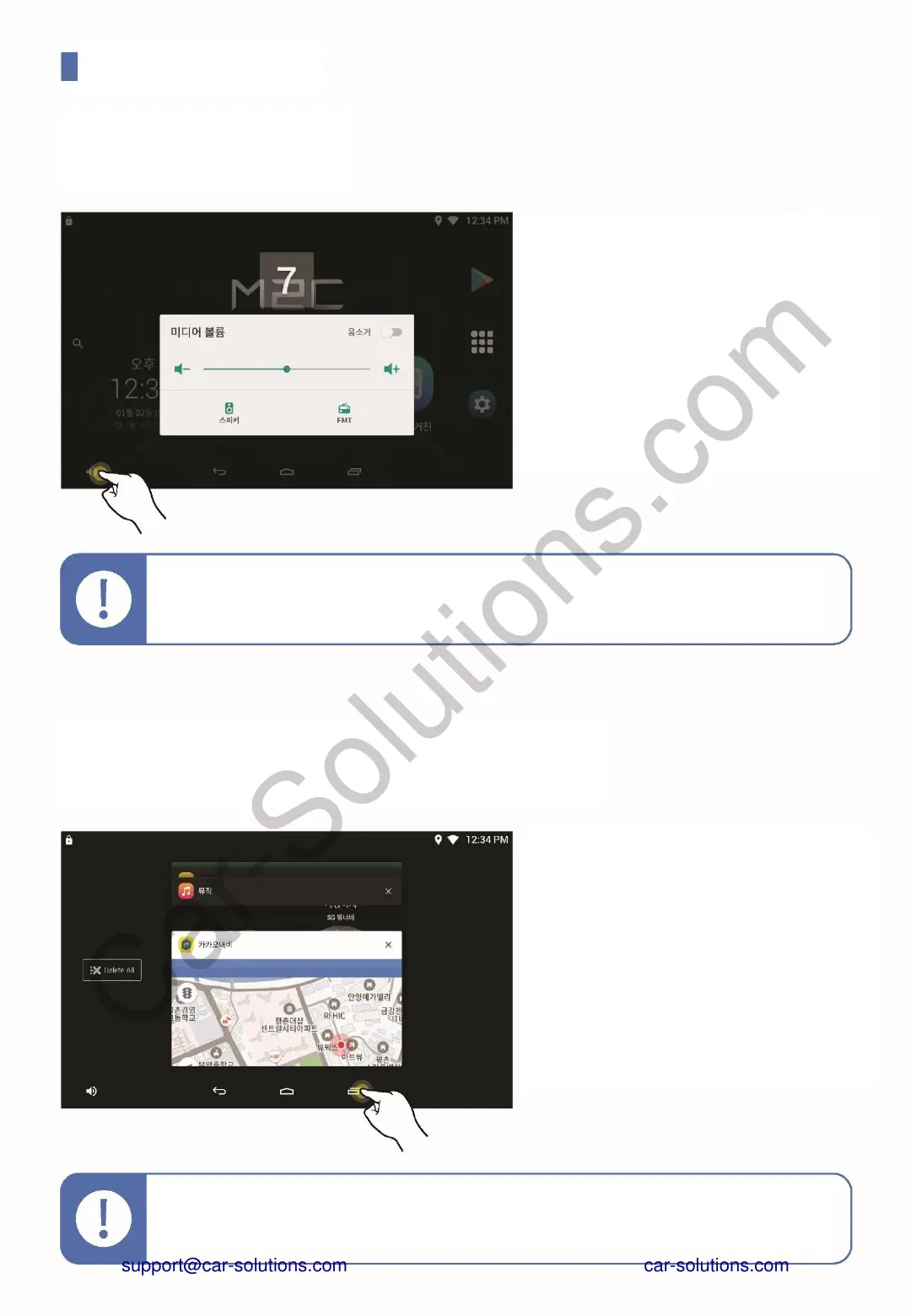
Touch the volume icon to the left of the
navigation bar You can see the volume
control popup.
The volume control pop-up resizes the
current volume Or touch the mute
switch to You can block.
The buttons on the bottom of each
output On / Off switch that can be set
to Off You can block the sound to the
corresponding device.
Touch the Recent apps button on the
right side of the navigation bar
To move.
Recently used apps from recently
You can easily switch.
The list of apps is most recently
The app you used appears at the front,
Touch to switch to the app or left / right
You can delete it from the list by
pushing it.
Recent Apps screen
Even if you do not open the volume control pop-up, touch and hold the
volume icon on the navigation bar You can turn it on or off right away.
If you press and hold the recent application button on the multi-window
application screen, multi window will be executed.
support@car-solutions.com


 To Next Page