PRODUCT
Made by Artview smart car division
CONFIGURATION
TOUCH SETTING
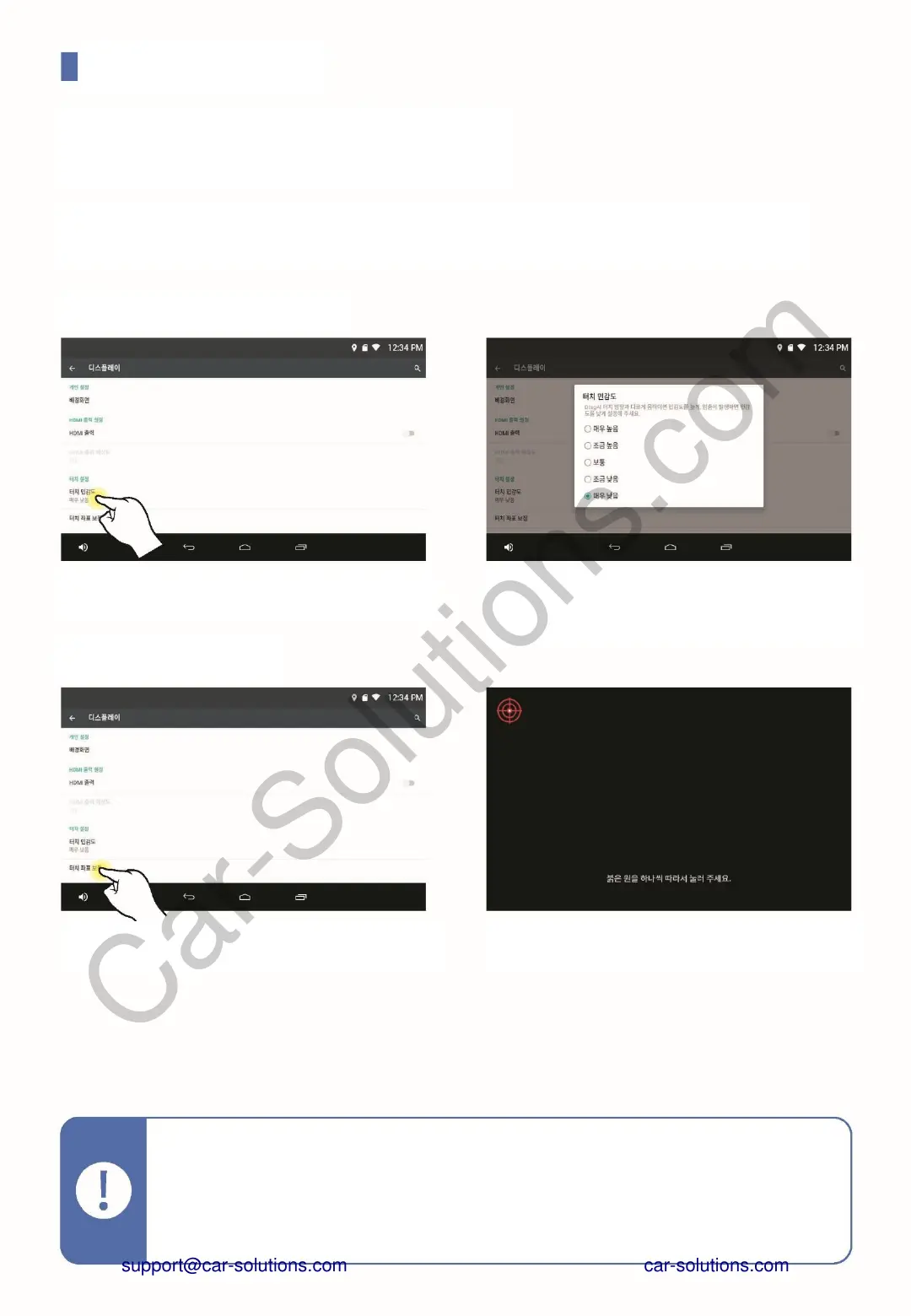
Under Display Settings, touch the Touch Sensitivity
menu.
If you move the touch direction differently from the
touch direction, the sensitivity Higher, set a lower
sensitivity if a stop occurs.
※ Touch Sensitivity Setting
※Touch calibration
In Display Settings, touch Calibrate Touch Coord.
Touch.
The center of the red circle displayed by the guide
So touch.
If touch is not working well, you can calibrate touch recognition through touch settings.
The touch setting menu is included in the menu "Run" → "Display".
· Touch coordinate correction can be performed by pressing and holding the touch compensation
button on the side of the product.
(Refer to page title of each part)
· If the touch compensation value is initialized by performing factory reset, etc., the screen may
not be touched. In this case, press and hold the touch compensation button on the product to
advance touch coordinate compensation.
support@car-solutions.com


 To Next Page