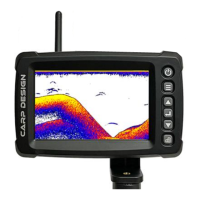
Use the On/Off button to switch between the three menus or close the menu.
9.2. Function setting of sonar menu group
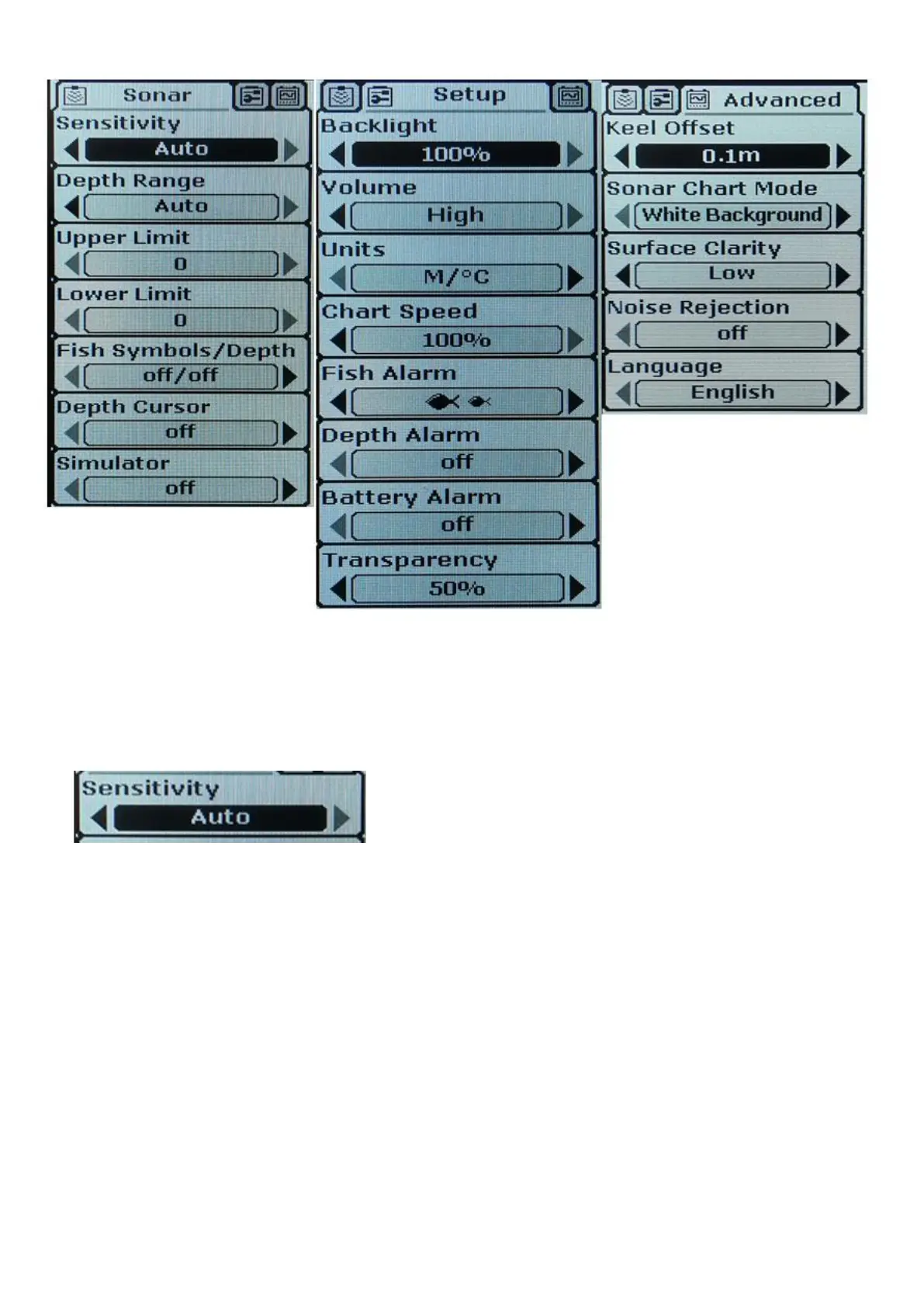
Press the On/Off button once to enter the sonar menu group, which has 4 setting items:
1) sensitivity setting; 2) Depth range; 3) Fish icon/depth; 4) Presentation mode.
1)Sensitivity setting
Press the menu key to select the "Sonar" menu group, and then press the Confirm key to select the sensitivity submenu.
The optional setting value is "1%" to "100%" or "Automatic". When the background color of the menu item is red, the left
and right clicks can be used to modify the selected options.
Users can show the signals they want on the screen by adjusting the sensitivity and display the signals. If the user
needs to see more echo signals, the sensitivity set value should be adjusted higher. In the case of high sensitivity, a lot
of underwater noise will inevitably be displayed on the screen. If the user does not want to see these underwater
noises, then the sensitivity setting should be lowered. Users can adjust the sensitivity settings according to their actual
needs. If the sensitivity is set to "automatic", the system will automatically select the sensitivity according to the
different underwater depth, and the user does not need to set the sensitivity manually.
This menu has a total of 1%~100% sensitivity levels for users to choose.
Sonar fish finder is a device that transmits ultrasonic waves and analyzes the reflected waves. All objects in the water,
whether large or small, soft or hard, will produce a certain amount of reflected waves. Larger or harder objects will
produce multiple reflected waves, so a "screen" is needed to filter out unnecessary information. Here the sensitivity is
the "sieve" of the "screen", the higher the sensitivity, the "sieve" "smaller".


 To Next Page
 Loading...