18
TIP 3: When removing dart from the board, apply a little twist to the right while pulling
the dart out will make it easier.
TIP 4: Practice, Practice, Practice! Practice makes you a better dart player.
HOW TO TURN POWER ON
This electronic dartboard is powered by 3 "AA" or "UM-3" batteries of 1.5 Volts
each. The board has a unique Sleep/Wake-up function. Simply install the batteries
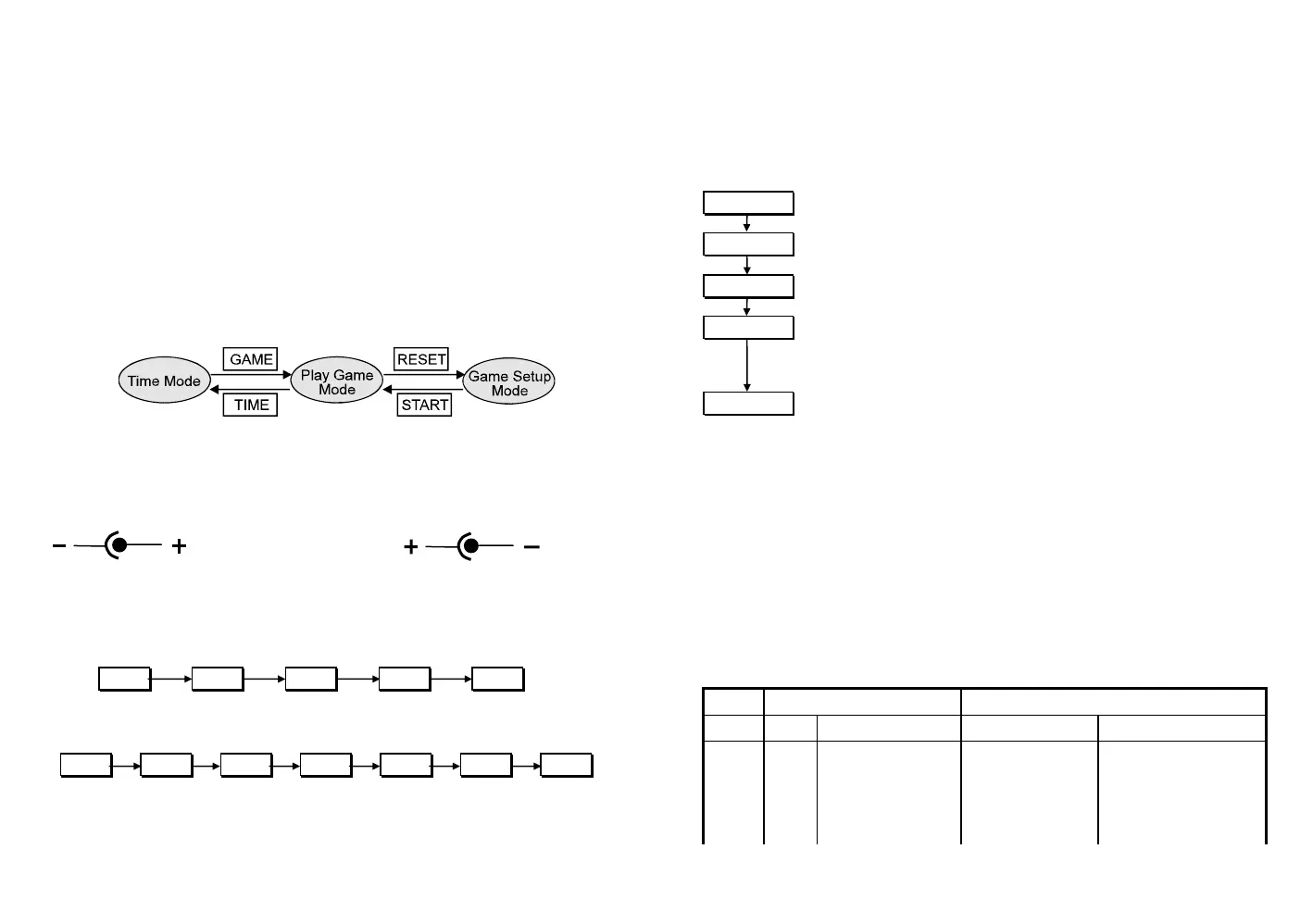
and the time is then running on the screen. By pressing the GAME button, the board
will wake up to the Game mode. If the board is left inactive over 5 minutes, then it
goes into "Sleep". In the sleep mode, everything is shut down except the clock.
Moreover, the board will remember the state of the game where it was left. When the
GAME button is pushed again, the game is then resumed.
AC Adapter (Optional): The board can operate on an AC adapter as well. You
should contact an authorized dealer or call a service hot-line for purchasing. The
adapter shall provide 9 volts DC output and meet the local safety standards (UL, GS,
BSI, etc.). Use wrong adapter may cause warranty void.
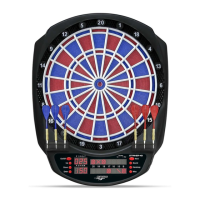
LCD DARTBOARD LED DARTBOARD
Input: 100V~240V 50Hz~60Hz (Optional) Input: 100V~240V 50Hz~60Hz (Optional)
Output: 9V DC 300 mA Output: 9V DC 300 mA
GETTING STARTED
TIME & ALARM SETUP
Set Time:
TIME
SET TIME SET TIME
Adjust Hour Adjust Minute Time Run
Set Alarm:
Alarm
SET Alarm SET Alarm SET Alarm
Alarm On/Off Set Hour Set Minute Complete
SWITCH BETWEEN TIME & GAME
19
Push the corresponding buttons to switch between different modes. (Note,
when power on the first time, pushing the GAME button will prompt you directly to the
Game Setup mode.)
GAME SETUP
GAME
Push this button to select one of the game groups. The first option of
the group will appear on the display.
OPTION
Push this button to select other options in the group. The games are
code-named. Check with TABLE 1 for available games.
PLAYER
Push this button to select the number of players. Each turn indicator
being lit up means a player is selected.
HANDICAP
If desired, you may set the difficulty level of the game differently for
each player. Following each selection of a player, push this button to
change the degree of difficulty. Each push on this button changes the
level by one step (see TABLE 1).
START
When finishing game setup, push the HOLD/START button to begin
playing.
Example:
1. Push GAME and then OPTION to select 501 game.
2. Select Player 1 and then push HANDICAP twice to set starting point at
"701", for Player 1 is a better player.
3. Select Player 2. Player 2's score shows "501" as the starting point.
4. Select Player 3, a novice player, and then push HANDICAP several times
to set starting point at "301"
5. Assuming only three players are participating, then push HOLD/START to
start the game.
TABLE 1: Game Selection and Handicapping List
GAME OPTION HANDICAP
Group Code Dart Game Range Step
_01 301
301 301 to 1001 change by 100 points
501
501 301 to 1001 change by 100 points
601
601 301 to 1001 change by 100 points
701
701 301 to 1001 change by 100 points
801
801 301 to 1001 change by 100 points



 To Next Page