EasyManua.ls Logo

Casio fx-83GT PLUS - Page 20

Casio fx-83GT PLUS
32 pages
Print Icon
To Next Page IconTo Next Page
To Previous Page IconTo Previous Page
Loading...
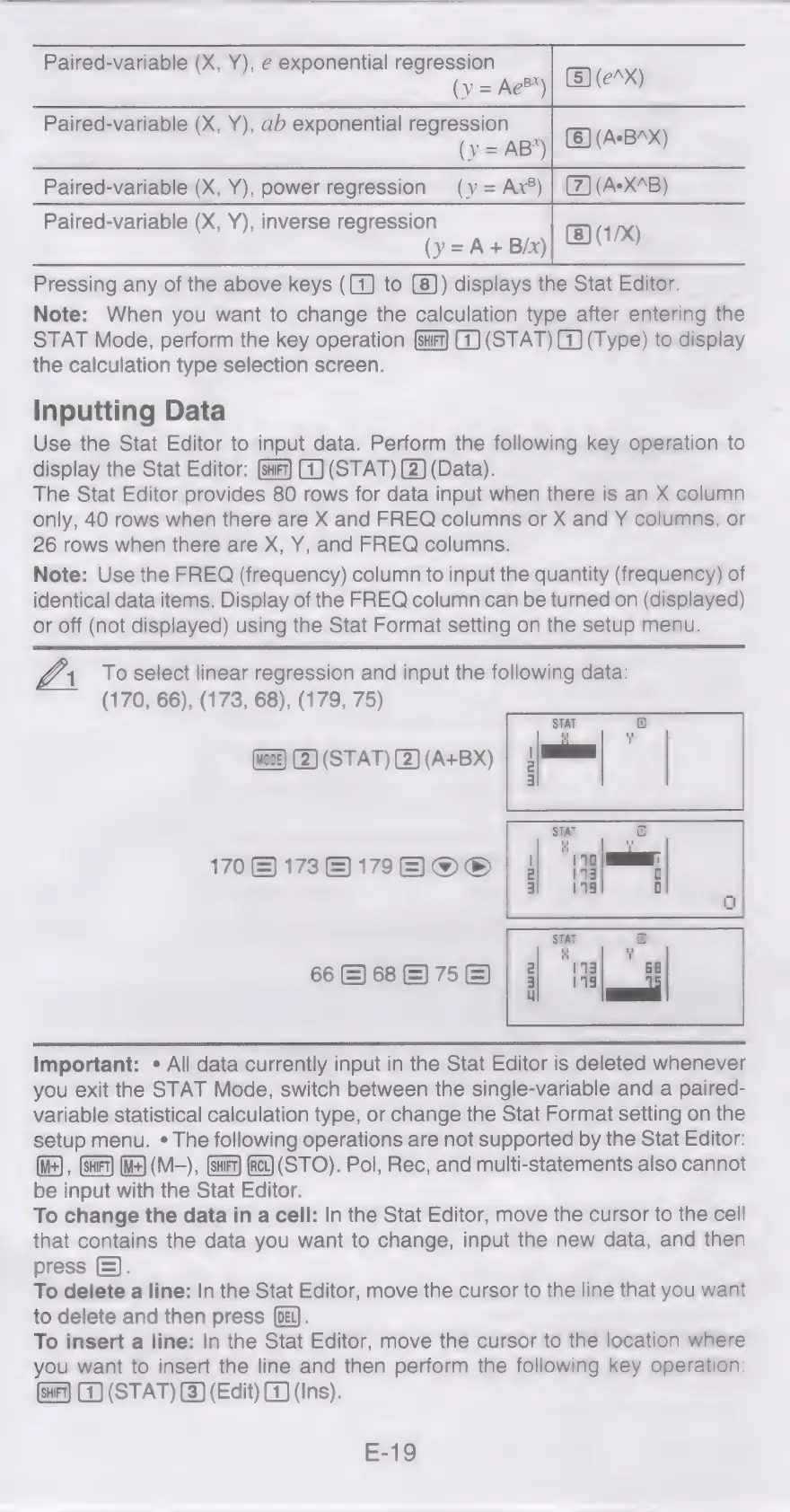
Paired-variable
(X,
Y),
e
exponential
regression
(
(y
=
Ae®*)
(5)
(eX)
Paired-variable
(X,
Y),
ab
exponential
regression
(X,
Y)
p
g
(y=
AB)|
(D(ASB*X)
Paired-variable
(X,
Y),
power
regression
(y=
Ax®)
(AeX4B)
Paired-variable
(X,
Y),
inverse
regression
(y=A+Bny|
BOM
Pressing
any
of
the
above
keys
((4)
to
(8))
displays
the
Stat
Editor.
Note:
When
you
want
to
change
the
calculation
type
after
entering
the
STAT
Mode,
perform
the
key
operation
(1)
(STAT)
G1)
(Type)
to
display
the
calculation
type
selection
screen.
inputting
Data
Use
the
Stat
Editor
to
input
data.
Perform
the
following
key
operation
to
display
the
Stat
Editor:
(suit)
G)
(STAT)
(2)
(Data).
The
Stat
Editor
provides
80
rows
for
data
input
when
there
is
an
X
column
only,
40
rows
when
there
are
X
and
FREQ
columns
or
X
and
Y
columns,
or
26
rows
when
there
are
X, Y,
and
FREQ
columns.
Note:
Use
the
FREQ
(frequency)
column
to
input
the
quantity
(frequency)
of
identical
data
items.
Display
of
the
FREQ
column
can
be
turned
on
(displayed)
or
off
(not
displayed)
using
the
Stat
Format
setting
on
the
setup
menu.
he
To
select
linear
regression
and
input
the
following
data:
(170,
66),
(173,
68),
(179,
75)
(2)
(STAT)
(2)
(A+BX)
170)
1738)
i797
@O®
66
&)
68
&)
75
&)
Important:
«
All
data
currently
input
in
the
Stat
Editor
is
deleted
whenever
you
exit
the
STAT
Mode,
switch
between
the
single-variable
and
a
paired-
variable
statistical
calculation
type,
or
change
the
Stat
Format
setting
on
the
setup
menu.
¢
The
following
operations
are
not
supported
by
the
Stat
Editor:
(M+)
,
(SHIFT)
(M+)
(M-),
(STO).
Pol,
Rec,
and
multi-statements
also
cannot
be
input
with
the
Stat
Editor.
To
change
the
data
in
a
cell:
In
the
Stat
Editor,
move
the
cursor
to
the
cell
that
contains
the
data
you
want
to
change,
input
the
new
data,
and
then
press
).
To
delete
a
line:
In
the
Stat
Editor,
move
the
cursor
to
the
line
that
you
want
to
delete
and
then
press
(bE).
To
insert
a
line:
In
the
Stat
Editor,
move
the
cursor
to
the
location
where
you
want
to
insert
the
line
and
then
perform
the
following
key
operation:
(4)
(STAT)
(3)
(Edit)
GJ
(Ins).
E-19

Related product manuals