EasyManua.ls Logo

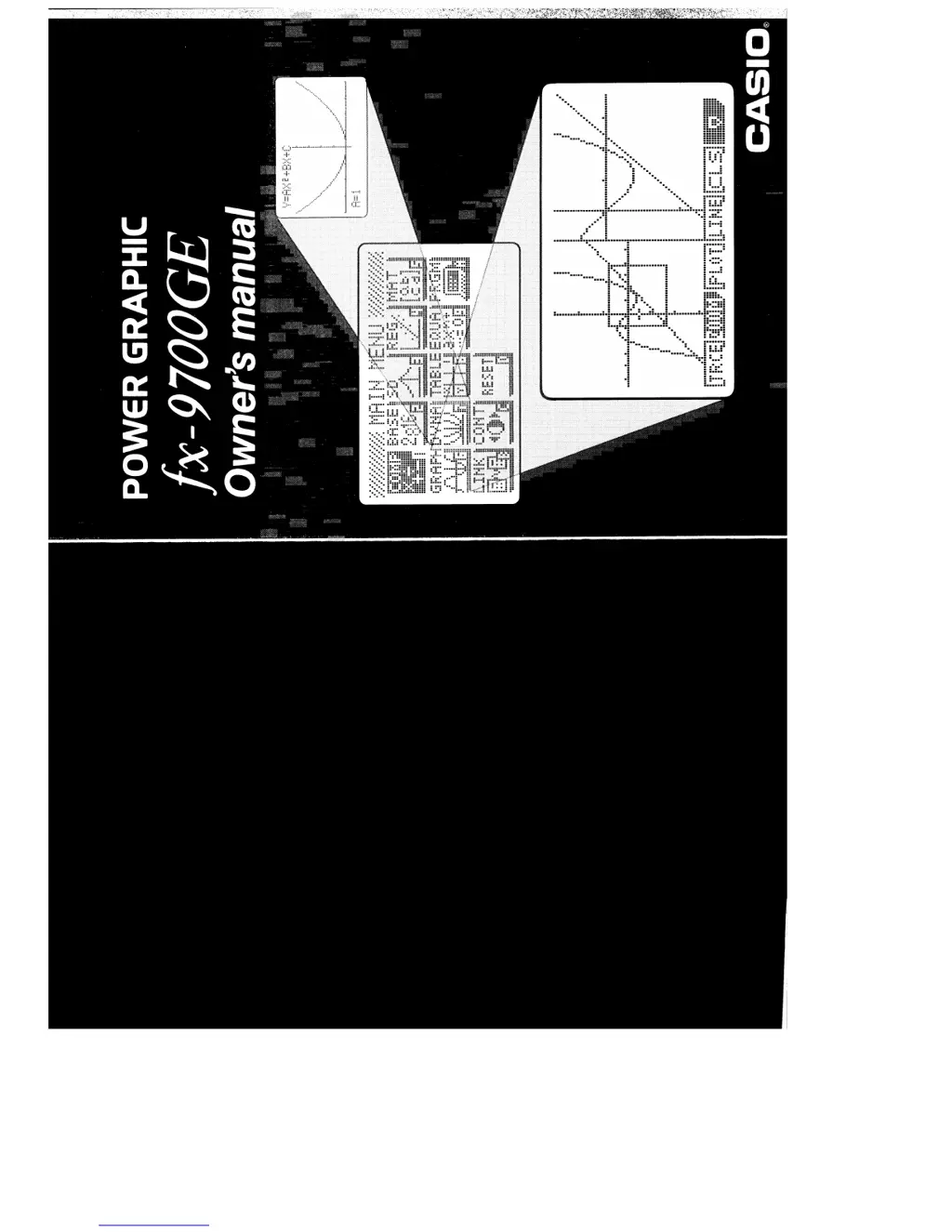
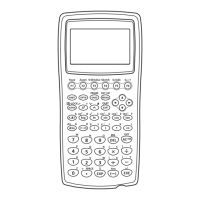
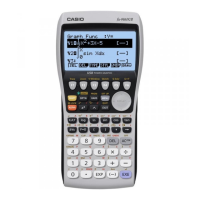
Casio FX-9700GE - User Manual

Casio FX-9700GE
187 pages
Print Icon
To Next Page IconTo Next Page
Loading...

Other manuals for Casio FX-9700GE

Questions and Answers

  • B
    Benjamin Manning MDJul 25, 2025
    What to do if my Casio FX-9700GE Calculator has no display?
    • K
      kathleenwilsonJul 25, 2025
      If your Casio Calculator shows no display at all, it could be due to a weak battery, so try replacing it. Alternatively, there might be dirt or poor contact on the battery; in this case, clean the contacts or adjust the pressure. A faulty power switch may also be the cause, so clean or replace it. Other potential causes include a poor connection on the PC joiner (resolder or replace it) or a defective LSI, capacitor, or resistor, which would require replacement.
  • H
    Helen KennedyJul 30, 2025
    What to do if all keys do not function on Casio FX-9700GE?
    • C
      Cynthia FergusonJul 31, 2025
      If all keys on your Casio Calculator do not function, it could be because a certain key is making constant contact; try separating the contact. Alternatively, a defective LSI, capacitor, or resistor could be the cause, requiring replacement.
  • S
    smithmaxAug 4, 2025
    Why is the display on my Casio Calculator intermittent?
    • J
      Joseph HuffAug 4, 2025
      An intermittent display on your Casio Calculator can stem from several causes. It could be due to dirt or poor contact on the battery, which can be resolved by cleaning the contacts or adjusting the pressure. Another cause might be poor contact on the power switch, requiring you to clean or replace it. Additionally, a poor connection on the PC joiner may be the culprit, in which case you should resolder or replace it. Finally, poor soldering on the LSI, capacitor, or resistor could also lead to this issue, necessitating resoldering.
  • J
    Johnny WoodAug 10, 2025
    Why is the display on my Casio FX-9700GE erratic?
    • S
      Samantha JamesAug 10, 2025
      An erratic display on your Casio Calculator may be due to poor contact between the LCD and PCB, in which case you should replace the heat seal. It could also be caused by poor soldering on the LSI, requiring you to resolder or replace the display PCB assembly.
  • E
    Erika MyersAug 14, 2025
    Why does a certain key not function on my Casio FX-9700GE Calculator?
    • J
      John HallAug 15, 2025
      If certain keys on your Casio Calculator aren't working, it might be due to dirt on the key contact, so cleaning or replacing the contact might help. Another cause could be heavy key motion, suggesting you should clean or replace the key itself. In some cases, poor soldering on the LSI or a defective LSI, capacitor, or resistor could be the issue, requiring resoldering or replacement.
  • D
    dennisgoodmanAug 19, 2025
    How to fix heavy key motion on Casio Calculator?
    • M
      Megan GrossSep 12, 2025
      Heavy key motion on your Casio Calculator is often caused by dirt or a scratch on the key. Cleaning or replacing the key should resolve this issue.

Summary

Chapter 1 Getting Acquainted

1-1 Keys and Their Functions

Explains the function of each key on the calculator, including primary and shifted functions.

1-2 Modes

Details the various modes available (COMP, BASE, STAT, REG, EQ, MATRIX, TABLE, GRAPH) and how to select them.

1-3 Basic Set Up

Guides on setting up basic functions like angle units, decimal places, and display format.

1-4 Basic Operation

Covers fundamental operations such as calculations, inputting values, and editing.

1-5 Using the Function Memory

Details how to use the calculator's memory for storing and recalling values.

1-6 Using the BASE Mode

Explains calculations in different number bases (binary, octal, decimal, hexadecimal).

1-7 Graphic and Text Displays

Describes how to interpret and use the calculator's graphic and text displays.

1-8 Technical Information

Provides additional technical details and information about the calculator.

Chapter 2 Manual Calculations

2-1 Arithmetic Calculations

Explains how to perform basic arithmetic operations, including examples.

2-3 Trigonometric and Inverse Trigonometric Functions

Covers the use of trigonometric and inverse trigonometric functions.

2-4 Logarithmic and Exponential Functions

Explains how to use logarithmic and exponential functions.

2-10 Engineering Symbol Calculations

Covers calculations involving engineering symbols and units.

2-11 Number of Decimal Places, Number of Significant Digits, Display Format

Explains how to set the number of decimal places, significant digits, and display format.

2-13 BASE Mode Calculations

Explains calculations in different number bases (binary, octal, decimal, hexadecimal).

Chapter 3 Differential, Integration, and Σ Calculations

3-1 How the Unit Calculates Differentials

Explains the process and functions used for differential calculations.

3-2 How the Unit Calculates Integrations

Details the procedures for performing integration calculations.

3-3 Σ Calculations

Guides on performing summation (Σ) calculations.

Chapter 4 Complex Numbers

4-1 Before Beginning a Complex Number Calculation

Prepares users for complex number calculations, including mode setup.

4-2 Performing Complex Number Calculations

Covers arithmetic operations and extraction of real/imaginary parts for complex numbers.

4-3 Complex Number Calculation Precautions

Provides important notes and precautions for complex number calculations.

Chapter 5 Statistical Calculations

5-1 Single-Variable Statistical Calculations

Details how to input and analyze single-variable statistical data.

5-2 Paired-Variable Statistical Calculations

Explains procedures for paired-variable statistical data analysis.

5-3 Things to Remember during Statistical Calculations

Offers important tips and reminders for accurate statistical calculations.

Chapter 6 Using the Matrix Mode

6-1 Before Performing Matrix Calculations

Outlines prerequisites and setup for matrix operations.

6-2 Modifying a Matrix

Covers operations like deleting, inserting, and editing matrix elements.

6-3 Matrix Calculations

Explains arithmetic operations, scalar products, determinants, and transposing matrices.

6-4 Matrix Operation Precautions

Lists important precautions and potential error conditions for matrix operations.

Chapter 7 Equation Calculations

7-1 Before Beginning an Equation Calculation

Guides on entering the Equation Calculation Mode and selecting equation types.

7-2 Linear Equations with Two to Six Unknowns

Details how to solve systems of linear equations.

7-3 Quadratic and Cubic Equations

Explains how to solve quadratic and cubic equations.

7-4 What to Do When an Error Occurs

Provides guidance on troubleshooting and handling errors during equation calculations.

Chapter 8 Graphing

8-1 About the Graphing Function

Introduces the graphing capabilities and modes.

8-2 Rectangular Coordinate Graphs

Covers plotting and analyzing graphs in rectangular coordinates.

8-3 Polar Coordinate Graphs

Details how to graph and analyze functions in polar coordinates.

8-4 Parametric Graphs

Explains how to create and interpret parametric graphs.

8-5 Inequality Graphs

Guides on graphing and analyzing inequalities.

8-11 Graph Solve

Guides on using the Graph Solve feature to find roots, intersections, etc.

8-12 Other Graph Functions

Covers additional graphing features like derivatives and scrolling.

Chapter 12 Program;File Editor Mode

12-1 Before Using the Program;File Editor Mode

Introduces the Program/File Editor mode and its basic operations.

12-2 Using the Program Mode

Covers entering and navigating the Program mode.

12-6 Using the File Editor Mode

Guides on using the File Editor for managing files, including password protection.

12-8 Using Jump Commands

Details how to use conditional and unconditional jump commands in programs.

Chapter 13 Data Communications

13-2 Connecting the fx-9700 GE with a Personal Computer

Guides on connecting the calculator to a PC for data communication.

13-4 Setting Communication Parameters

Explains how to configure parameters like baud rate, parity, and data bits.

13-5 Using ALL, Range, and Factor

Covers data transfer options for all data, specific ranges, or factors.

13-6 Using Program, Function Memory, Matrix, and Graph Function

Details data transfer for various data types like programs and graphs.

Appendix B To Reset the Calculator

Appendix D Error Message Table

Index

Key Index

Casio FX-9700GE Specifications

General IconGeneral
BrandCasio
ModelFX-9700GE
CategoryCalculator
LanguageEnglish

Related product manuals