EasyManua.ls Logo

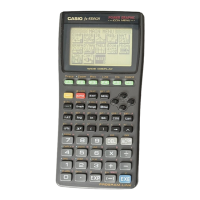
Casio FX-9700GH - User Manual

Casio FX-9700GH
187 pages
Print Icon
To Next Page IconTo Next Page
Loading...

Other manuals for Casio FX-9700GH

Questions and Answers

  • B
    Brenda SchneiderAug 6, 2025
    What to do if my Casio Calculator has no display?
    • T
      Tyrone WilliamsAug 6, 2025
      If your Casio Calculator shows no display at all, it could be due to a weak battery, so try replacing it. Alternatively, there might be dirt or poor contact on the battery; in this case, clean the contacts or adjust the pressure. A faulty power switch may also be the cause, so clean or replace it. Other potential causes include a poor connection on the PC joiner (resolder or replace it) or a defective LSI, capacitor, or resistor, which would require replacement.
  • M
    Matthew VelasquezAug 11, 2025
    Why is the display on my Casio Calculator intermittent?
    • Z
      zhangmariaAug 12, 2025
      An intermittent display on your Casio Calculator can stem from several causes. It could be due to dirt or poor contact on the battery, which can be resolved by cleaning the contacts or adjusting the pressure. Another cause might be poor contact on the power switch, requiring you to clean or replace it. Additionally, a poor connection on the PC joiner may be the culprit, in which case you should resolder or replace it. Finally, poor soldering on the LSI, capacitor, or resistor could also lead to this issue, necessitating resoldering.
  • B
    belljenniferAug 16, 2025
    Why is the display on my Casio FX-9700GH Calculator erratic?
    • E
      Erica PetersonAug 16, 2025
      An erratic display on your Casio Calculator may be due to poor contact between the LCD and PCB, in which case you should replace the heat seal. It could also be caused by poor soldering on the LSI, requiring you to resolder or replace the display PCB assembly.
  • A
    Alexander Williams DDSAug 21, 2025
    Why does a certain key not function on my Casio FX-9700GH?
    • M
      Misty PowellAug 21, 2025
      If certain keys on your Casio Calculator aren't working, it might be due to dirt on the key contact, so cleaning or replacing the contact might help. Another cause could be heavy key motion, suggesting you should clean or replace the key itself. In some cases, poor soldering on the LSI or a defective LSI, capacitor, or resistor could be the issue, requiring resoldering or replacement.
  • M
    mallory75Aug 27, 2025
    What to do if all keys do not function on Casio Calculator?
    • S
      Susan GarrettAug 27, 2025
      If all keys on your Casio Calculator do not function, it could be because a certain key is making constant contact; try separating the contact. Alternatively, a defective LSI, capacitor, or resistor could be the cause, requiring replacement.
  • B
    bmartinAug 31, 2025
    How to fix heavy key motion on Casio FX-9700GH Calculator?
    • D
      Douglas DavisAug 31, 2025
      Heavy key motion on your Casio Calculator is often caused by dirt or a scratch on the key. Cleaning or replacing the key should resolve this issue.

Summary

Quick-Start Guide

Notice

Important safety and compliance information regarding the device.

Power On;Off and Contrast Adjustment

Covers powering on/off the calculator and adjusting display contrast.

Grouping within an Equation

Explains how to use parentheses to group operations within equations.

Fractions

Guides on performing calculations involving fractions.

Graphing a Built-in Function

Demonstrates how to graph a standard mathematical function.

Zoom Function

Explains how to enlarge or reduce parts of a graph.

Polar Graph

Covers graphing functions in polar coordinates.

Inequality Graphs

Shows how to graph mathematical inequalities.

Dynamic Graphing

Introduces the dynamic graphing feature for visualizing function changes.

Chapter 1 Getting Acquainted

1-1 Keys and Their Functions

Details the various keys on the calculator and their primary functions.

1-2 Modes

Explains the different operational modes available on the calculator.

1-3 Basic Set Up

Guides users on initial configuration settings like angle units and display format.

1-4 Basic Operation

Covers fundamental calculation procedures and using the clear menu.

Chapter 2 Manual Calculations

2-1 Arithmetic Calculations

Covers basic arithmetic operations, including order of operations and parentheses.

2-3 Trigonometric and Inverse Trigonometric Functions

Details the usage of trigonometric and inverse trigonometric functions.

2-4 Logarithmic and Exponential Functions

Covers logarithmic and exponential function calculations.

2-13 BASE Mode Calculations

Covers calculations in binary, octal, decimal, and hexadecimal number systems.

Chapter 3 Differential, Integration, and Σ Calculations

3-1 How the Unit Calculates Differentials

Explains the method used by the unit to calculate differentials.

3-2 How the Unit Calculates Integrations

Details the process for performing integration calculations.

3-3 Σ Calculations

Covers how to perform summation (Σ) calculations.

Chapter 4 Complex Numbers

4-2 Performing Complex Number Calculations

Guides through the steps of complex number arithmetic.

4-3 Complex Number Calculation Precautions

Provides important notes and warnings for complex number operations.

Chapter 5 Statistical Calculations

5-1 Single-Variable Statistical Calculations

Explains calculations for single sets of data.

5-2 Paired-Variable Statistical Calculations

Covers statistical analysis for two sets of data.

5-4 Examples of Statistical Calculations

Provides practical examples of statistical data analysis.

Chapter 6 Using the Matrix Mode

6-1 Before Performing Matrix Calculations

Introduces the matrix mode and its prerequisites.

6-3 Matrix Calculations

Details arithmetic operations like addition, subtraction, and multiplication of matrices.

6-4 Matrix Operation Precautions

Lists important considerations and warnings for matrix operations.

Chapter 7 Equation Calculations

7-2 Linear Equations with Two to Six Unknowns

Guides on solving systems of linear equations.

7-3 Quadratic and Cubic Equations

Explains how to solve quadratic and cubic equations.

7-4 What to Do When an Error Occurs

Provides guidance on handling and resolving calculation errors.

Chapter 8 Graphing

8-1 About the Graphing Function

Introduces the graphing capabilities and available graph types.

8-2 Rectangular Coordinate Graphs

Details how to create graphs using the standard Cartesian coordinate system.

8-5 Inequality Graphs

Shows how to graph mathematical inequalities.

8-11 Graph Solve

Explains how to use the Graph Solve function to find roots and intersections.

Chapter 10 Dynamic Graphing

10-2 Inputting a New Equation

Guides on entering new equations into the Dynamic Graph mode.

10-5 Drawing a Dynamic Graph

Covers the process of drawing dynamic graphs.

Chapter 11 Table and Graph Mode

11-2 Generating a Table and Drawing a Graph for a Function

Explains how to create a table and graph for a function.

Chapter 12 Program;File Editor Mode

12-2 Using the Program Mode

Explains how to use the Program mode for calculations and execution.

12-6 Using the File Editor Mode

Details how to use the File Editor mode for managing files.

Chapter 13 Data Communications

13-2 Connecting the fx-9700 GH with a Personal Computer

Explains connecting the calculator to a PC for data management.

13-4 Before Starting Data Communications

Covers prerequisites and setup before data communication.

Casio FX-9700GH Specifications

General IconGeneral
ModelFX-9700GH
CategoryGraphing Calculator
Display TypeLCD
Display Size128 x 64 pixels
FunctionsGraphing, statistical
Memory32KB
Power SourceSolar and Battery
Weight200 g

Related product manuals