EasyManua.ls Logo

Casio FX-9750G - User Manual

Casio FX-9750G
436 pages
Print Icon
To Next Page IconTo Next Page
Loading...
BEFORE USING THE CALCULATOR
FOR THE FIRST TIME...
This calculator does not contain any main batteries when you purchase it. Be sure to perform
the following procedure to load batteries, reset the calculator, and adjust the contrast before
trying to use the calculator for the first time.
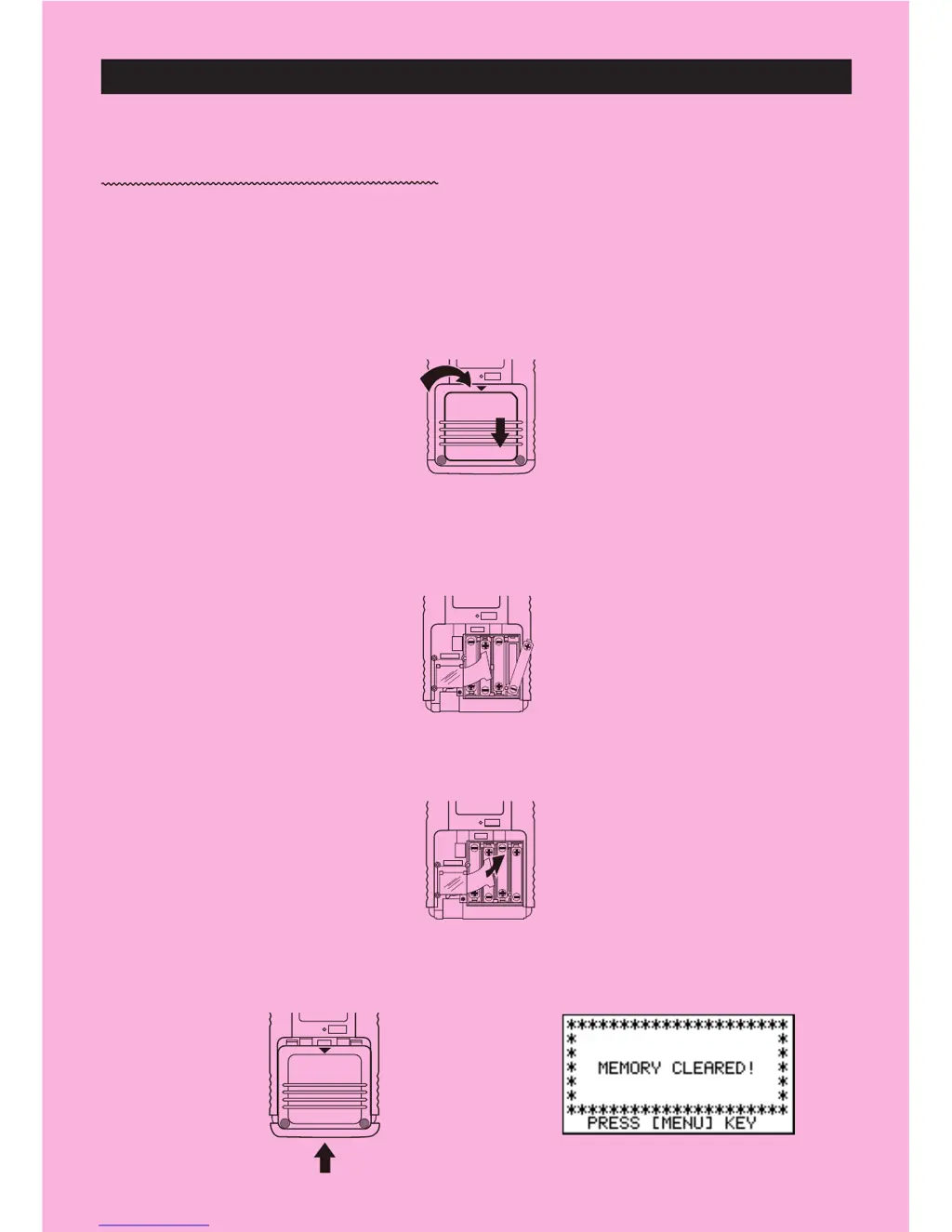
1. Remove the back cover from the calculator by pressing it in the direction indicated by
arrow 1, and then sliding it in the direction indicated by arrow 2.
2. Load the four batteries that come with calculator.
Make sure that the positive (+) and negative (–) ends of the batteries are facing correctly.
3. Remove the insulating sheet at the location marked “BACK UP” by pulling in the direction
indicated by the arrow.
4. Replace the back cover onto the calculator and turn the calculator front side up, which
should automatically turn on power and perform the memory reset operation.
i
BACK UPBACK UP
MAIN
P
BACK UP
MAIN
P
MAIN
P
P
1
2

Table of Contents

Other manuals for Casio FX-9750G

Questions and Answers

  • J
    Jennifer Mason DDSJul 26, 2025
    What to do if my Casio Calculator has no display?
    • J
      Justin WoodJul 26, 2025
      If your Casio Calculator shows no display at all, it could be due to a weak battery, so try replacing it. Alternatively, there might be dirt or poor contact on the battery; in this case, clean the contacts or adjust the pressure. A faulty power switch may also be the cause, so clean or replace it. Other potential causes include a poor connection on the PC joiner (resolder or replace it) or a defective LSI, capacitor, or resistor, which would require replacement.
  • E
    Eric BowersJul 31, 2025
    What to do if all keys do not function on Casio FX-9750G Calculator?
    • T
      Travis BestJul 31, 2025
      If all keys on your Casio Calculator do not function, it could be because a certain key is making constant contact; try separating the contact. Alternatively, a defective LSI, capacitor, or resistor could be the cause, requiring replacement.
  • J
    James GonzalezAug 5, 2025
    How to fix heavy key motion on Casio FX-9750G Calculator?
    • C
      Carl WalkerAug 5, 2025
      Heavy key motion on your Casio Calculator is often caused by dirt or a scratch on the key. Cleaning or replacing the key should resolve this issue.
  • S
    Samantha BarronAug 10, 2025
    Why does a certain key not function on my Casio FX-9750G Calculator?
    • G
      George MccartyAug 10, 2025
      If certain keys on your Casio Calculator aren't working, it might be due to dirt on the key contact, so cleaning or replacing the contact might help. Another cause could be heavy key motion, suggesting you should clean or replace the key itself. In some cases, poor soldering on the LSI or a defective LSI, capacitor, or resistor could be the issue, requiring resoldering or replacement.
  • T
    tammy82Aug 14, 2025
    Why is the display on my Casio FX-9750G Calculator intermittent?
    • R
      Ryan HarrisAug 15, 2025
      An intermittent display on your Casio Calculator can stem from several causes. It could be due to dirt or poor contact on the battery, which can be resolved by cleaning the contacts or adjusting the pressure. Another cause might be poor contact on the power switch, requiring you to clean or replace it. Additionally, a poor connection on the PC joiner may be the culprit, in which case you should resolder or replace it. Finally, poor soldering on the LSI, capacitor, or resistor could also lead to this issue, necessitating resoldering.
  • H
    Holly BryantAug 20, 2025
    Why is the display on my Casio FX-9750G erratic?
    • B
      Brett KerrAug 20, 2025
      An erratic display on your Casio Calculator may be due to poor contact between the LCD and PCB, in which case you should replace the heat seal. It could also be caused by poor soldering on the LSI, requiring you to resolder or replace the display PCB assembly.

Casio FX-9750G Specifications

General IconGeneral
Display TypeLCD
DisplayMonochrome
GraphingYes
Power Supply4 x AAA batteries
ProgrammingYes

Related product manuals