14 VECTOR USER GUIDE
VECTOR
INSTALLATION & SETUP
STEP 2
Assigning devices to players
Assigning (mapping) Vector Devices to athletes
is important to ensure you can live track and post
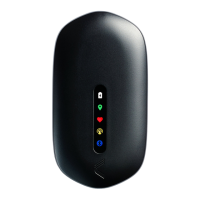
download Vector sessions. You will ind a unique device
ID number on the back of each Vector Device that will
be entered into the OpenField desktop software.
1. Start OpenField and log in
2. Press the start tile from the home screen followed
by the settings button at the top of the window
3. From the mapping window, you can manually
assign a Vector Device ID to each athlete
4. Once complete you will be prompted to connect
the Vector Devices to OpenField to complete the
mapping process
If you connect the Vector devices to OpenField before
mapping for the irst time, you can auto-assign
device ID’s to athletes. Press the ‘auto assign’ button
in the mapping screen when ‘unmapped devices’ are
displayed.
For more information on installation and setup please
visit the cloud help section.
STEP 3
Connect your Vector devices to OpenField
Once device mapping is complete and before the irst
live Vector session, connect your devices to OpenField
to complete device setup and coniguration.
• Insert Vector Devices into Vector Dock
• Turn dock on by pressing dock Ignition button
• Connect the Vector Dock to OpenField PC via
the USB cable provided
The Vector Devices will automatically update with
their assigned athlete settings and
device encryption.
Please allow 30 seconds for the process
to complete.
You are now ready to start monitoring live with Vector.
■ TIP:


 To Next Page
 Loading...