16 VECTOR USER GUIDE
VECTOR
VECTOR DOWNLOAD
POST SESSION
Once the session is complete, download the Vector
data to the OpenField computer
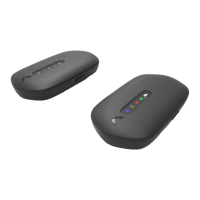
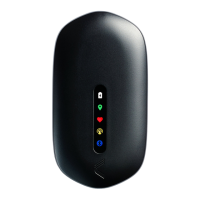
1. Return the Vector devices to the Vector Dock and
power on the dock
2. Connect the Vector Dock to your OpenField PC
using the USB cable provided
3. From the OpenField home screen, click the Data
Transfer tile. The transfer window will open and
your new Vector sessions will begin to download
4. Once all activities have downloaded, click the
Stop Transfer button.
5. Your Vector activity is now available to select and
view from the Activities calendar of the OpenField
start screen.
6. From the home screen, click the Fast Sync button
to send your activity data to the cloud for analysis
OpenField automatically recognises when
a session has been previously downloaded .
To download these iles again, ind them in the
active activities window of the data transfer
screen, right click and select ‘re-download’.
■ TIP:


 To Next Page
 Loading...