9/26/2019 Specialized Business Solutions Page 1
Installation and Setup for the Cayan Genius PIN Pad Device
Hardware: Cayan Genius/ PIN Pad device (purchase from Cayan)
Keystroke Software: Keystroke POS – v8.00 Build 70 or later (02/27/19)
Description of the Cayan Genius Device
The Cayan Genius accepts a variety of payments (Credit, Debit, Gift, EBT Cash, EBT SNAP, ApplePay, AndroidPay).
Keystroke recognizes that the Cayan Genius is being used, and when selecting a sales payment, Keystroke will hide all of
the payment types that have been “mapped” to a Cayan Genius payment. See: Payment Mapping below on Page 3.
Once setup, and at the complete sale screen, you will have 3 options displayed under the list of payments:
- Selected by Customer (the customer is prompted to select the type of payment)
- Split Tender (the clerk is prompted to enter an amount and hit enter)
- Manually Entered Payment (the customer is prompted to enter payment on device) – Option A
- Manually Entered Payment (where the clerk is prompted to enter payment on Web Transport) – Option B
The Cayan Genius can also be used as a Signature Only device where a customer can sign a Sales Transactions for
other payment types like On Account. These signatures are stored and can be printed on receipts, statements, etc.
Connecting & Checking the IP Address and Application Version on Cayan Genius device
Connect the device to the network where it will be used. DO NOT attempt to set the Static IP somewhere else.
The device is NOT directly attached to the computer. Instead it is attached to the local area network via an Ethernet
Network cable and must have access to the internet. All communication is done via TCP/IP between the workstation, the
device, and Cayan. You can check the TCP/IP address of each Cayan Genius device the below steps
- On the “Genius by Cayan” idle screen, enter 000 on the Keypad
- Enter Password of 9416557 then the Green Enter button
- You should see the IP Address, Serial Number, and App Version. Please WRITE DOWN the IP Address
assigned by the router
NOTE: The App Version needs to be 5.0.4.0 or above (as of July 2016)
Setting up Static IP Address
Each Genius device on a network must have a unique IP Address and must be paired up to the correct workstation. For
this reason, the device needs to be switched from Dynamic IP to Static IP Address mode (see steps below for
instructions). Do not use the device in Dynamic mode as this can cause the address to change without notice and then
Keystroke will no longer be able to communicate with it (or Keystroke may end up communicating with a Genius device
sitting next to a different workstation).
To configure the Cayan Genius for Static IP you will want to follow these steps:
- From the “Genius by Cayan” idle screen, reboot the device to access the OS Menu by pressing the 1, 5, and 9 keys at
the same time for 2 seconds and then release. The device will boot into OS Menu.
- Enter the password “166832” and press the Green Enter key
- Select 'Administration' from the top menu
- Select 'Communication' from the top menu
- Select the 'Network' from the top menu
- Select the 'Ethernet' from the top menu
- Using the stylus, the scroll bar on the right and the pencil icon to the left of each of the settings below and enter the
corresponding information as XXX.XXX.XXX.XXX (i.e.192 168 001 010, padding numbers with zeros if needed)
- On the Mode option, select 'Static IP' and press ‘OK'. Verify that the Mode is now set to Static IP
- Enter IP Address (the IP Address found from the previous section)
- A knowledgeable network technician can choose other IP Addresses
- Enter the Net Mask (usually 255.255.255.000) This is also known as Subnet Mask
- Enter the Gateway (the IP Address of your internet gateway, use IPConfig on a PC Computer to find this)
- Enter both DNS1 and DNS2. Use 008 008 008 008 and 008 008 004 004 (see ‘Changing the DNS Server’ below)
- When finished with all of the IP Addresses, hit 'Apply'
- Select the 'Home' option from the top menu
- Hit the 'Reboot’ button
- The Device should take a minute to reboot and then return to the “Genius by Cayan” idle screen.

 Need help?
 General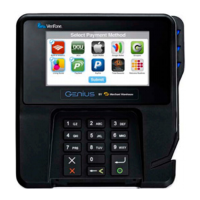

 To Next Page
