CCE – Cash Concepts Europe GmbH
Kemptener Straße 99 – D-88131 Lindau / Germany
Tel.: +49 (0)8382 – 943 15 – 0 / Fax: +49 (0)8382 – 943 15 – 20
Email: info@cce.gmbh / Web: www.cce.gmbh
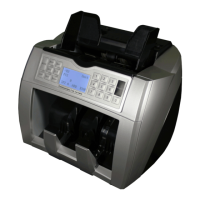
Update Instruction CCE 340 Multi ENGLISH
Only for devices with a serial number from 340 M-000651
For other devices this software versions can lead to damage to the boards or sensors
Preparing the installation:
1. Download the update software packet from our website www.cce.tm and save the file on your computer.
2. Unpack the file (e.g. with WinZIP, which is available for download free of charge from the internet).
3. Install the cable driver that is compatible with your Windows version. Please note that Windows assigns to the cable one
of the first four COM ports. Higher COM ports are not recognized by the software.
Information for the settings can be found in Windows Device Manager.
4. Connect the CCE 340 to a wall socket, and via the update cable to your computer
In order to recognize the new 50,00 Euro banknote, two update processes must be executed. Please note that at the end of the
update all currencies except the Euro are deactivated. You will find an instruction at the end of this manual, how to activate the
currencies.
Update 3D Master Board:
1. Switch on the device via the rear sided switch and wait until the unit has completed the self-test.
2. Open in your Windows Explorer the file folder where you have extracted the data.
3. Open via double click the "CCE Programmer 2014" file
4. Click on the button "LOAD FILE" and choose the file from the extracted folder whose name begins with
"3DMasterBoard".
5. Click on the button “UPDATE SOFT” to start the process. The program will ask you whether you want to update the 3D
Master Board ("Update Software of 3D Master Board, Continue?). Please confirm this request by clicking on "YES".
6. The display of the device now shows the message "Downloading 3D" and at the update program, you see the progress bar.
7. Once the update is complete, the device display is cleared and the update program shows “Program Target Success”. Turn
off the machine now and close the update program.
Update Currency File:
1. Hold down the "RESTART" button and turn on the device via the rear sided switch. Then you get the message on the
display of the device: "Downloading Please Wait ..." The unit is now in update mode for the currency update.
2. Open in your Windows Explorer the file folder where you have extracted the data.
3. Open via double click the "CCE Programmer 2014" file
4. Click on the button "LOAD FILE" and choose the file from the extracted folder whose name begins with "CCE340_NEO".
You will receive a system message: "Can not identify software information from file, select target?" Please confirm this
request with YES.
5. Select the "MainBoard" option.
6. Click "Update Soft" to start the update process. You will be asked to confirm the program that you want to update the
mainboard: "Update software of mainboard, Continue?" Please confirm this request with YES.
7. Once the update is completed, the unit will automatically reboot and a make a selftest of the sensors. If this reboot and
test mode does not start automatically, please press the "RESTART" to restart the run manually. The update program
shows “Program Target Success” if the software was installed successfully.


 To Next Page
 Loading...