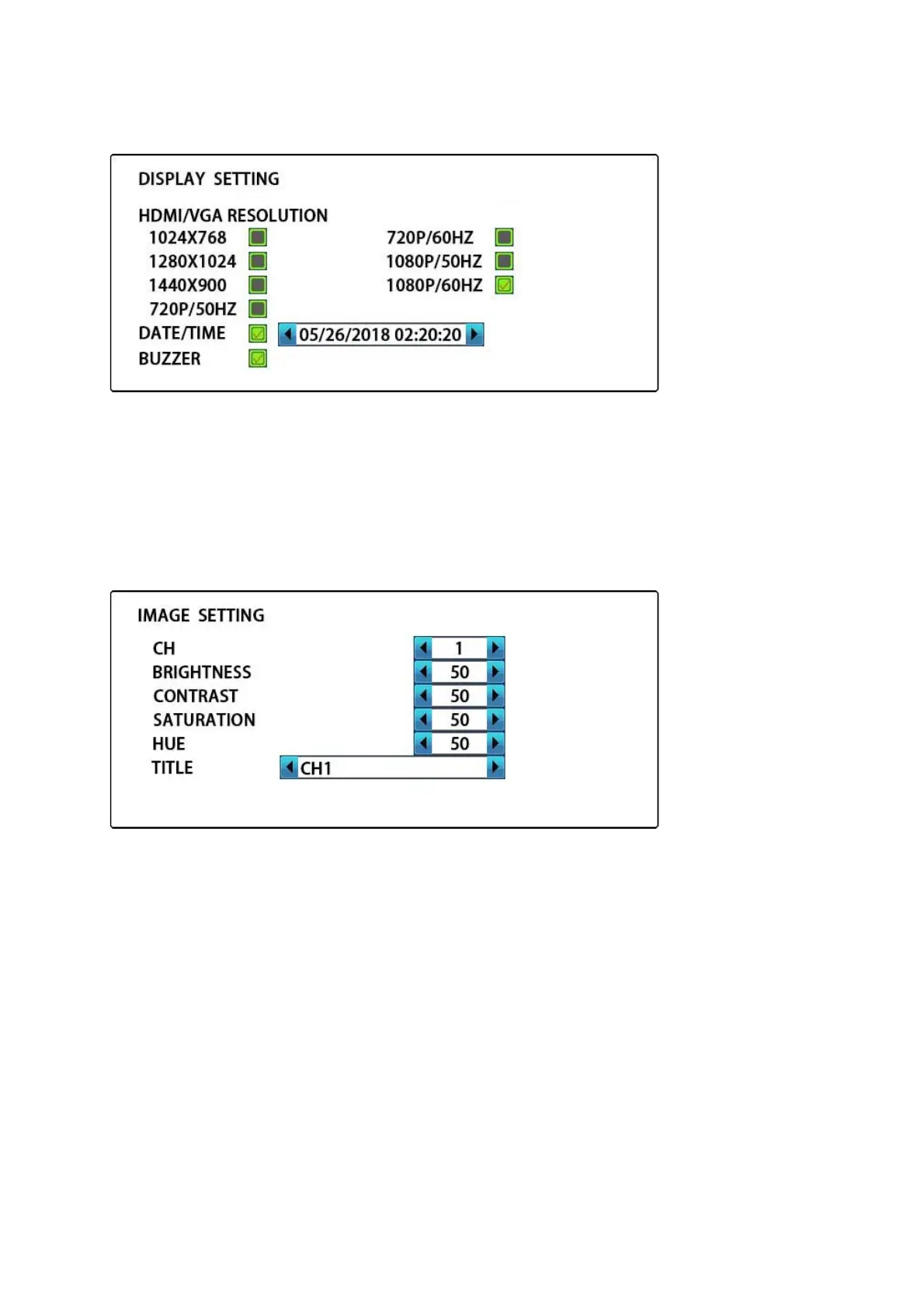
As follows, move to the desired position using the UP/DOWN/LEFT/RIGHT button, select the item
using the ENTER button, press the MENU button to apply the new setting and back to the main menu.
Update! 4K resolution is also supported now via HDMI output.
●“DATE/TIME”: Enable/Disable and Setting the date/time of system. press the ENTER to enter/exit
the function, adjust the position by the LEFT/RIGHT button and adjust the digit by the UP/DOWN
button.
●“BUZZER”:Open/Close the buzzer.
9.3 IMAGE SETTING
As follow, move to the desired position using the UP/DOWN button, adjust the value using the
LEFT/RIGHT button, press the MENU button to back to the main menu.
●“BRIGHTNESS”: Adjust the brightness of input video(0~99).
●“CONTRAST”: Adjust the contrast of input video(0~99).
●“SATURATION”: Adjust the saturation of input video(0~99).
●“HUE”: Adjust the hue of input video(0~99).
●“TITLE”: Setting the label of video channel, press the ENTER to enter/exit the function, adjust the
position by the LEFT/RIGHT button and adjust the character by the UP/DOWN button.
Caution: you must be exit the title mode (blue bar will hide) for other operate.
9.4 AUTOSEQ SETTING
As follow, move to the desired position using the UP/DOWN button, adjust the value(3~99s) using the
LEFT/RIGHT button, press the MENU button to back to the main menu.



 To Next Page