9
- Reconsiliation with closure/day-ending
closure: Sofkey Reconsiliation with closure
- Reversal: Softkey Reversal
- Select transaction type (optional): Screen
“Card please” › press “Select” button › read
card
1. Start “app2pay” and enter amount
2. Read card
Payment
Transactions
3. Optional: enter PIN
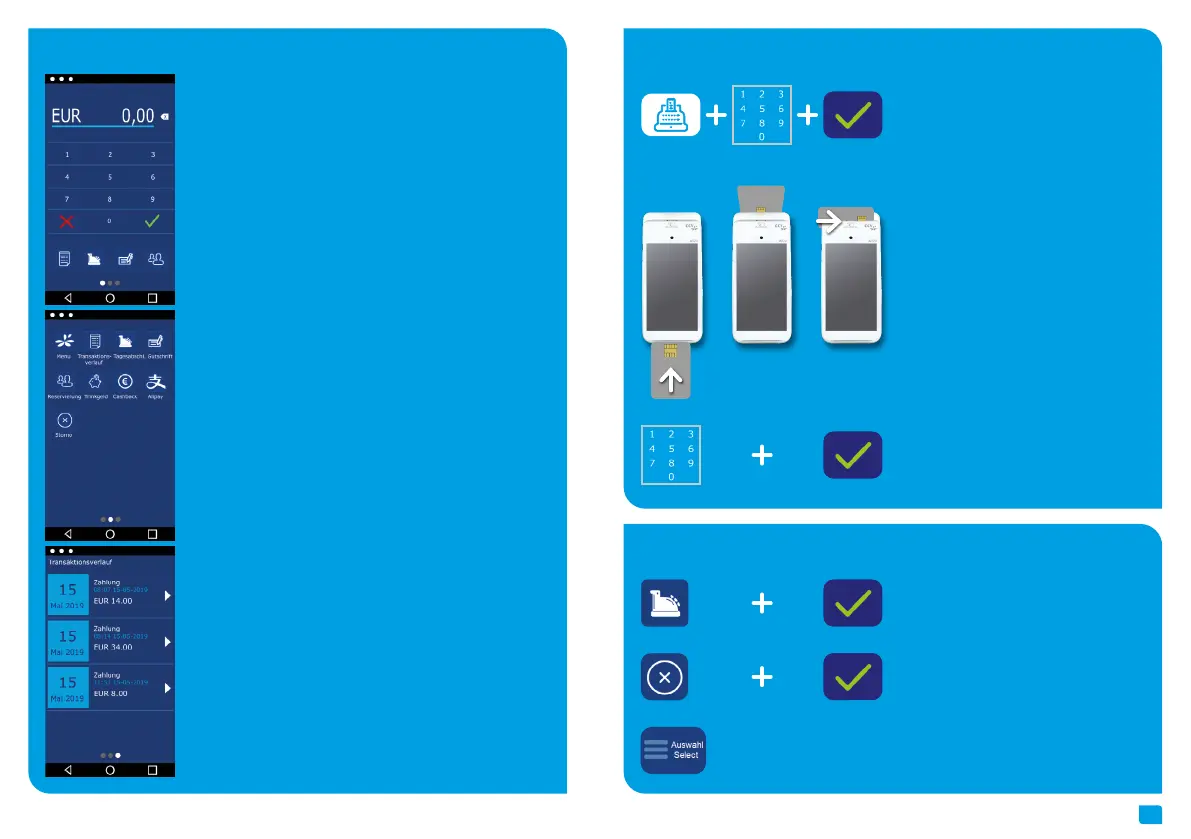
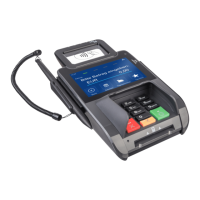
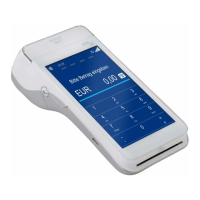
To process card payments please start “app2pay” and enter amount.
- Android status bar
- Amount and correction button
- Keypad
- 4 softkey buttons
- Android navigation bar (back/home/task manager)
Information: You can change your 4 favorite softkey buttons. Hold
softkey and drag & drop to first page.
Transaction history:
With the history you can start:
- a transaction reprint or
- a reversal (only possible if the transaction is not finished by a end of
day closure) or
- a refund (only possible if the end of day closure is already done)
Softkey Buttons:
- Menu: start app2pay menu for information and settings
- Reconsiliation with closure/day-ending closure › Send all offline
transactions and closure of all open transactions
- Refund: start refund transaction
- Reservation: Reservation about choosen amount
- TIP: Enter amount and add a TIP amount for the service
- Cashback: Enter amount and add a cash amount
- Alipay: QR code scan for an Alipay transaction
- Transaction history: Show all transactions. You can start a copy of a
receipt copy or a reversal
- Reversal: Reversal of a transaction. Only possible until day-end clo-
sure. After day-end closure a refund transaction is possible.
app2pay


 To Next Page