CONGA 8090 ULTRA | 35
ENGLESK
Note
Make sure the robot is activated and that the light indicator is on before
scheduling any cleaning or setting time.
Current time. Fig. 17.
- Hold down the time button for 3 seconds. The rst 2 digits, indicating the
hour, will start blinking.
- Use the up and down direction buttons to set the current time. Then, use
the left and right buttons to switch from hours to minutes and repeat the
before step. Fig. 18.
- Press the time button again to save the settings.
Scheduling cleaning tasks
- Hold down the schedule button for 3 seconds. The rst 2 digits, indicating
the hour, will start blinking. Fig. 19.
- Use the up and down direction buttons to set the schedule time. Then, use
the left and right buttons to switch from hours to minutes and repeat the
before step. Fig. 20.
- Press the schedule button again to save the settings.
- To cancel the scheduled cleaning, follow the below steps:
- Set the clock on the remote control at 00:00 a.m. and save it.
- Switch the robot o for 1 minute and switch it on again.
Note
The robot will beep to indicate all settings have been saved.
Warning: When the remote control’s batteries are replaced, the clock and
schedule times must be set again.
Indicator light
- Operating: Steady white light, and/or robot completely changed.
- Low battery: Orange light blinks slowly.
- Charged: Oscillating orange light, and/or back home mode.
- Network conguration: Oscillating white light.
- Start-up/rmware update: Oscillating white light.
- Error: Red light ashes quickly.
- Tank and/or mop lack: steady red light.
5. Mobile App and Wi-Fi connection
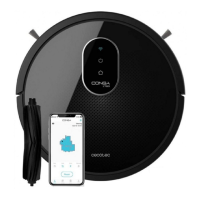
To access all the robot’s function from wherever you are, it is suggested to
download the App.






 To Next Page