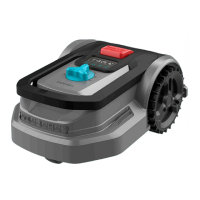
CONGA GRASSHOPPER 500 CONNECTED
126
ENGLISH
- The mower will perform cutting cycles when fully charged until it detects a lack of battery
power.
- The mower can begin in a second starting area, other than the charging station. If the
mower has the second starting area activated (ON), it will proceed to a second area from
which it will start after the rst full discharge of the battery.
- The mower changes the cutting direction when it detects an obstacle thanks to its shock
sensor located on the bumper, so this is common and normal in the mower’s operation.
- A number may appear momentarily on the display during the cutting task, this is due to the
remaining battery percentage of the mower.
Changing the PIN code
- To change the PIN code, press and hold the and buttons at the same time for 3
seconds. “PIN 1” will start ashing on the display, which means that you must enter the old
PIN. When “PIN 1” is displayed, the rst number of the PIN will ash. Use the or
buttons to select the number you wish, and press to conrm the setting. Then, the next
number of your old PIN will ash. Repeat the process with the remaining numbers of your
old PIN. After that, you can enter a new PIN. In this example, the PIN we want to set is 1234.
When you have entered your old PIN, “PIN 2” will start ashing on the display and so will
the rst number. Do the same to enter the new PIN code of your choice (in this example it
is 1234). will then appear on the display, which means that you have successfully
changed the PIN code.
- You can change the PIN code from the App by pairing the mower and following the
instructions in the settings menu. If you do not remember the PIN code, try to access
the mower by following the pairing process and then change the PIN code. If after these
attempts you are unable to do so, please contact the ocial Cecotec Technical Support
Service.
Setting the mower’s date
- The year, month, day and time must be set, these are mandatory conguration items. If
you do not set these elements correctly, it will inuence the programming schedule. These
elements must be set in the order: year, month, day, and time.
- To start the conguration, press and hold for 3 seconds. For example, 2020. Use
and/or to select the year. Then press to conrm and nish the conguration. Next,
continue with setting the month and day in the same way, e.g. 08.25 would be 25 August.
- In the meantime, the year will be displayed and then a number to indicate the date, e.g.
08.25 (25 August). Fig. 11
- The time will then be shown on the display, e.g. 13:25. When it ashes, use or to
select the desired number and press to conrm the setting. When the time setting is
complete, will appear on the display. Fig. 11


 To Next Page