English - 8 -
If Home Mode is selected, Store mode will not be
available after the First Time Installation. Press OK
button to continue.
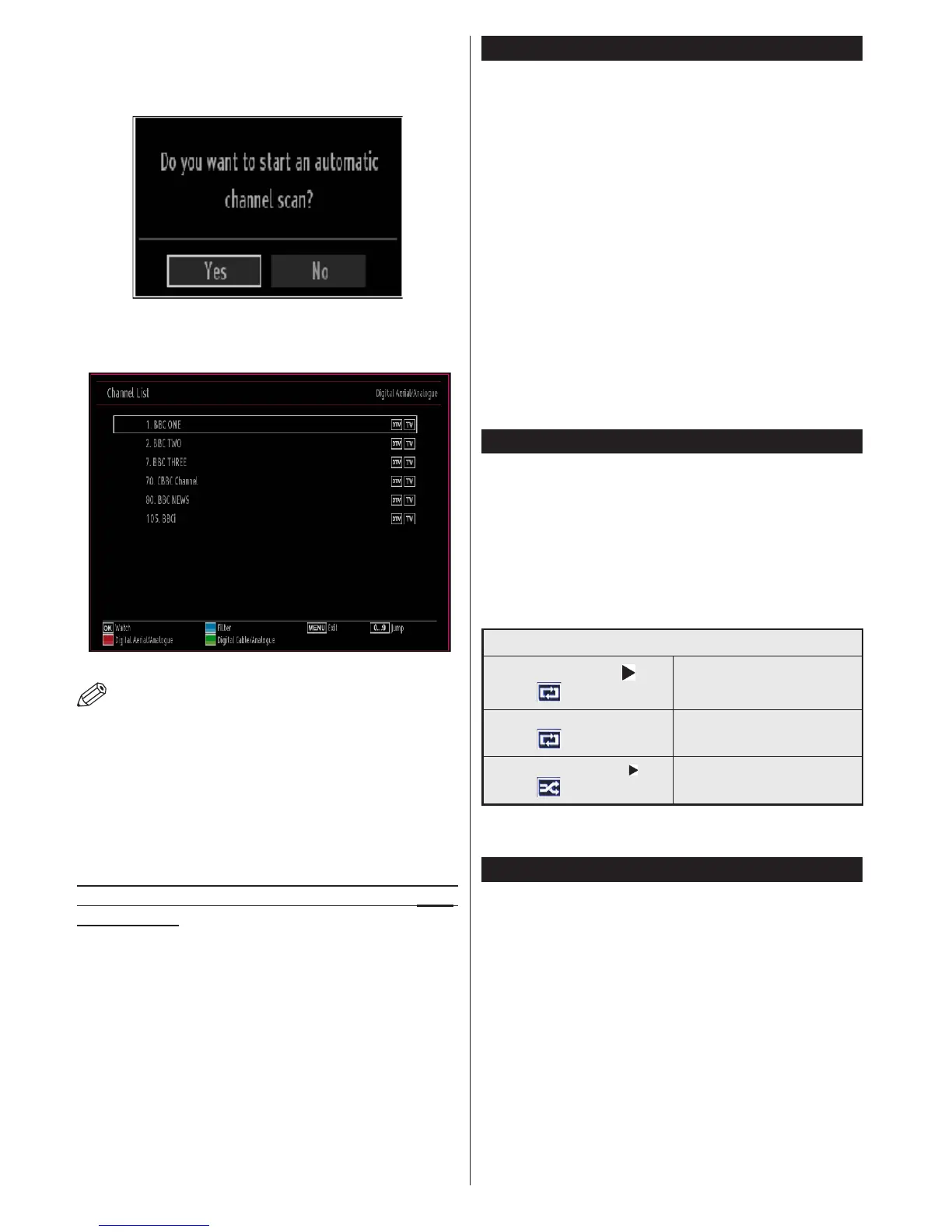
Select Yes, and the television will search for digital
terrestrial TV broadcasts.
NOTE: You can press MENU button to cancel.
After all the available stations are stored, the Channel
/LVWZLOOEHGLVSOD\HGRQWKHVFUHHQ,I\RXDUHVDWLV¿HG
with the order of channels press the OK button to quit
the channel list and watch TV.
Note:
Default PIN code can change depending on the
selected country.
If you are asked to enter a PIN code for viewing a
menu option, use one of the following codes: 4725,
0000 or 1234.
Media Playback via USB Input
You can connect a 2.5” and 3.5” inch (hdd with external power
supply) external hard disk drives or USB memory stick to your
TV by using the USB inputs of the TV.
IMPORTANT! Back up your files before making
any connections to the TV. Manufacturer will not be
UHVSRQVLEOHIRUDQ\¿OHGDPDJHRUGDWDORVV&HUWDLQ
types of USB devices (e.g. MP3 Players) or USB hard
disk drives/memory sticks may not be compatible
with this TV. The TV supports FAT32 and NTFS disk
formatting but recording will not be available with
NTFS formatted disks.
While formatting a USB hard disk that has 1TB (Tera
Byte) or more file capacity, you can experience
problems with the formatting process. Do not
repeatedly quickly plug and unplug the drive. This
may cause physical damage to the USB player and
USB device itself. Do not pull out USB module while
SOD\LQJD¿OH
Media Browser Menu
<RXFDQSOD\SKRWRPXVLFDQGPRYLH¿OHVVWRUHGRQD
USB disk by connecting it to your TV. Connect a USB
disk to one of the USB inputs located on the side of
the TV. Pressing the MENU button while in the Media
Browser mode will access the Picture, Sound and
Settings menu options. Pressing the MENU button
again will exit from this screen. You can set your Media
Browser preferences by using the Settings Menu.
/RRS6KXIÀH0RGH2SHUDWLRQ
Start playback with and
activate
TV plays next file and loop
the list.
Start playback with OK and
activate
WKHVDPH¿OHZLOOEHSOD\HGLQD
loop (repeat).
Start playback with OK/ and
activate
WKH¿OHZLOOEHSOD\HGLQDVKXIÀH
Quick Menu
Quick Settings menu allows you to access some
options quickly. This menu includes Power
Save Mode, Picture Mode, Equalizer Settings,
Favourites and Sleep Timer options. Press
Q.MENU button on the remote control to view
quick menu. See the following chapters for the
details of the listed features.


 To Next Page