9.
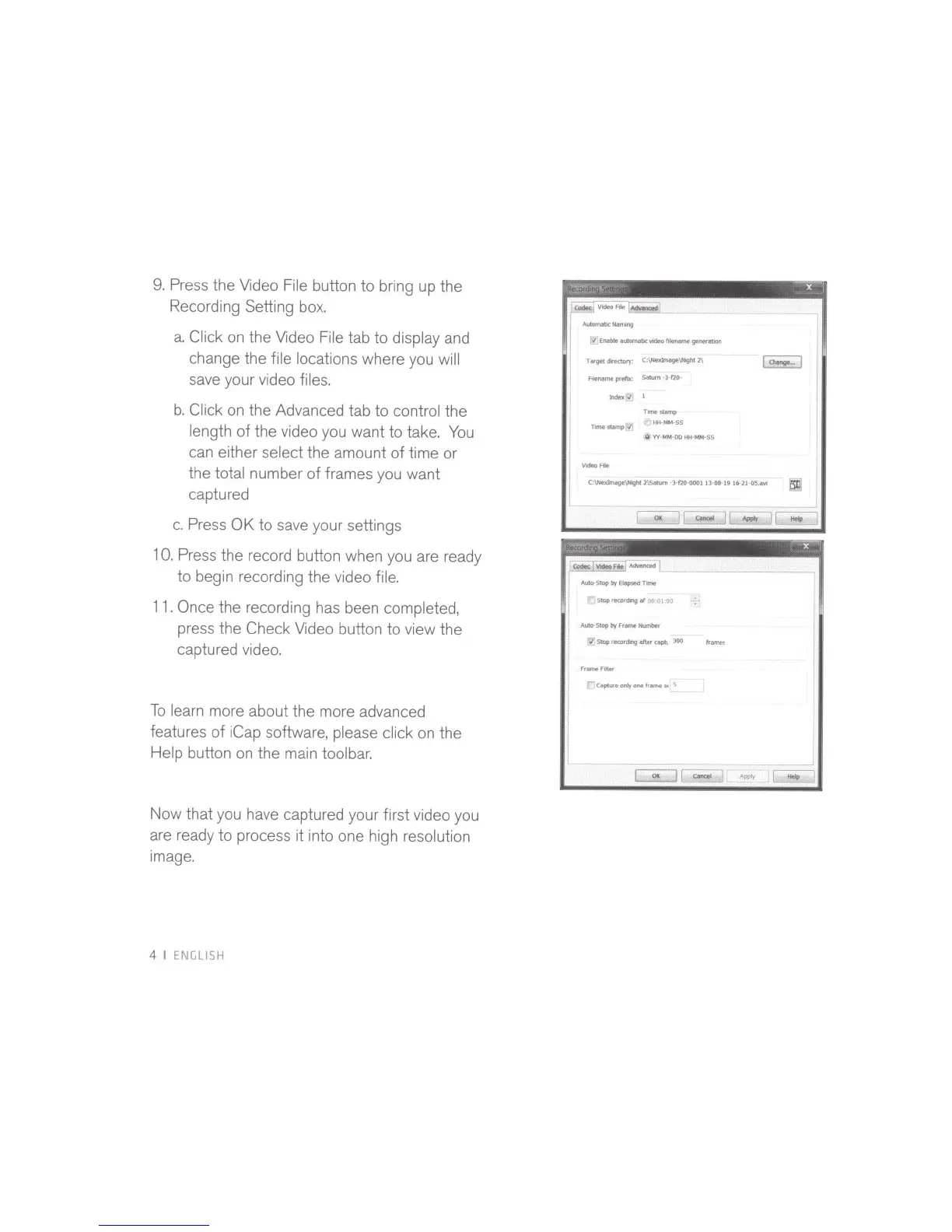
Press the Video File button to bring up the
Recording Setting
box.
a.
Click
on the Video File tab
to
display and
change the file locations where you
will
save your video files.
b.
Click
on the Advanced tab
to
control the
length
of
the video you want to take.
You
can either select the amount
of
time or
the total number
of
frames you
want
captured
c. Press
OK
to save your settings
1
0.
Press the record button when you are ready
to begin recording the video file.
11
.
Once
the recording has been completed,
press the
Check
Video button to view the
captured video.
To
learn more about the more advanced
features
of
iCap
software, please click
on the
Help button on the main toolbar.
Now
that you have captured your first video you
are ready to process it into one high resolution
image.
4
I ENGLISH
~
•
X
"
Enable
automatiC
-
menome
gener>lbOn
Target dorectory:
C:~\llight
2\
Fileno
me Jlfeftx:
SabJm
•
3120
~./I
Tm)e
stamp./
Vodeo
Ftle
Tome~
fti.MM·SS
0
YY~MM-00
HH-MM-SS
I
R>on9<···
I
C:~\llight
2\Satum
·3-120-ooGl
13-o&-
19
16
21
05.iM
AutG-Stop
by
Elopsed
Time
[J
Stop
recording
of
00:0
t
00
Auto
Stop
by
Frome
Humber
~
Stop
rorordlng ofter
copll
300
frame.
[!
Copture only
one
frome
oo
5
----
I
OK
J[~



 To Next Page