TKO Receiver
Static Guide
Champion Instruments 770.234.3254 | www.championinstruments.com
Page 2/3
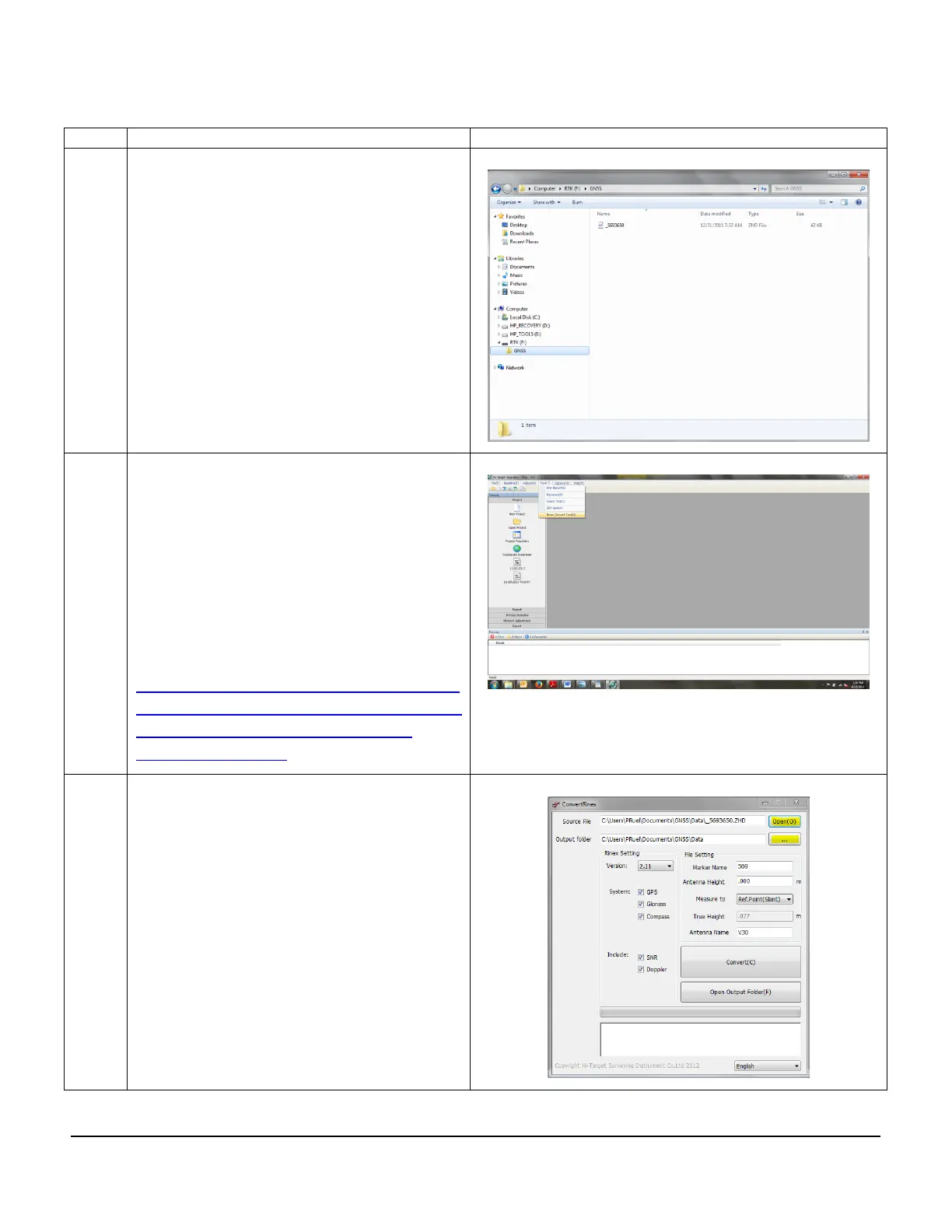
a. Your PC will automatically load any
necessary drivers and you will then be
able to navigate to the “GNSS” folder
which contains the .ZHD raw file using
windows explorer.
b. Copy and paste the .ZHD file to a
location on your hard drive.
a. Navigate to the HGO Software and
open it through the Start menu on your
PC under all Programs.
b. In the Tools Drop Down select “Rinex
Convert Tool”.
Note if you do not have the HGO software it
can be downloaded at:
http://championinstruments.com/champe
blast/TKO Users CD/Receiver Management
Software/GPS receiver management
software V1.4.1.exe
a. Use the “Open” button to navigate to
the .ZHD file you transferred off the
TKO in step 4
b. Use the “…” button to determine where
you want the Rinex file exported to.
c. Enter your point number under “Marker
Name” and the Antenna Height.
d. Press the “Convert” button



 To Next Page