Wi-Fi
Wi-Fi
Gladius_5G_xxxxx
xxxxxxxxxx
CHOOSE A NETWORK...
6:27 89%
Settings
xxxxxxxxxx
xxxxxxxxxx
Chasing_xxxxx
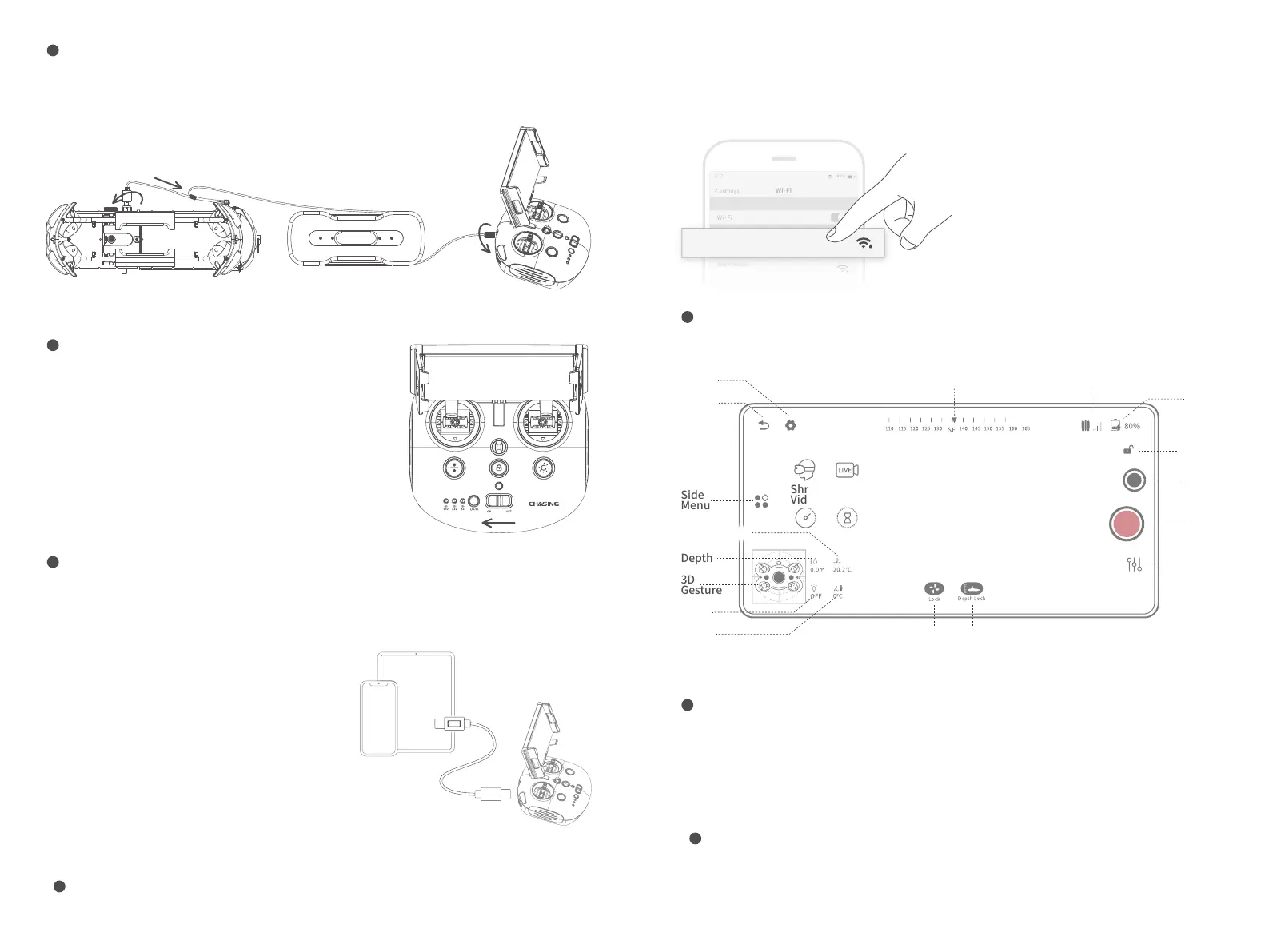
a. On the Phone/Tablet, go to Wi-Fi settings.
b. Wait for 5-10 seconds and the Chasing_xxxx network will appear as an option.
c. Click to connect and enter the Wi-Fi password: 12345678
Method 2:Wi-Fi Connection
Open the App and enter the camera, you will see the real-time scene transmission.
5 App interface Introduction
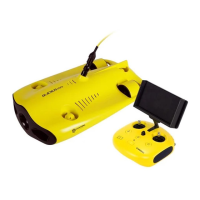
a. Grasp the grips on both sides of the ROV with both hands and gently throw the ROV into the water.
b. Unlock the Thruster(motors) to dive.
c. For a better experience, it is recommended to ensure that the water depth exceeds 1 meter.
6
Drop the ROV into Water
* Note:You could check more guidance videos on the website page https://www.chasing.com/,or you
could contact the global support team with any questions :support@chasing-innovation.com
a. Insert one end of the tether connector into the remote controller connector socket.
b. Reserve a suitable length and hang the Buckle on the Buckle Bracket, and make it tension.
c. Insert the other end of the tether connector to the ROV.
d. Securely hand-tighten both connectors.
2 Connect ROV with Remote Controller
a. Turn on the remote controller power button.
b. A few seconds later, the remote controller’s
indicator lights up, 5G or 2.4G light will be always on.
The drone LED lights will flash shortly,
accompanied by two self-tests sounds.
c. Check all the connectors and lights pre-dive, and
unlock the ROV when everything is ready underwater.
3 Start (turn on) the ROV
Method 1:USB Direct Cable Connection
Choose an appropriate remote controller cable based
on the type of mobile device. A Lightning connector cable,
micro USB cable, and TYPE-C cable are included in the
packaging. Connect the end of the cable with the mobile
phone logo to the mobile device.
Note: * It is recommended to use this kind of way to
connect mobile phone/tablet and remote controller.
* If the connection fails, please try to turn off your phone's
Wi-Fi and mobile network. If still fails, it may be a phone/
tablet compatibility problem. Please select method 2
Wi-Fi connection. * The remote controller type-c port and
attached remote controller cables do not support charging.
4 Connect remote controller to your phone/tablet
* Warning: Check whether the O-ring on the tether connector pre-dive. If it is missed or damaged, please
replace it in time.
2
5
General
Settings
Compass
VR Live Stream
Shrink
Video
Slow
Motion
Return
Side
Menu
Depth
Light
Angle
Unlock/lock ROV Mode
3D
Gesture
Signal Strength
Battery
White
Balance
Lock
Picture
Video
Recording
Camera
Settings
Temperature


 To Next Page