4
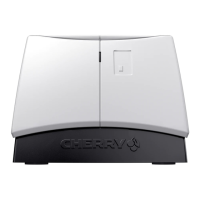
CHERRY SmartTerminal
ST-1144
• Chip card reader in accordance with PC/SC
specification, CCID compatible
• Conform to EMVCo Level 1
• Omnikey CardMan 3121 (Aviator) compatible
• ID 1 format (credit card format)
1 Connection to the PC
• Connect the USB plug of the SmartTerminal
with the USB port of your PC.
1.1 Microsoft Windows
The device is recognized automatically. Installing
a driver is not necessary.
You can check the driver version and update the
driver:
1 In the task bar, click on the Windows symbol
with the right mouse button.
2 Start the device manager.
3 Double-click on “Input devices (Human
Interface Devices)”.
4 Click on the device with the right mouse
button.
5 Follow the instructions.
1.2 Linux/Mac
The latest software is available on the Internet
under: www.cherry.de.
2 LED status display
LED Status
Lights up
briefly
• Upon connecting the
SmartTerminal to the PC:
Terminal operational
• Upon inserting the card:
Card detected
Flickers Data transfer from or to the
card
Flashes
intermittently
Error


 To Next Page