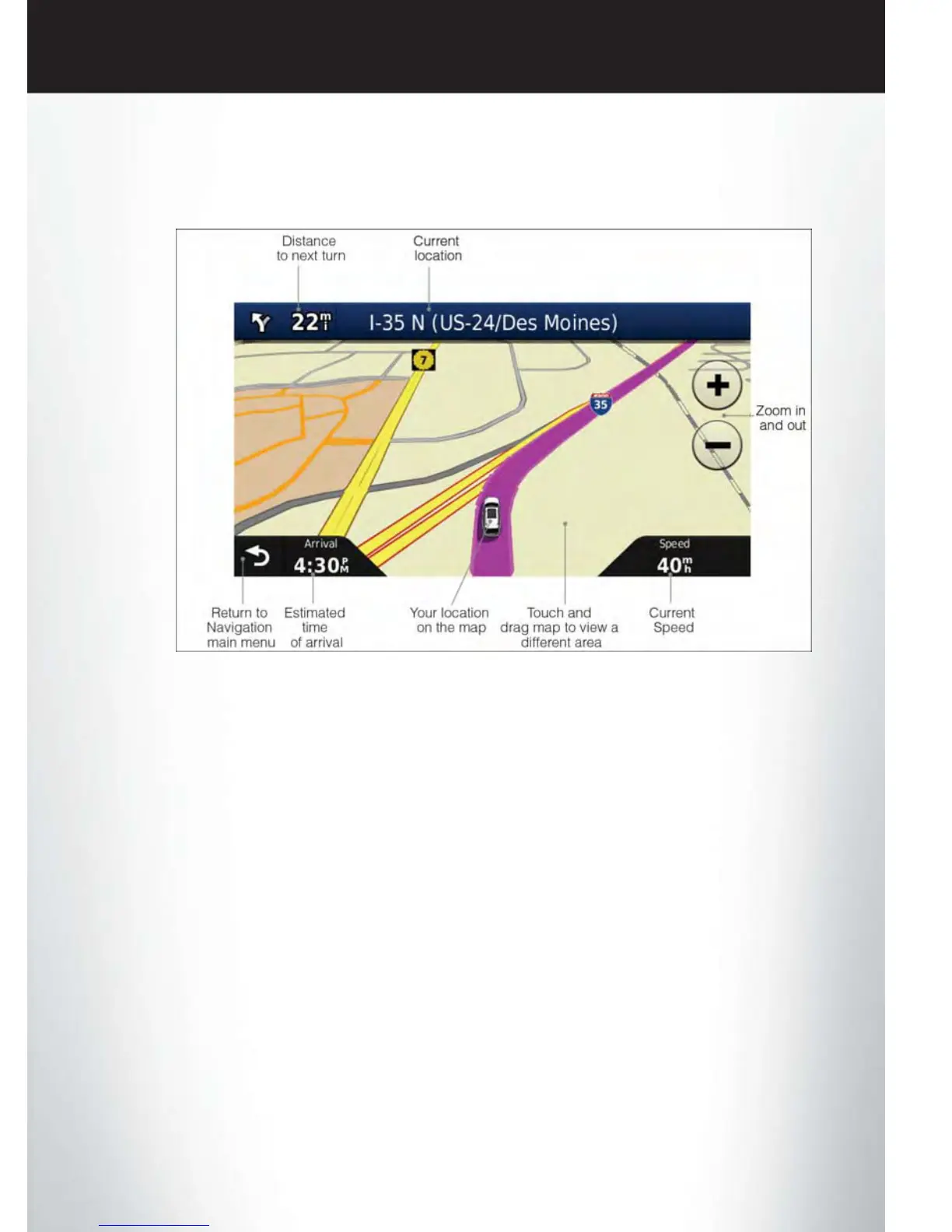
Following Your Route
• Your route is marked with a magenta line on the map. If you depart from the original route,
your route is recalculated. A speed limit icon could appear as you travel on major roadways.
Adding A Via Point
• To add a stop between the current location and the end destination (Via Point) you must be
navigating a route.
• Touch the “back arrow” icon multiple times to return to the Main Navigation menu.
• Touch the “Where To?” soft-key, then search for the additional stop. Select the Via Point you
wish to add from the given search results.
• Touch the “Go” soft-key, then touch the “Add to Current Route” soft-key.
Taking A Detour
• To take a detour you must be navigating a route.
• Touch the “back arrow” icon soft-key multiple times to return to the Main Navigation menu.
• Touch the “Detour” soft-key.
NOTE:
If the route you are currently taking is the only reasonable option, the device might not calculate
a detour.
Acquiring Satellites
• The GPS Satellite strength bars indicate the strength of your satellite reception.
• Acquiring satellite signals can take a few minutes. When at least one of the bars is green, your
device has acquired satellite signals.
• You may experience delays receiving satellite signals when in areas with an obstructed view to
the sky, such as garages, tunnels, or large cities with tall buildings.
ELECTRONICS
39















 To Next Page