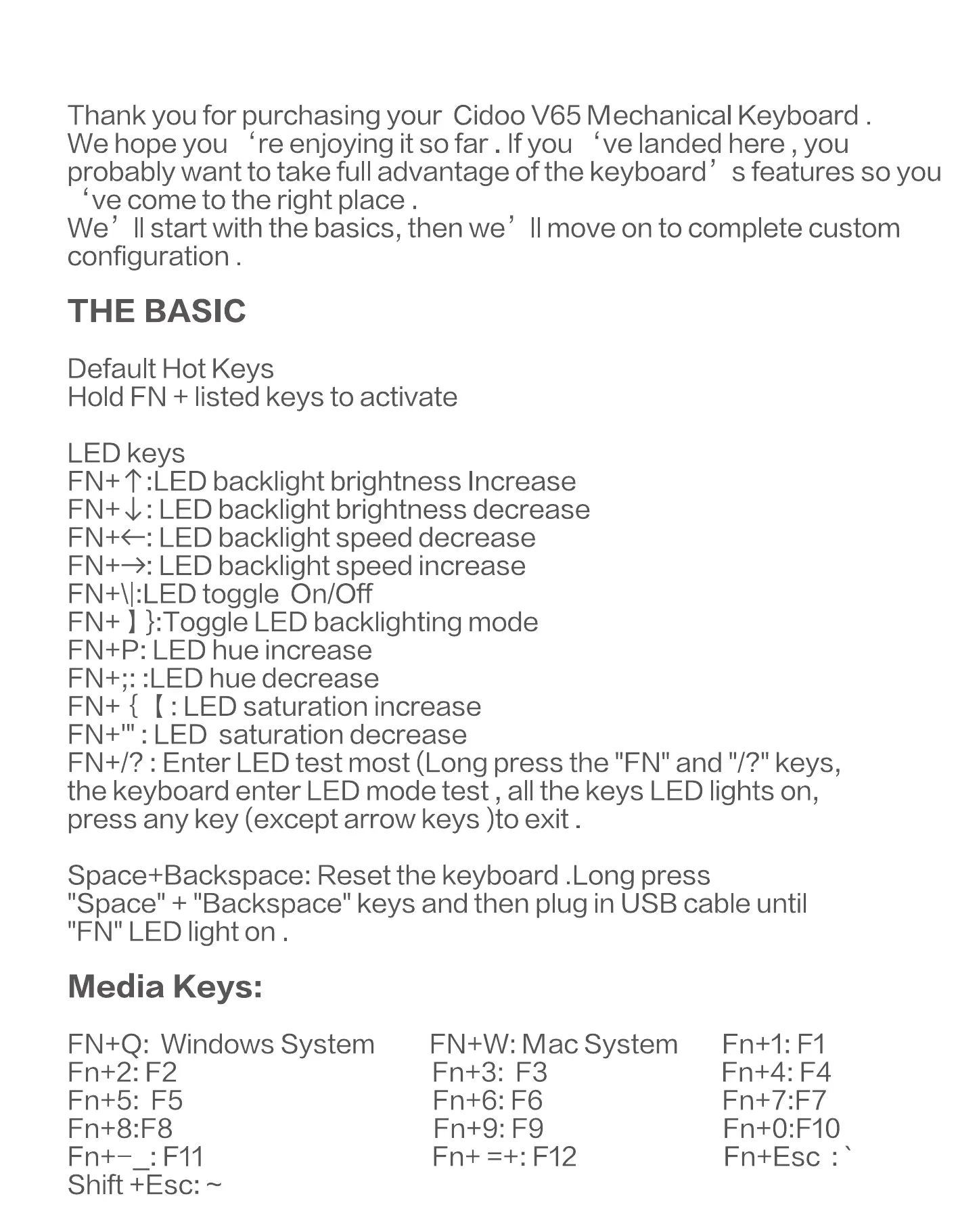
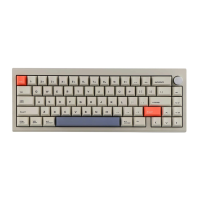
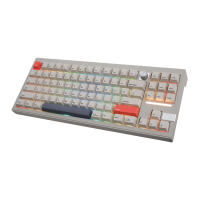
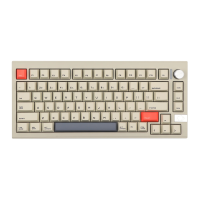
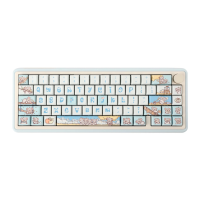
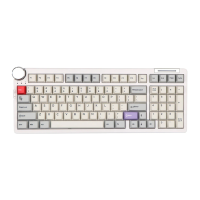
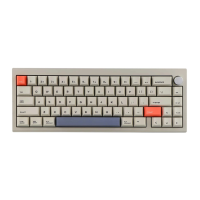
Thank you for purchasing your Cidoo V65 Mechanical Keyboard .
We hope you 're enjoying it so far . If you 've landed here , you
probably want to take full advantage of the keyboard' s features so you
ve come to the right place .
We' IIstart with the basics, then we' II move on to complete custom
configuration .
THE BASIC
Default Hot Keys
Hold FN + listed keys to activate
LED keys
FN+ t :LED backlight brightness Increase
FN+ U : LED backlight brightness decrease
FN+<—: LED backlight speed decrease
FN++: LED backlight speed increase
toggle On/Off
FN+ }:ToggIe LED backlighting mode
FN+P: LED hue increase
FN+;: :LED hue decrease
FN+ { ( : LED saturation increase
FN+I" : LED saturation decrease
FN+/? : Enter LED test most (Long press the "FN" and keys,
the keyboard enter LED mode test , all the keys LED lights on,
press any key (except arrow keys )to exit .
Space+Backspace: Reset the keyboard .Long press
"Space" + "Backspace" keys and then plug in USB cable until
"FN'I LED light on .
Media Keys:
FN+Q: Windows System
Fn+2: F2
Fn+5: F5
Fn+8:F8
: Fl I
Shift —
FN+VV: Mac System
Fn+3: F3
Fn+6: F6
Fn+9: F9
Fn+ F12
Fn+l: Fl
Fn+4: F 4
Fn+7:F7
Fn+O:FIO
Fn+Esc :


 To Next Page