Use the USB-C Cable
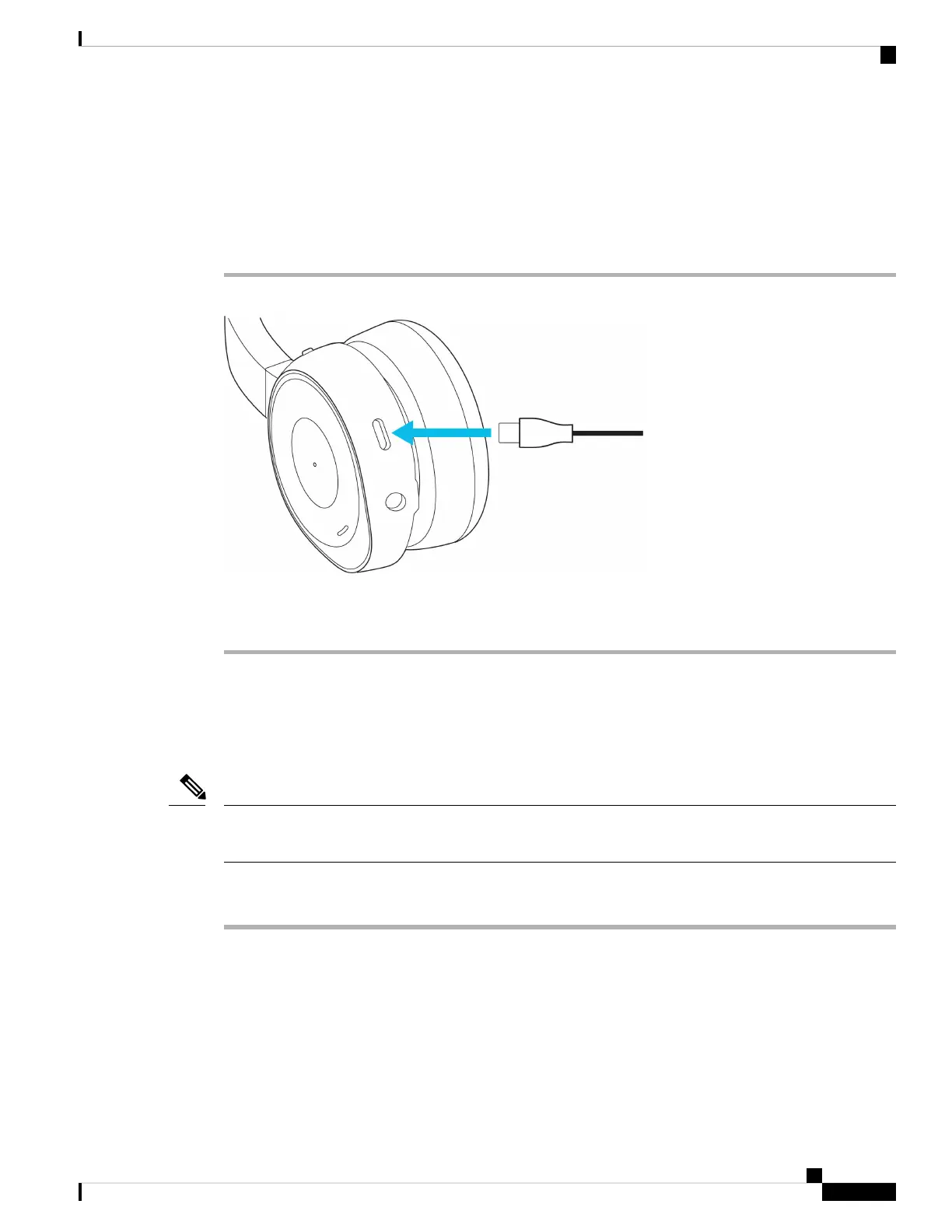
Use the included USB-C cable to connect your headset with your laptop, Cisco IP Phone, or Cisco Webex
DX device.
Procedure
Step 1 Plug the USB-C cable into the port at the bottom of the left ear cup.
Step 2 Connect the other end of the cable to your intended device.
Step 3 Slide the Power/Bluetooth slider up to turn on the headset.
Use the 3.5 mm Audio Cable
Use the included 3.5 mm audio cable to connect your headset with your laptop or mobile device. You can use
the audio cable to connect to a non-wireless device or if your headset battery is low.
You can't control calls or music playback when you use the 3.5 mm cable. Any connected Bluetooth sources
will have priority over the 3.5 mm audio connection.
Note
Procedure
Step 1 Plug the 3.5 mm audio cable into the port at the bottom of the left ear cup.
Your Headset
9
Your Headset
Use the USB-C Cable



 To Next Page