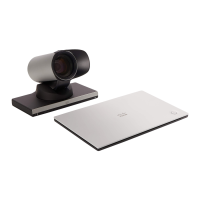
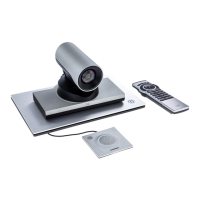
This document is a user guide for the Cisco TelePresence SX10 and SX20 video conferencing systems, running CE9.12 software. It provides comprehensive instructions on how to set up, operate, and maintain these devices for effective video communication.
Function Description:
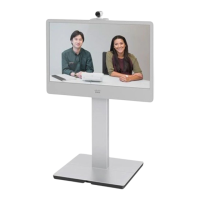
The Cisco TelePresence SX10 and SX20 are integrated video conferencing systems designed to transform any flat panel display into a powerful collaboration solution. They enable high-quality video and audio communication, content sharing, and remote control capabilities, facilitating seamless virtual meetings and presentations. The systems are designed for ease of use, with intuitive interfaces and remote control operation.
Important Technical Specifications (inferred from the manual's content and typical Cisco TelePresence features):
- Video Resolution: Capable of high-definition video conferencing (e.g., 1080p30 or 720p60), ensuring clear and crisp visuals.
- Audio Quality: Supports high-fidelity audio with features like echo cancellation and noise reduction for clear sound.
- Bandwidth: Adjustable call rate (up to several Mbps) to optimize video quality based on network conditions.
- Connectivity:
- Video Inputs/Outputs: Likely includes HDMI for display and content input.
- Audio Inputs/Outputs: Integrated microphone and speaker, with options for external audio devices.
- Network: Ethernet for IP-based communication.
- Wireless: Intelligent Proximity for wireless content sharing and device control from mobile devices (smartphones, tablets, PCs, or MACs).
- Camera: Integrated camera with pan, tilt, and zoom (PTZ) capabilities, supporting both local and far-end camera control.
- User Interface: On-screen display (OSD) with graphical menus, navigable via a remote control.
- Power: Standard AC power input.
Usage Features:
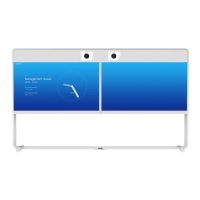
- Intuitive Home Screen: Displays current time and provides quick access to Call, Share, and Message functions. The "More" icon in the upper left corner offers access to System information and the Do Not Disturb feature.
- Remote Control Operation: A dedicated remote control is used for all system interactions, including volume adjustment, menu navigation (Cursor keys, OK/Enter), call management (Call, End Call, Reject Incoming Call, Accept Incoming Call), and keypad input.
- Video Calls:
- Placing Calls: Initiate calls from a contact list (Favorites, Recents, Directory), by entering a name, number, or IP address using a virtual keyboard.
- Adding Participants: Easily add additional participants to an existing call to create a multi-party conference.
- Disconnecting Participants: Remove specific participants from an ongoing conference.
- Receiving Calls: Accept or decline incoming calls, with options to accept additional calls while already in a call (e.g., putting the existing call on hold).
- Transferring Calls: Transfer an ongoing call to another contact.
- Call Rate Adjustment: Edit the call rate to manage bandwidth usage and video quality.
- Screen Layout Management: Change the layout of the video screen during a call or presentation, including Picture-in-Picture (PiP) and Picture-outside-Picture (PoP) options.
- Do Not Disturb: Enable or disable Do Not Disturb mode to mute ringtones and prevent call attempts from appearing.
- Standby Mode: Place the device in standby mode to conserve power.
- Call Forwarding: Forward all incoming calls to voicemail or another contact.
- Intelligent Proximity:
- Wireless Content Sharing: Share content wirelessly from a PC, Mac, smartphone, or tablet to the video conference.
- Device Control: Use a mobile device to control the video device.
- Automatic Connection: Automatically connects to the TelePresence system when a mobile device running the Cisco Proximity app is nearby.
- Content Sharing:
- Start and Stop Presentation: Initiate and end content sharing from a PC or other source (e.g., HDMI input).
- Local Preview: Preview content before sharing it with others.
- Minimize/Maximize Content: Adjust the size of the shared image on the screen.
- Scheduled Meetings: Join scheduled meetings directly from the home screen, with an option to postpone the join offer.
- Contacts Management:
- Favorites: Add contacts to a Favorites list for quick access, both outside and during a call.
- Directory/Recents: Access corporate directory and recent call lists.
- Editing Contacts: Edit contact details before placing a call.
- Camera Control:
- Local Camera Control: Adjust zoom, pan, and tilt of the integrated camera.
- Far-End Camera Control: Control the camera of a remote participant.
- Selfview PiP: Move and resize the self-view (your own image) on the screen.
- Turn Camera On/Off: Enable or disable the camera during a call.
- Settings: Access various system settings, including device information, issues and diagnostics, audio (ringtone and volume), screen and video, presentation, screen adjustment, default camera position, network settings, and device activation.
Maintenance Features (inferred from the manual's content and typical Cisco TelePresence features):
- Diagnostics: The settings menu likely includes options for viewing system diagnostics and troubleshooting.
- Software Updates: While not explicitly detailed as a user-facing feature, Cisco TelePresence systems typically receive software updates to improve functionality and security.
- Network Configuration: Ability to configure network settings for optimal connectivity.
- System Information: Access to device information for support and troubleshooting.
- Reset Options: Potentially includes options to reset settings or restart the device.

 Need help?
 General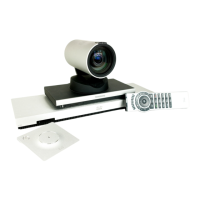


 To Next Page