Classeq Under Counter Range - User Manual
26
Please Note: In an event of empty chemical bottle, reminder
note will notify on display (6) to refill the chemical before the
start of cycle.
Press Back button (7) to return to previous menu.
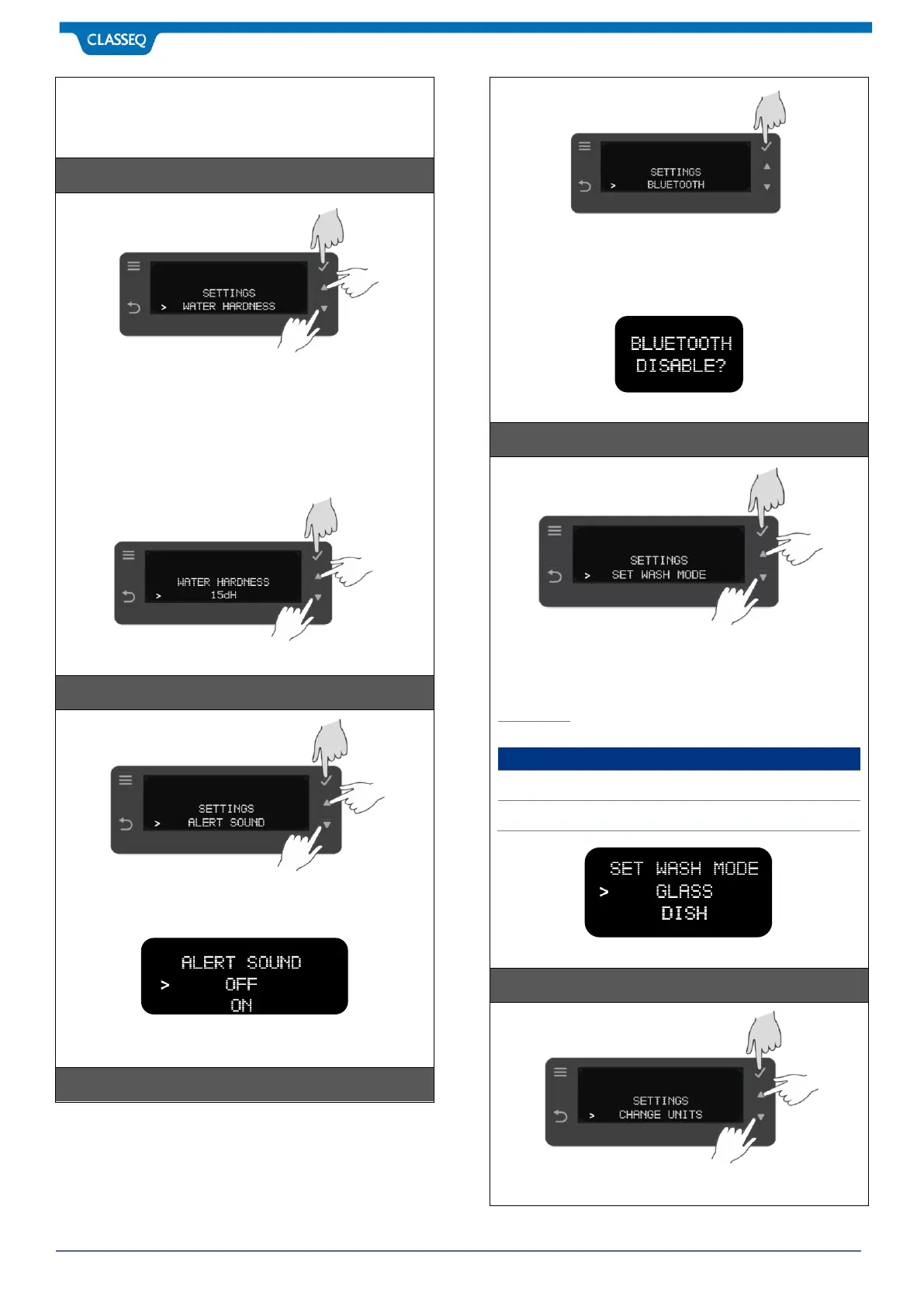
Press Select Button (2) to enter the Water Hardness settings
Press UP Button (4) & DOWN Button (5) to select water
hardness value. Confirm your selection by pressing Select
Button (2). Default is set at highest level 30ºDH.
Minimum: 0ºDH and Maximum: 30ºDH.
Please note at minimum setting of 0ºDH, water softener is
deactivated.
Press Back button (7) to return to previous menu.
Press Select Button (2) to enter the ALERT SOUND option Press
UP Button (4) & DOWN Button (5) to select value. Confirm your
selection by pressing Select Button (2). Default is set to OFF.
Please Note: This is a visual sound to notify end of the cycle.
Press Back button (7) to return to previous menu.
Press Select Button (2) to enter and confirm the BLUETOOTH
setting. Default setting is Enable. Bluetooth allows to connect
warewasher to Classeq’s App, which is available on Play store
or Google Play for free. Through APP, you connect your
warewashers to view overall data and appliance information.
Press Back button (7) to return to previous menu.
Press Select Button (2) to enter the SET WASH MODE settings
Press UP Button (4) & DOWN Button (5) to select wash mode
either Glasswasher or Dishwasher. Confirm your selection by
pressing Select Button (2).
Please Note: Your warewasher automatically adjust the
temperature required for different wash mode.
Press Back button (7) to return to previous menu.
Press Select Button (2) to enter the CHANGE UNITS settings
Press UP Button (4) & DOWN Button (5) to select units in



 To Next Page