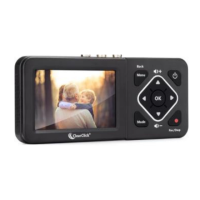
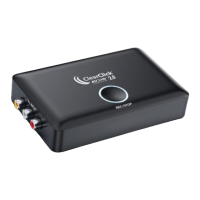
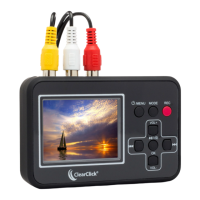
The ClearClick Video2Digital Converter 2.0 is a standalone device designed to convert analog video sources into digital format, saving them directly onto a USB flash drive or SD card without the need for a computer. This makes it a convenient tool for preserving old VHS tapes, camcorder footage, DVD content, or gaming device output.
Function Description:
The primary function of the Video2Digital Converter 2.0 is to digitize video and audio from various analog sources. It accepts input via standard AV (RCA) cables (red, white, and yellow connectors) and also offers an S-Video input for potentially higher quality video. The device records these analog signals into MP4 digital video files. It features an LCD screen for previewing the video source and recorded content, as well as for navigating menus and settings. For playback on a larger screen, the converter includes an HDMI output port, allowing users to connect it to a TV.
Usage Features:
- Standalone Operation: One of the key advantages is its ability to operate independently. Users simply plug in the power adapter, a USB flash drive or SD card for storage, and their analog video source.
- Easy Recording: To start converting, users press "Play" on their video source and then press the "Rec/Stop" button on the converter. Pressing "Rec/Stop" again stops the recording.
- Pause/Resume Recording: During recording, the "OK" button can be used to pause and resume the recording, allowing users to skip unwanted segments without creating multiple files. The converter will not record anything while paused, and the final output will be a single file.
- Snapshot Functionality: The device can also capture still images (snapshots) by holding down the "Rec/Stop" button in recording mode.
- Built-in Speaker and Volume Control: A built-in speaker allows for audio monitoring during recording and playback. Volume can be adjusted using the "Vol+/-" buttons.
- Playback on Device or TV: Recorded videos can be played back directly on the converter's LCD screen. For a larger viewing experience, an HDMI cable (not included) can be connected from the converter's HDMI OUT port to a TV.
- Auto Stop Recording: This is a particularly useful feature for unattended conversions. Users can set the converter to automatically stop recording after a preset duration (e.g., 60, 90, 120, or 150 minutes). This is ideal for converting long tapes without constant supervision.
- Scheduled Recordings: The device supports scheduling recordings for daily, once, or weekly occurrences. Users can set specific start and end times, and for weekly schedules, select the desired days of the week. This requires ensuring the device's internal time and date are correctly set.
- Adjustable Video Size (Aspect Ratio): By default, the converter records at a 3:2 aspect ratio (720x480 pixels). Users can change this to 4:3 (640x480 pixels) if their video source appears horizontally stretched, which is common with some VHS tapes. This setting only affects future recordings.
- Time/Date Stamp Overlay: Users have the option to turn on or off a time/date watermark that overlays the recorded video. This is controlled via the "Time watermark" option in the menu. It's important to note that if the time/date stamp is already "burned" into the original video tape, the converter cannot remove it.
- Memory Card/USB Drive Compatibility: The converter supports USB flash drives and SD cards up to 128GB. It is recommended to use new SanDisk USB 3.0 drives (128GB or less) or Class 10 SD cards for optimal performance.
- File Management: Recorded digital videos are saved into a "video" folder on the inserted USB drive or SD card.
Maintenance Features:
- Formatting Storage Devices: The converter provides a utility to format (erase) USB drives or SD cards directly on the device. This is useful for preparing new storage or clearing existing content. For Mac users, it's recommended to format the storage device on the Mac first using MS-DOS FAT32 format before inserting it into the converter.
- Troubleshooting Guide: The manual includes a comprehensive FAQ and troubleshooting section to address common issues such as no audio/video, only snapshots being recorded, jerky/glitchy video, unrecognized storage devices, and power-on problems.
- Firmware Updates: For persistent video quality issues, users are advised to contact tech support to verify if their device has the latest firmware.
- Power Management: The device is powered via a Micro USB port and requires an external power adapter; it does not have a built-in battery. It's important to turn off and unplug the unit when not in use.
- Safe Storage Device Removal: Users are instructed not to unplug the USB flash drive or SD card until recording has completely stopped to prevent data corruption.
- SD Card Removal: SD cards can be easily removed by pressing inward until a click is heard, then pulling the card out.
- Tech Support: ClearClick offers USA-based tech support via email for any questions or issues not covered in the manual, emphasizing a 1-year warranty with free replacement for non-accidental damage. An option to extend the warranty to 2 years is available upon product registration.

 Need help?
 General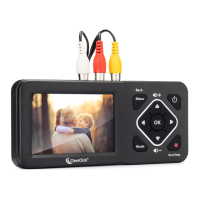

 To Next Page