©2024 Clover Network, LLC | Clover Confidential | Fiserv Internal Use Only
Add a welcome screen image:
1. From your dashboard, select one of the following based on what you see onscreen:
a. Select Settings on the upper right > View all settings
b. Account > Account & Setup
2. Under Business Operations, select Kiosk settings
3. Next to Welcome screen image, select Edit.
4. Upload a JPEG or PNG file. Then, select Save.
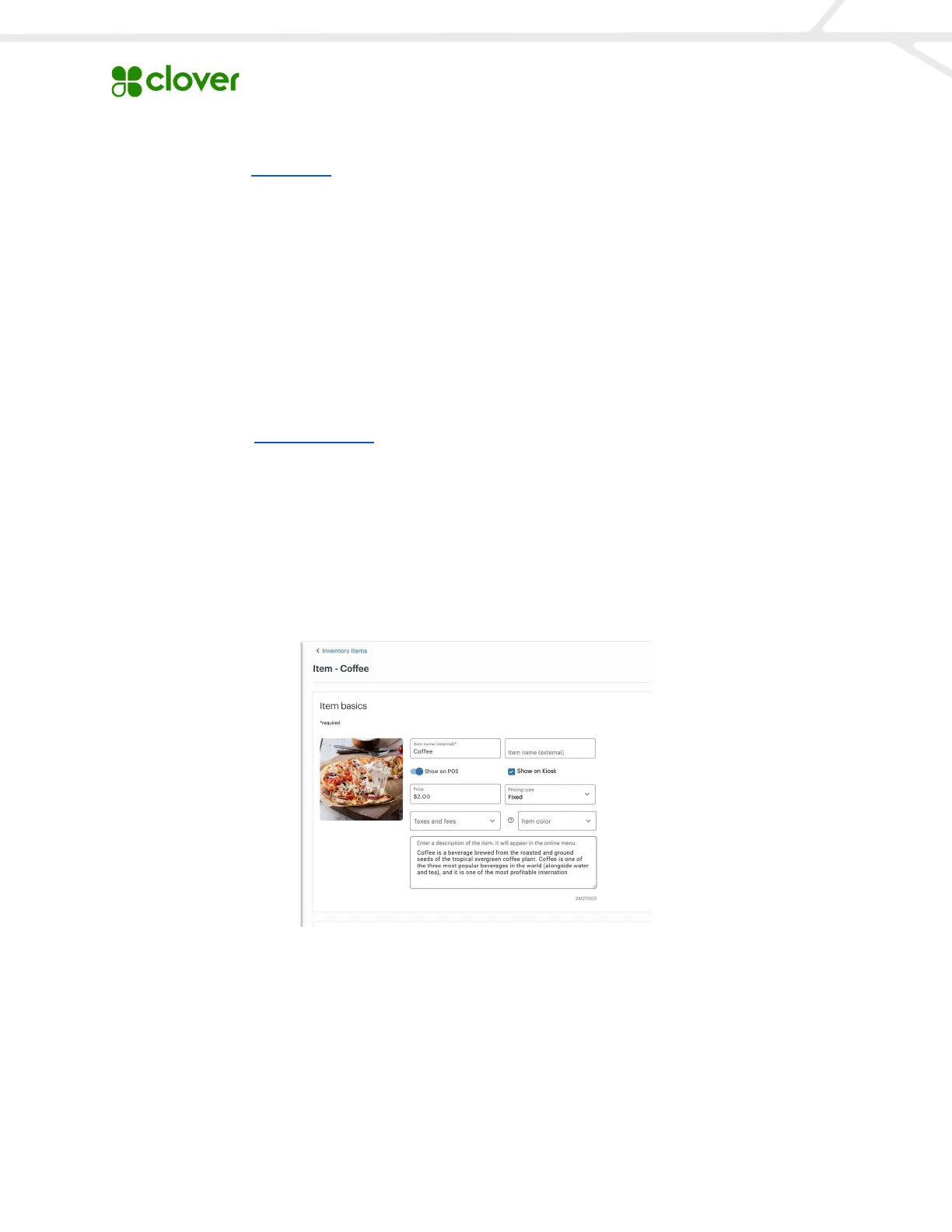
To add an item to your inventory:
● From your Clover account, at the left, select one of the following based on what you
see onscreen:
o Inventory > Items
o Items > Item List
● Select Add Item.
● Enter the item name and price.
Configure Kiosk Settings
Device name: Clover Kiosks should be given a name so merchants can differentiate between
multiple kiosks.


 To Next Page
 Loading...