USER MANUAL EN
65
Create and send messages
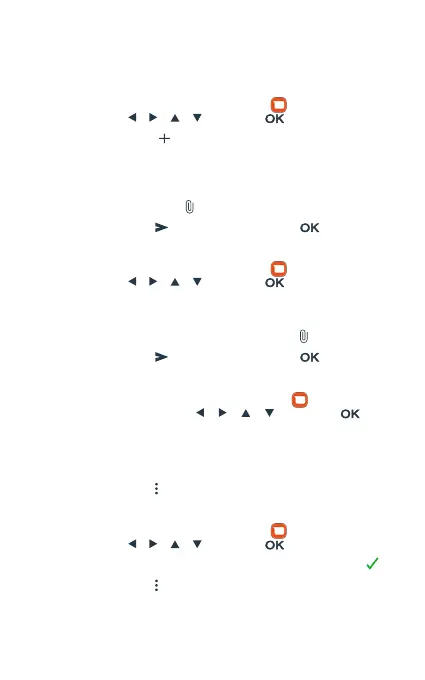
1. Access the app menu, select the icon or navigate to it using
the keys [ ] [ ] [ ] [ ] and press [ ].
2. Press the icon to start a new conversation.
3. Enter the phone number or contact name to whom you want
to send the message.
4. Write the text in the indicated eld. If you want to add media
les in the message, .
5. Press the icon or navigate to it and tap [ ].
View and reply to messages
1. Access the app menu, select the icon or navigate to it using
the keys [ ] [ ] [ ] [ ] and press [ ].
2. Select a conversation to view it.
3. To reply to the message, write the text in the indicated eld. If
you want to add media les in the message, .
4. Press the icon or navigate to it and tap [ ].
Delete messages
1. Access the app menu, select the icon Access the app
menu, select the icon [ ] [ ] [ ] [ ] and press [ ].
2. Select a conversation to view it.
3. Long press on the message you want to delete until it changes
color from gray to green.
4. Press the icon and the delete option.
Empty the inbox
1. Access the app menu, select the icon or navigate to it using
the keys [ ] [ ] [ ] [ ] and press [ ].
2. Long press on the conversation icon until it changes to .
3. Press the icon and the delete option.



 To Next Page