To Scan to Computer (via Network):
REQUIREMENTS
1. You need a 1GB Network connection (or to directly connect to a 1GB Switch)
2. You need to install the NetApp software on the Computer
NETWORK CONFIGURATIONS
There are two ways to configure the Network Connection
1. Connect via DHCP settings
2. Connect via Static settings
DHCP Connection
With DHCP connection – your Server will issue an IP Address to the scanner and to your PC
When using DHCP – no need to set any IP Address or Subnet Mask at the scanner or PC
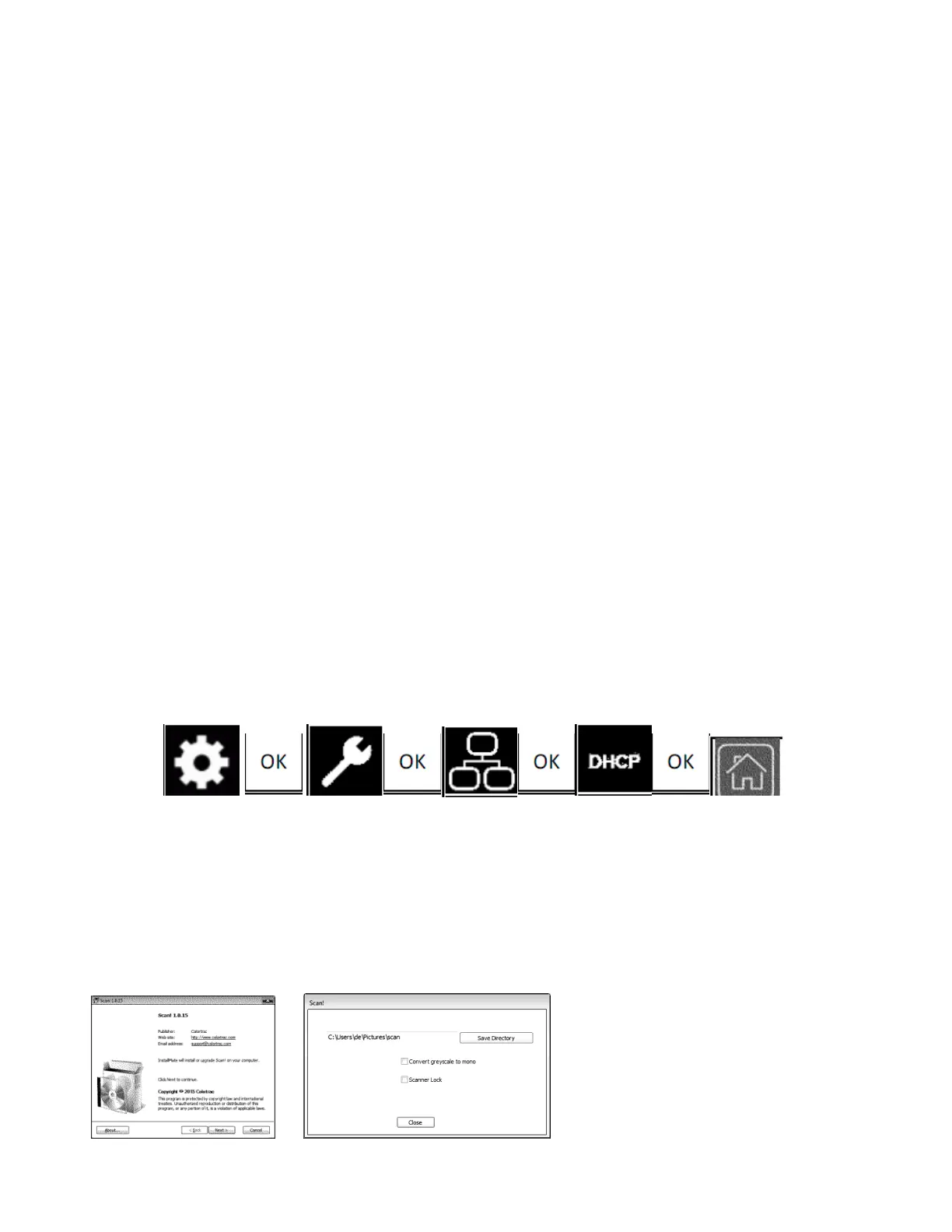
Simply choose DHCP for the scanner (see below)
(confirm your PC is set for DHCP) – then reboot the PC and Restart the Scanner
Choose
You must have a 1GB Network connection
You Must install the NetApp program on the PC
– make sure it is OPEN (and configured) before you try to scan (see below)



 To Next Page