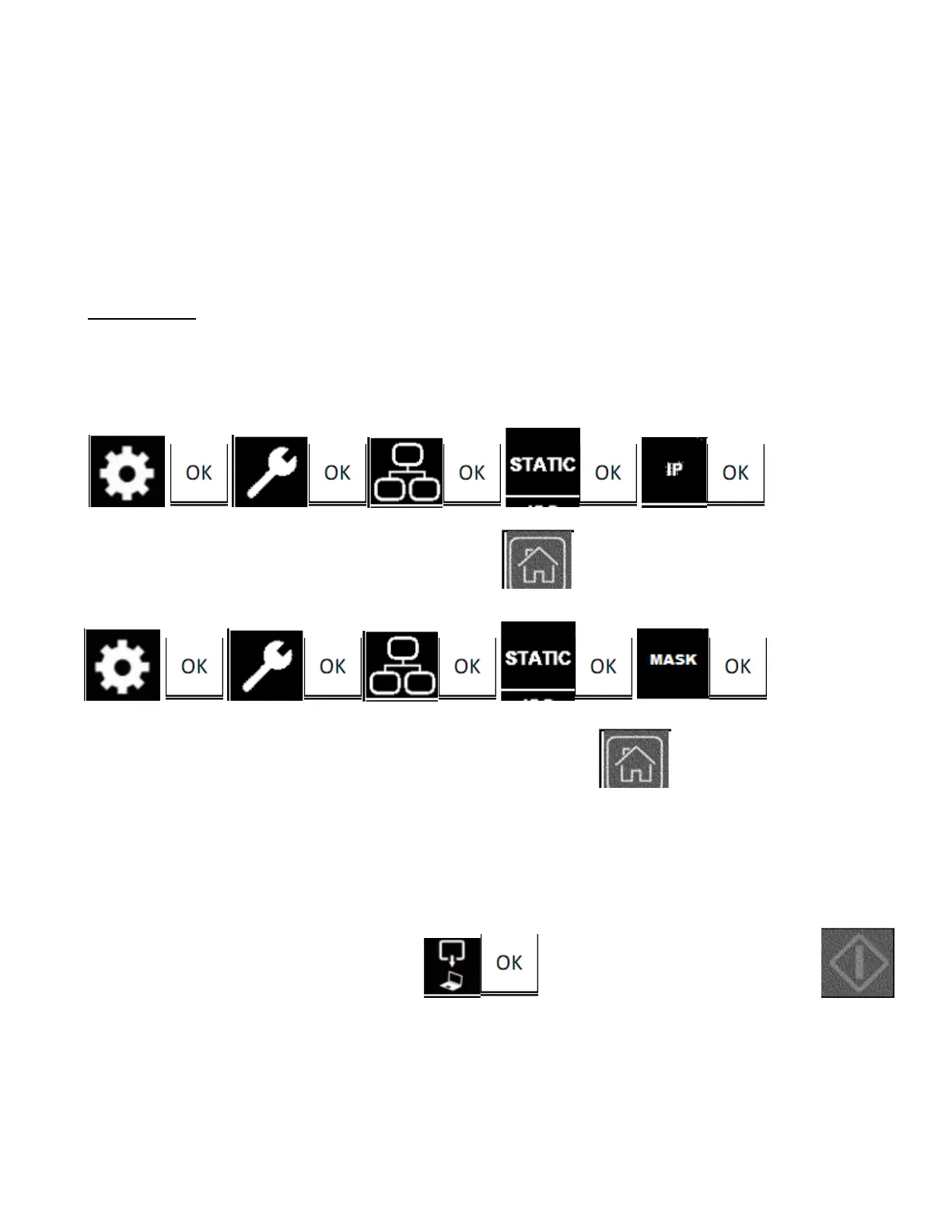
STATIC Connection
With STATIC connection – you will manually set an IP Address and Subnet Mask Address for
the scanner and for your PC
- The PC and Scanner must be configured for sequential Static IP Addresses and both must
be configured for the same Subnet Mask number
-
For example – Set Scanner to IP address – 192.168.001.111 -
Set PC to IP address - 192.168.001.112
Set both Scanner and PC to Subnet Mask of – 255.255.255.0
Manually enter a Static IP address – then press
Manually enter a Static Subnet Mask address – then press
STARTING A SCAN TO PC (NETWORK)
1. Load a Document into the scanner
2. At scanner Display Panel – choose - setup your scan – then press
-
NOTE: If you encounter a problem - You may have to restart the Scanner and/or reboot PC –
so they can see each other – and try the Scan to PC once again !



 To Previous Page