The K. COMER RX106HD is a logistics thermal label printer designed for high-definition printing of small text with clear performance and stable printing speed. It is an environmentally friendly printer that does not require ink or ink cartridges.
Function Description
The RX106HD printer is primarily used for printing thermal labels for logistics purposes. It offers a high-definition printing capability, making it suitable for applications where small text needs to be clear and legible. The printer supports various operations through its "FEED" button, including self-test printing, entering learn mode for cover sheets, factory reset, automatic absorption of blank paper, print pause, and resume printing. Its indicator light provides visual cues for different printer statuses, such as standby, buzzer warnings, and various error conditions (chip error, lack of paper, overheating, uncap error, seam standard error).
Important Technical Specifications
- Brand: Comer
- Method: Direct Thermal
- Resolution: 300DPI
- Max Printing Speed: 127mm/s
- Connection: USB
- Printing Width: 104mm (4.09 inches)
- Paper Width: 26.7mm - 120mm
- Power Adapter: DC24V/2.5A
- Label Media Paper Type: Continuous Paper, Label Paper, Black Mark Paper
- Dimension: 8.54" x 3.9" x 3.62"
- Weight: 1.32KG
Usage Features
The RX106HD is designed for ease of use with a straightforward installation process for both hardware and software.
Hardware Installation:
- Standard Accessories: The package includes the printer, power cable, adapter, USB line, quick installation guide, label roll holder, and a USB drive.
- Cable Connection:
- Ensure the printer is powered off.
- Connect the adapter to the printer.
- Connect the adapter to one end of the power line.
- Connect the other end of the power line to a socket.
- Connect the USB cable to the printer and then to the PC mainframe.
- Turn on the printer power.
- Consumables Installation:
- Face the back of the printer and hold down the paper guide with both hands to adjust the guide space according to the paper size.
- Insert the thermal paper into the paper guide.
- Feed the thermal label into the paper channel slowly; the paper will be automatically absorbed by the detector.
Software Installation (MAC):
- Ensure the printer is ON.
- Download the Mac driver from the provided USB disk or website.
- Locate the RX106HD driver in the USB flash drive and save it to the desktop.
- If a "pkg can't be opened because it is from unidentified developer" message appears, allow the Mac to finish the installation by going to "Security & Privacy" and allowing the driver to open.
- Follow the installer prompts to complete the installation.
- After successful installation, go to "System Preference" -> "Printer and Scanners" and add the RX106HD printer.
Software Installation (Windows):
- Ensure the printer is ON.
- Download the Windows driver from the USB disk or website.
- Use an unzip tool to extract the driver files.
- Start the driver installation.
- Continue to install as prompted.
- After successful installation, go to "Setting" -> "Devices" -> "Printers & Scanners" to find the installed driver.
- Click the printer, choose "Manage," and print a test page to verify installation.
- Users can adjust label size and print density via "Printer Properties" -> "Preferences" if needed.
Button 'FEED' Instruction:
- Power off (Long press after power on): Self-test printing.
- Standby (Long press 2 seconds): Self-test printing (light flash with buzzer warning).
- Standby (Long press 4 seconds): Enter learn mode of cover sheet (light flash with buzzer warning).
- Open the printer cover (Long press 10 seconds): Factory reset.
- Standby (Short press): Automatically absorb a blank sheet of paper.
- Continuous printing (Short press): Print pause.
- Print pause (Short press): Resume printing.
Indicator Light Instruction:
- Light ON: Standby.
- Light Flashing: Buzzer Warning.
- Twice: Chip error.
- Three times: Lack paper error.
- Five times: Overheating error.
- Six times: Uncap error.
- Seven times: Seam standard error.
Maintenance Features
- Paper Jam Resolution:
- If a paper jam occurs, press and hold the cover keys on both sides to open the top cover.
- Pull out the stuck paper from the feed channel.
- Replace it with new paper.
- Print Quality: To ensure optimal print quality, use the original factory power adapter.
- Paper Quality: Avoid poor quality paper, as it can cause significant wear and damage to the printer's heat components.
- Print Head Cleaning: Regularly clean the print head, especially if prints become unclear, to maintain high-quality results.
- Label Identification: When replacing paper specifications (thickness, quality), it is recommended to perform "Automatic identification label."
- Print Density Adjustment: If print quality is poor despite using good paper and a clean print head, the print density can be adjusted from 0 to 15 levels.
- Paper Absorption: The product has a paper absorption function; load paper in the rear suction mode. Opening the cover during this process will waste paper.
Warranty
The Comer thermal printer comes with a one-year warranty. For any issues or questions, customers can contact Comer customer service at service1@kcomer.com or visit https://www.kcomer.com for troubleshooting tips or replacements.

 Need help?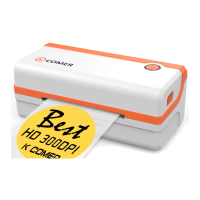

 To Next Page
 General