EasyManua.ls Logo

Commodore Amiga - Page 124

Commodore Amiga
162 pages
Print Icon
To Next Page IconTo Next Page
To Previous Page IconTo Previous Page
Loading...
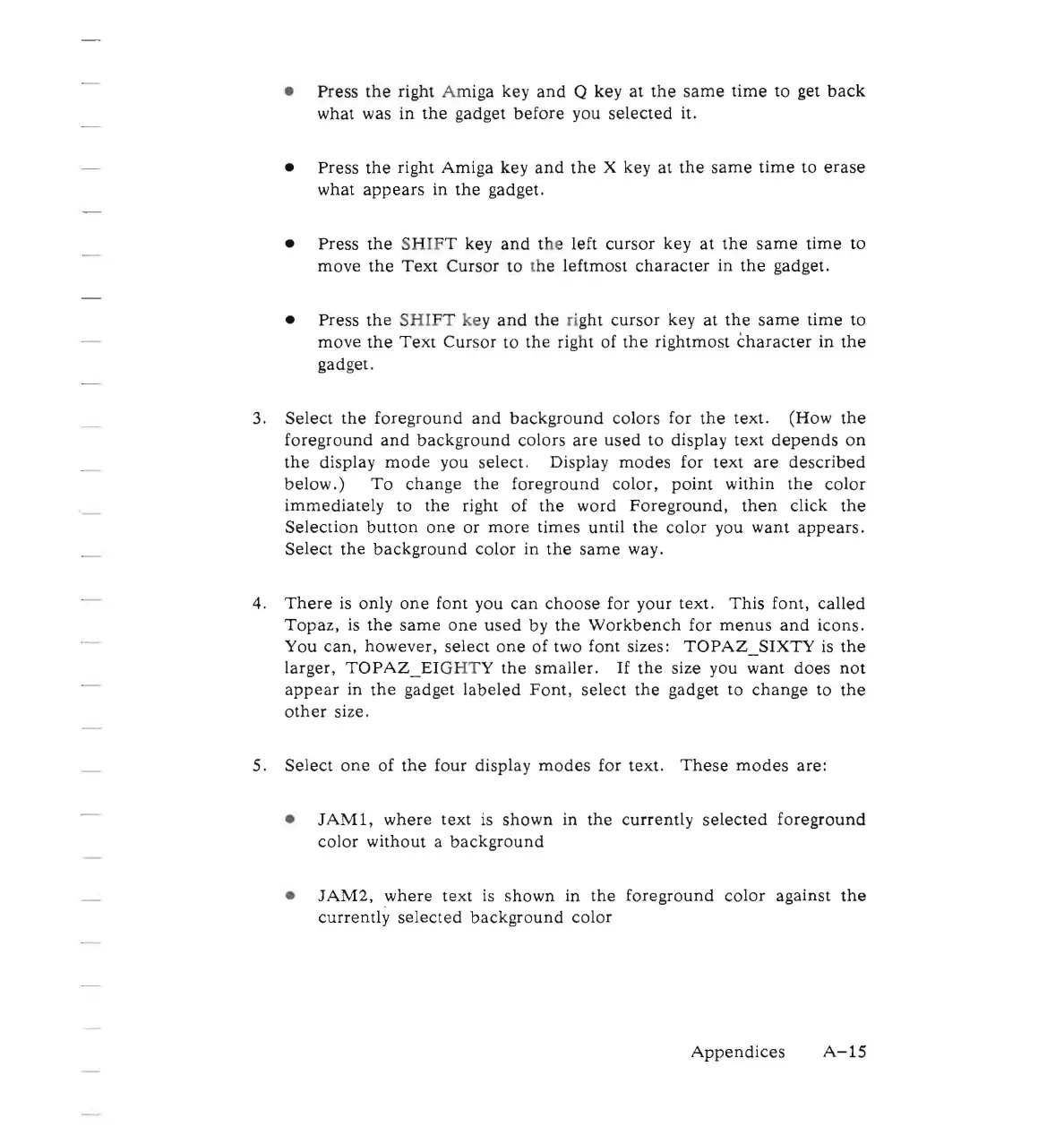
• Press
the
right Amiga key
and
Q key
at
the
same
time
to get
back
what was
in
the
gadget
before
you
selected
it.
•
Press
the
right
Amiga
key
and
the
X key
at
the
same
time
to
erase
what
appears
in
the
gadget.
• Press
the
SH
IF
T key
and
t
he
left
cursor
key
at
the
same
time
to
move
the
Text
Cursor
to t
he
leftmost
character
in
the
gadget.
• Press
the
SHI
FT
ke
y
and
the
right
cursor
key
at
the
same
time
to
move
the
Text
Cursor
to
the
right of
the
rightmost
character
in
the
gadget.
3.
Select
the
foreground
and
background
colors
for
the
text.
(How
the
foreground
and
background
colors
are
used
to
display
text
depends
on
the
display
mode
you select. Display
modes
for
text
are
described
below.)
To
change
the
foreground
color,
point
within
the
color
immediately
to
the
right
of
the
word
Foreground,
then
click
the
Selection
button
one
or
more
times
until
the
color
you
want
appears.
Select
the
background
color
in
the
same
way.
4.
There
is only
one
font you
can
choose
for your text.
This
font,
called
Topaz,
is
the
same
one
used
by
the
Workbench
for
menus
and
icons.
You
can,
however,
select
one
of
two font sizes:
TOPAZ_SIXTY
is
the
larger,
TOPAZ_EIG
HT
Y
the
smaller.
If
the
size you want
does
not
appear
in
the
gadget
labeled
Font,
select
the
gadget to
change
to
the
other
size.
5.
Select
one
of
the
four display
modes
for
text.
These
modes
are:
•
JAMl,
where
text is
shown
in
the
currently
selected
foreground
color
without a
background
•
JAM2,
where
text
is
shown
in
the
foreground
color
against
the
currently
selected
background
color
Appendices
A-15

Other manuals for Commodore Amiga

Related product manuals