EasyManua.ls Logo

Commodore PC - The Format Command

Commodore PC
414 pages
Print Icon
To Next Page IconTo Next Page
To Previous Page IconTo Previous Page
Loading...
n
Learning
About
Disks,
Files,
and
Directories
13
n
n
n
n
n
n
n
n
n
n
n
The
Format
Command
Before
you
can
use
your
new
disks
for
storing
information,
you
must
format
them.
You
do
this
with
the
format
command,
a
spe
cial
program
that
structures
a
disk
so
that
ms-dos
can
find
informa
tion
on
it.
The
format
command
also
checks
the
disk
for
defec
tive spots.
You
can
format
both
floppy
and
hard
disks.
But
remember
that
if
a
disk
is
not
blank,
formatting
it
destroys
any
data
already
on
the
disk.
You
will
learn
more
about
the
format
command
in
Chapter
4,
"Using
Commands."
How
to
Name
Your
Files
When
naming
a
file
you
may
have
trouble
finding
a
name
that
uniquely
identifies
the
file's
contents.
Dates,
for
example,
are
often
used
in
filenames;
however,
they
take
up
several
characters,
leav
ing
you
with
little
flexibility.
Other
common
names
for
files
are
words
like
budget,
finances,
analysis,
report,
etc.
These
kinds
of
filenames
identify
the
contents,
but
leave
little
room
for
dates.
So
the
secret
is
to find
a
compromise
a
point
where
you
can
com
bine
a
date
with
a
word,
creating
a
unique
filename.
The
name
of
a
typical
ms-dos
file
(see
Chapter
1)
looks
like
this:
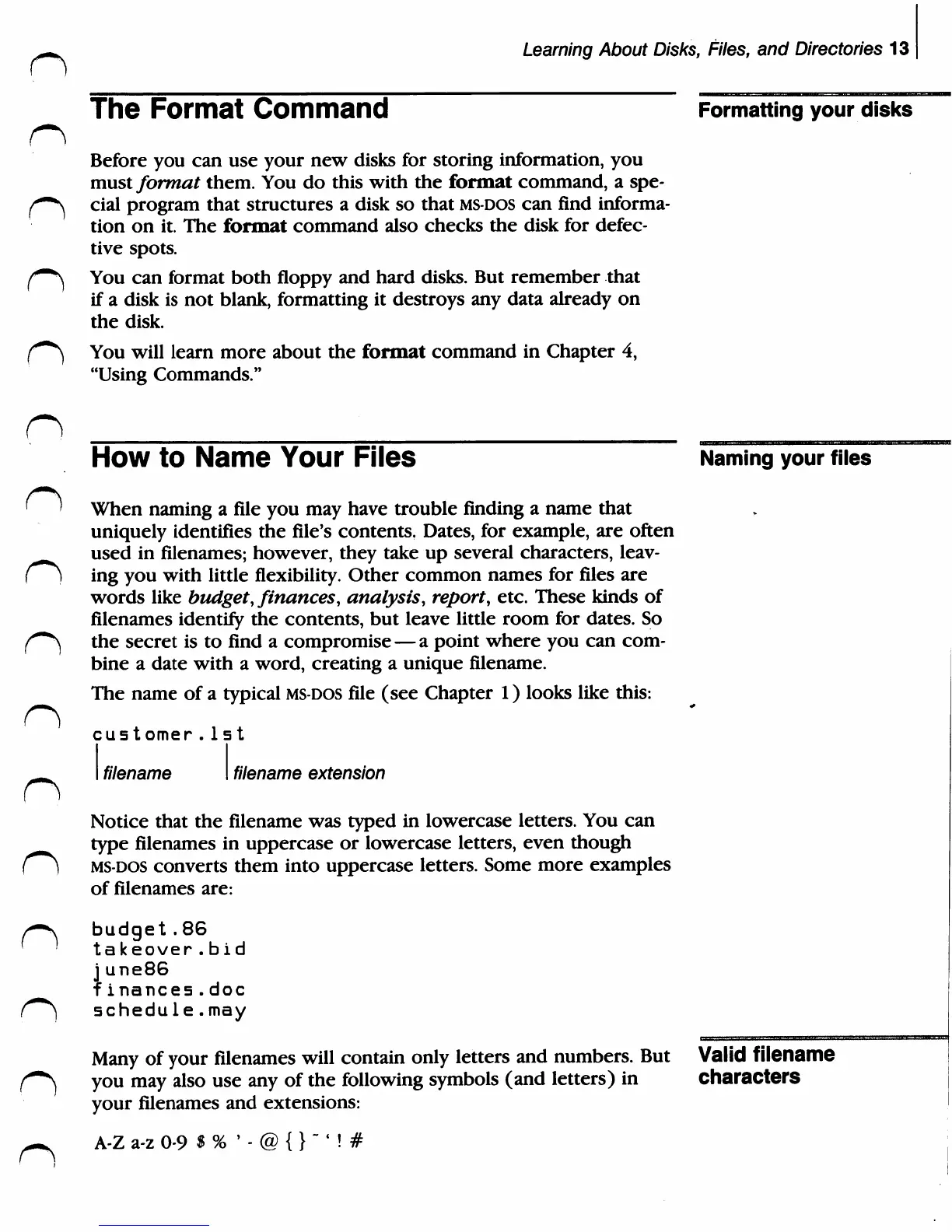
customer.1st
I
filename
filename
extension
Notice
that
the
filename
was
typed
in
lowercase
letters.
You
can
type
filenames
in
uppercase
or
lowercase
letters,
even
though
ms-dos
converts
them
into
uppercase
letters.
Some
more
examples
of
filenames
are:
budget.86
takeover.bid
j
une86
finances.doc
schedule.may
Many
of
your
filenames
will
contain
only
letters
and
numbers.
But
you
may
also
use
any
of
the
following
symbols
(and
letters)
in
your
filenames
and
extensions:
A-Z
a-z
0-9
$
%
'
-
@
{}"
' !
#
Formatting
your
disks
Naming
your
files
Valid
filename
characters

Related product manuals