EasyManua.ls Logo

Commodore PC - Page 29

Commodore PC
414 pages
Print Icon
To Next Page IconTo Next Page
To Previous Page IconTo Previous Page
Loading...
Learning
About
Disks,
Files,
and
Directories
15
n
n
n
KEYBUK
EXE
LABEL
EXE
MODE
EXE
RECOVER
EXE
REPLACE
EXE
RESTORE
EXE
SHARE
EXE
SUBST
EXE
TREE
EXE
RAMDRIVE
SYS
XCOPY
EXE
DISKCOMP
EXE
ASSIGN
MORE
PRINT
SORT
FORMAT
SYS
COM
COM
EXE
EXE
EXE
COM
37
2850
2750
13652
4145
4852
21360
8544
9898
8556
6454
5396
3808
1523
282
8824
1898
10973
4607
3-21
3-21
3-21
3-21
3-21
3-21
3-21
3-21
3-21
3-21
3-21
3-21
3-21
3-21
3-21
3-21
3-21
3-21
17408
-86
12:00p
-86
12:00p
2:00p
2:00p
2:00p
2:00p
2:00p
2:00p
2:00p
2:00p
2:00p
2:00p
2:00p
2:00p
2:00p
2:00p
2:00p
2:00p
free
-86
-86
-86
-86
-86
-86
-86
-86
1
-86
1
-86
1
-86
1
-86
1
-86
1
-86
1
-86
1
-86
1
-86
1
bytes
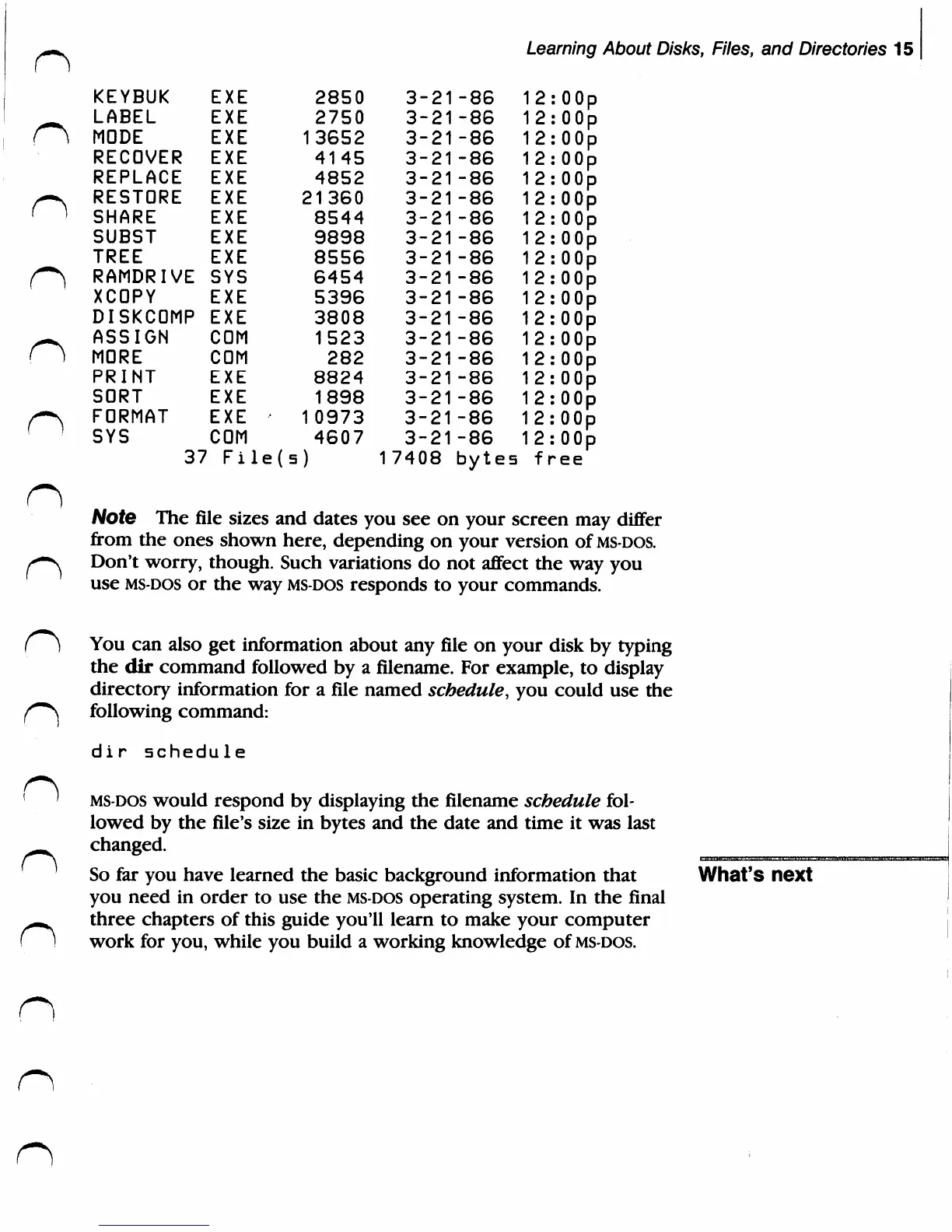
Note
The
file
sizes
and
dates
you
see
on
your
screen
may
differ
from
the
ones
shown
here,
depending
on
your
version
of
ms-dos.
Don't
worry,
though.
Such
variations
do
not
affect
the
way
you
use
ms-dos
or
the
way
ms-dos
responds
to
your
commands.
o
n
n
n
You
can
also
get
information
about
any
file
on
your
disk
by
typing
the
dir
command
followed
by
a
filename.
For
example,
to
display
directory
information
for
a
file
named
schedule,
you
could
use
the
following
command:
dir
schedule
ms-dos
would
respond
by
displaying
the
filename
schedule
fol
lowed
by
the
file's
size in
bytes
and
the
date
and
time
it
was
last
changed.
So
far
you
have
learned the
basic
background
information
that
you
need
in
order
to
use
the
ms-dos
operating
system.
In
the
final
three
chapters
of
this
guide
you'll
learn
to
make
your
computer
work
for
you,
while
you
build
a
working
knowledge
of
ms-dos.
What's
next
n

Related product manuals