EasyManua.ls Logo

Commodore Plus 4 - Page 202

Commodore Plus 4
464 pages
Print Icon
To Next Page IconTo Next Page
To Previous Page IconTo Previous Page
Loading...
mu
*^«^
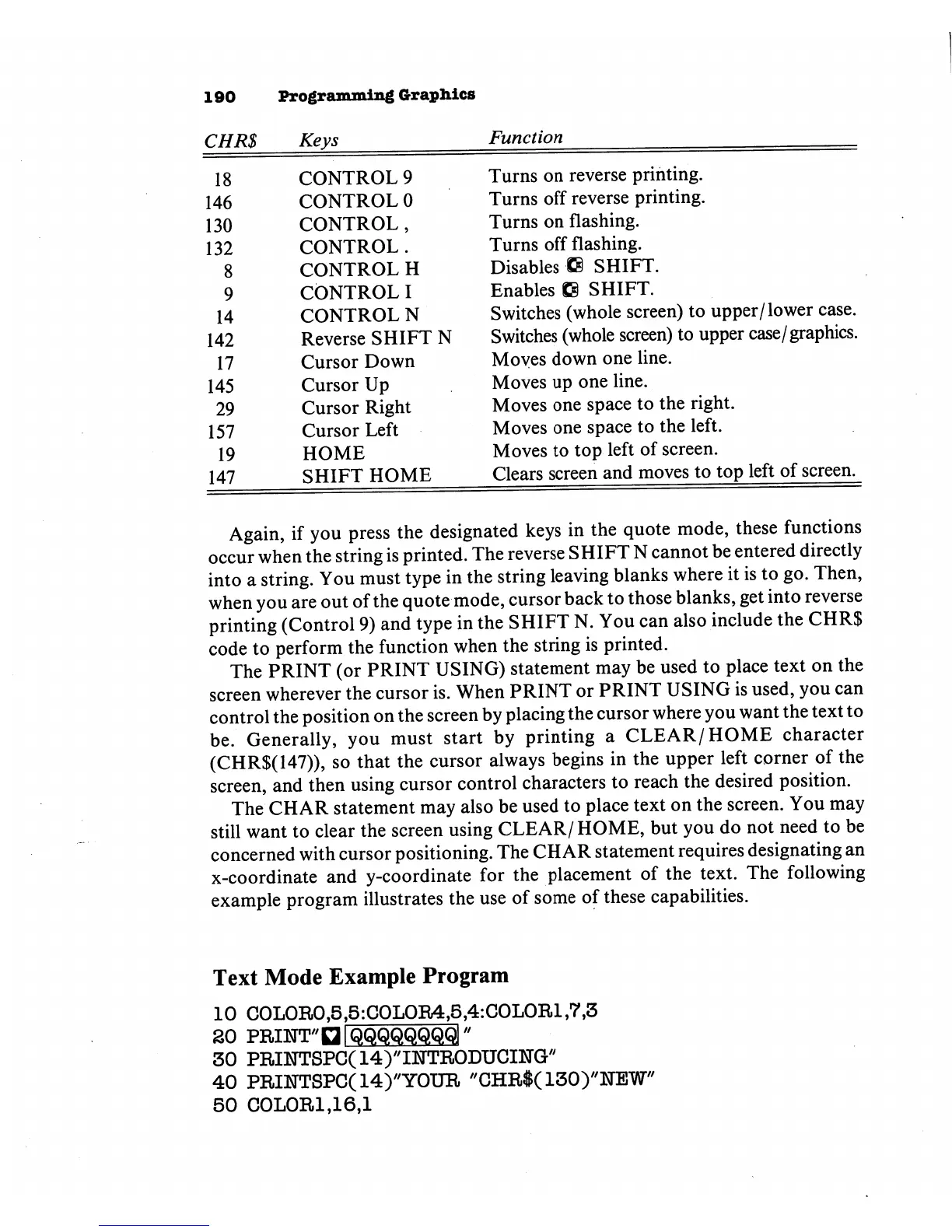
CHR$
18
146
130
132
8
9
14
142
17
145
29
157
19
147
mm
mm
wgy—
••'
0
mW
Keys
CONTROL
9
CONTROL
0
CONTROL,
CONTROL.
CONTROL H
CONTROL
I
CONTROL
N
Reverse
SHIFT
N
Cursor
Down
Cursor
Up
Cursor
Right
Cursor
Left
HOME
SHIFT
HOME
Function
Turns
on
reverse
printing.
Turns
off
reverse
printing.
Turns
on
flashing.
Turns
off
flashing.
Disables
G
SHIFT.
Enables
gg
SHIFT.
Switches
(whole
screen) to
upper/lower
case.
Switches
(whole
screen)
to
upper
case/graphics.
Moves
down
one
line.
Moves
up
one
line.
Moves
one
space
to
the
right.
Moves
one
space
to
the
left.
Moves
to
top
left
of
screen.
Clears
screen
and
moves
to
top
left
of
screen.
Again,
if
you
press
the
designated
keys
in
the
quote
mode,
these
functions
occur
when
the
string
is
printed.
The
reverse
SHIFT
N
cannot
be
entered
directly
into
a
string.
You
must
type
in
the
string
leaving
blanks
where
it
is
to
go.
Then,
when
you
are
out
of
the
quote
mode,
cursor
back
to
those
blanks,
get
into
reverse
printing
(Control
9)
and
type
in
the
SHIFT
N.
You
can
also
include
the
CHR$
code
to
perform
the
function
when
the
string
is
printed.
The
PRINT
(or
PRINT
USING)
statement
may
be used
to
place
text
on
the
screen
wherever
the
cursor
is.
When
PRINT
or
PRINT
USING
is
used,
you
can
control
the
position
on
the
screen
by
placing
the
cursor
where
you
want
the
text
to
be.
Generally,
you
must
start
by
printing
a
CLEAR/HOME
character
(CHR$(147)),
so
that
the
cursor
always
begins
in
the
upper
left
corner
of
the
screen,
and
then
using
cursor
control
characters
to
reach
the
desired
position.
The
CHAR
statement
may
also
be
used
to
place
text
on
the
screen.
You
may
still
want
to
clear
the
screen
using
CLEAR/HOME,
but
you
do
not
need
to
be
concerned
with
cursor
positioning.
The
CHAR
statement
requires
designating
an
x-coordinate
and
y-coordinate
for
the
placement
of
the
text.
The
following
example
program
illustrates
the
use
of
some
of
these
capabilities.
Text
Mode
Example
Program
10
C0L0R0,S,5:C0L0R4,5,4:C0L0Rl,7,5
20
PRINTED
[QQQQQQQQ"
30
PRINTSPC(14)//I]SrTR0DUCIMG//
40
PRINTSPC(14)"Y0UR
"lC
50
C0L0Rl,16,l

Other manuals for Commodore Plus 4

Related product manuals