EasyManua.ls Logo

Commodore Plus 4 - CONTROL; CHAPTER 3 Using Software

Commodore Plus 4
234 pages
Print Icon
To Next Page IconTo Next Page
To Previous Page IconTo Previous Page
Loading...
any
screen
windows
that
you
have
set
up
are
erased.
Screen
windows
are
work
areas
that
you
designate
on
part
of
the
screen;
there'll
be
more
about
them
later,
CONTROL
This
key always
works
with
another
key.
The
CONTROL
key
works
like
the
SHIFT
key
you
must
hold
it
down
while
you
press
the
other
key.
1.
As
the
COLOR
KEYS
section
explains,
pressing
CONTROL
and
a
color
key
allows
you
to
choose
the
colorpf
the
text
printed
on
the
screen.
2.
You
can
pause
a
program
that
is
PRINTing
or
LISTing
on
the
screen by
pressing
CONTROL
and
the
S
key
(press
any
key
to
resume
program
output).
3.
CONTROL
is
also
used
with
the
REVERSE
ON/OFF"
and
FLASH
ON/OFF
keys
;■
iddition,
ome
software
program!
thai
/ou
buy
make
use
ol
the
_
CONTROL
key
fc
their
own
special
functions.
MM
Like
the
CONTROL
key,
the
Commodore
key
works
with
other
keys.
il
has
four
functions:
1.
When
used
with
the
shift
key,
the
O
key
lets
you
switch
between
upper-case/graphics
mode
and
upper/lower-case
text
modes.
,^_-_
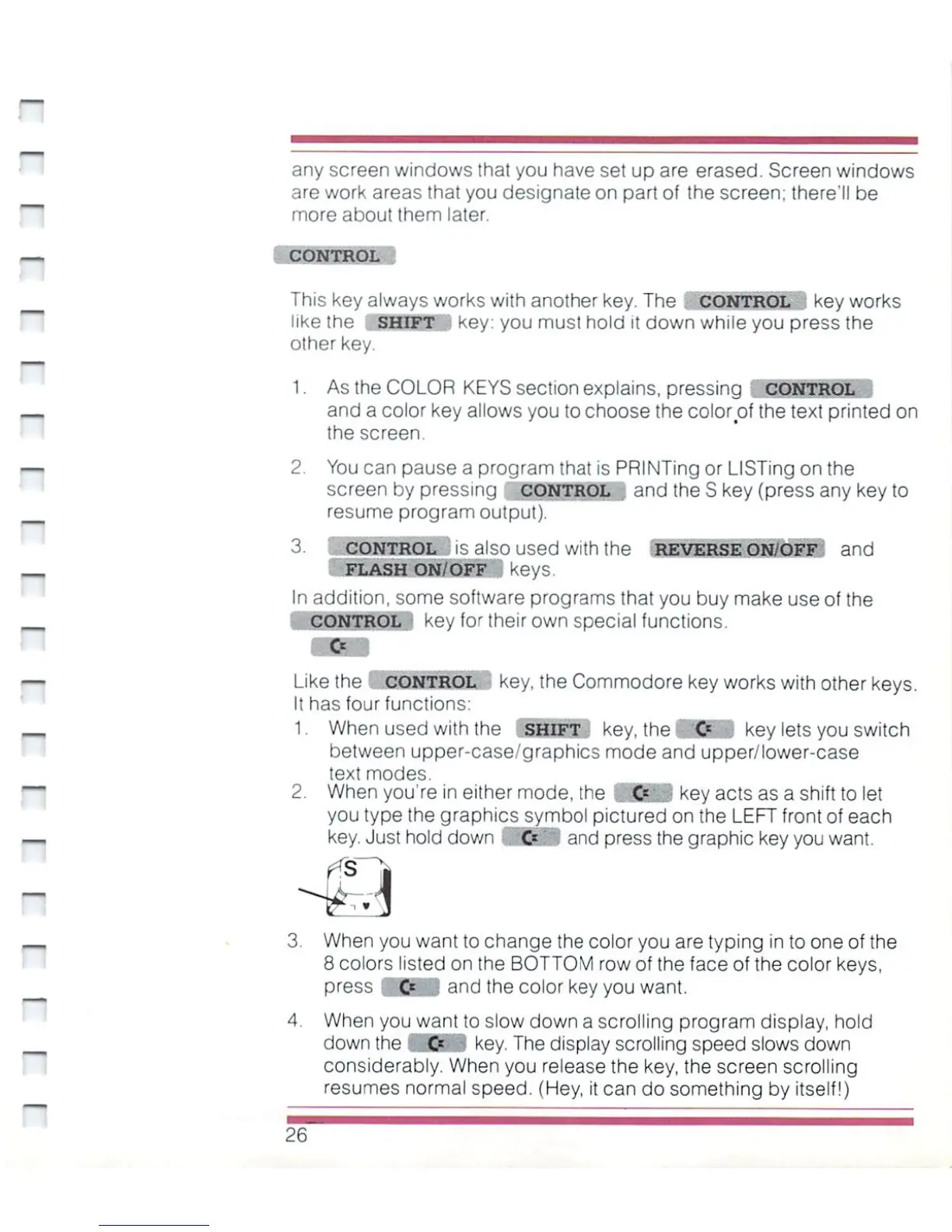
2.
When
you're
in
either
mode,
the
&■'_>
key
acts
as a
shift
to
let
you
type
the
graphics
symbol
pictured
on
the
LEFT
front
of
each
key.
Just
hold
down
Jt£S$
and
press
the
graphic
key
you
want.
3.
When
you
want
to
change
the
color
you
are
typing
in
to
one
of
the
8 colors
listed
on
the
BOTTOM
row
of
the
face
of
the
color
keys,
press
~@ji£§
and
the color
key
you
want.
4.
When
you
want
to
slow
down
a
scrolling
program
display,
hold
down
the
(HESB
Key.
The
display
scrolling
speed
slows
down
considerably.
When
you
release
the
key,
the
screen
scrolling
resumes
normal
speed.
(Hey,
it
can
do
something
by
itself!)

Other manuals for Commodore Plus 4

Related product manuals