EasyManua.ls Logo

Commodore Plus 4 - The Color Keys

Commodore Plus 4
234 pages
Print Icon
To Next Page IconTo Next Page
To Previous Page IconTo Previous Page
Loading...
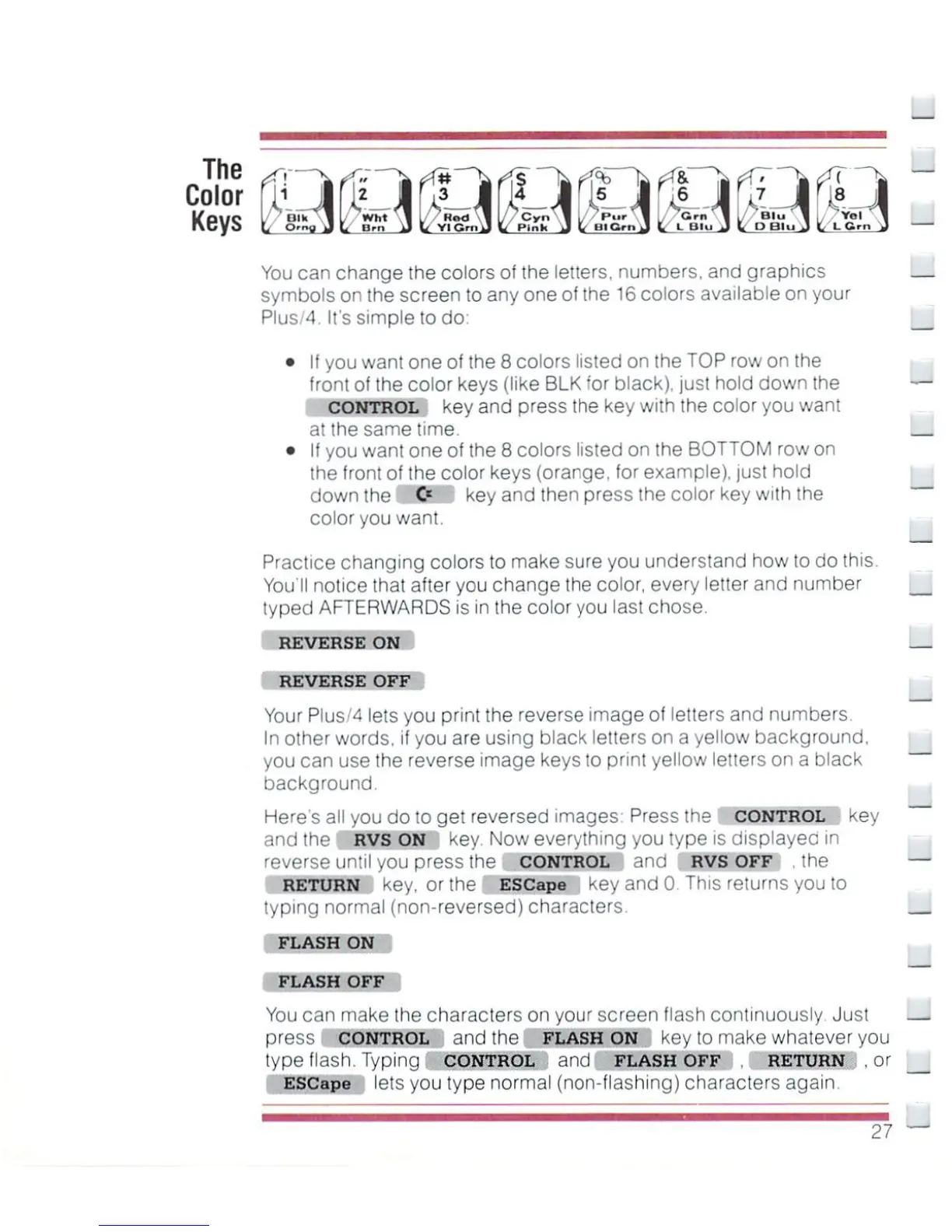
You
can
change
Ihe colors
of
the
letters,
numbers,
and
graphics
symbols
on
the
screen
to
any
one
of
the
16 colors available
on
your
Pius/4.
It's
simple
to
do
If
you
want
one
of
the
8
colors
listed
on
the
TOP
row
on
the
front
of
the
color
keys
(like
BLK
for
black),
just
hold
down
the
CONTROL
key
and
press
the
key
with
the
color
you
want
at
the
same
time.
If
you
want
one
of
the
8
colors
listed
on
the
BOTTOM
row
on
the
front
of
the
color
keys
(orange,
for
example),
just
hold
down
the
O
key
and
then
press
the
color
key
with
the
color
you
want.
Practice
changing
colors
to
make
sure
you
understand
how
to
do
this.
You'll
notice
that
after
you
change
the
color,
every
letter
and
number
lyped
AFTERWARDS
\i
n
ihecoioi
/ou
hs;
i
hose
REVERSE
ON
REVERSE
OFF
Your
Plus/4
lets
you
print
the
reverse
image
of
letters
and
numbers.
In
other
words,
if
you
are
using black
letters
on
a
yellow
background,
you
can
use
the
reverse
image
keys
to
print
yellow
letters
on
a
black
background.
Here's
all
you
do
to
get
reversed
images
Press
the
control
Key
and
the
RVS
ON
key.
Now
everything
you
type
is
displayec
in
reverse
until
you
press
the
CONTROL
and
RVS OFF
the
RETURN
key.
or
the
Escape
key
and
0
This
returns
you
to
typing
normal
(non-reversed)
characters.
FLASH
ON
FLASH
OFF
You
can
make
the
characters
on
your
screen
flash
continuously
Just
press
CONTROL
and
the
flash
ON
key
to
make
whatever
you
type
flash.
Typing
CONTROL
and
FLASH
OFF
.
RETURN
,
or
ESCape
lets
you
type
normal
(non-flashing)
characters
again
27

Other manuals for Commodore Plus 4

Related product manuals