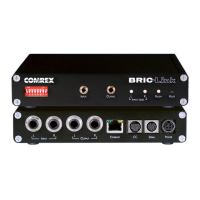
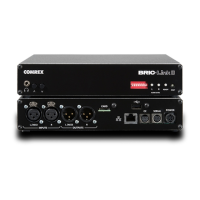
Initial IP confi guration is handled using the Windows-
based BRIC-Link Device Manager software. This
program was provided on the CD included with the
BRIC-Link hardware, and can also be downloaded
from the Comrex website.
In order to confi gure BRIC-Link, the Device manager
must be run on a computer located on the same
physical LAN connection as the BRIC-Link hardware.
If this is not possible, you may need to connect an
Ethernet crossover cable between the BRIC-Link
and the computer for confi guration.
Once power is applied to BRIC-Link, you have fi ve
minutes to confi gure the IP settings. After fi ve minutes,
the power must be cycled on the hardware to make
these changes.
As shipped from the factory, BRIC-Link is confi gured
for DHCP, which means it will attempt to obtain an
IP address from your network. Using the Device
Manager software, you can change this to a fi xed
IP with fi xed netmask, gateway, and DNS settings.
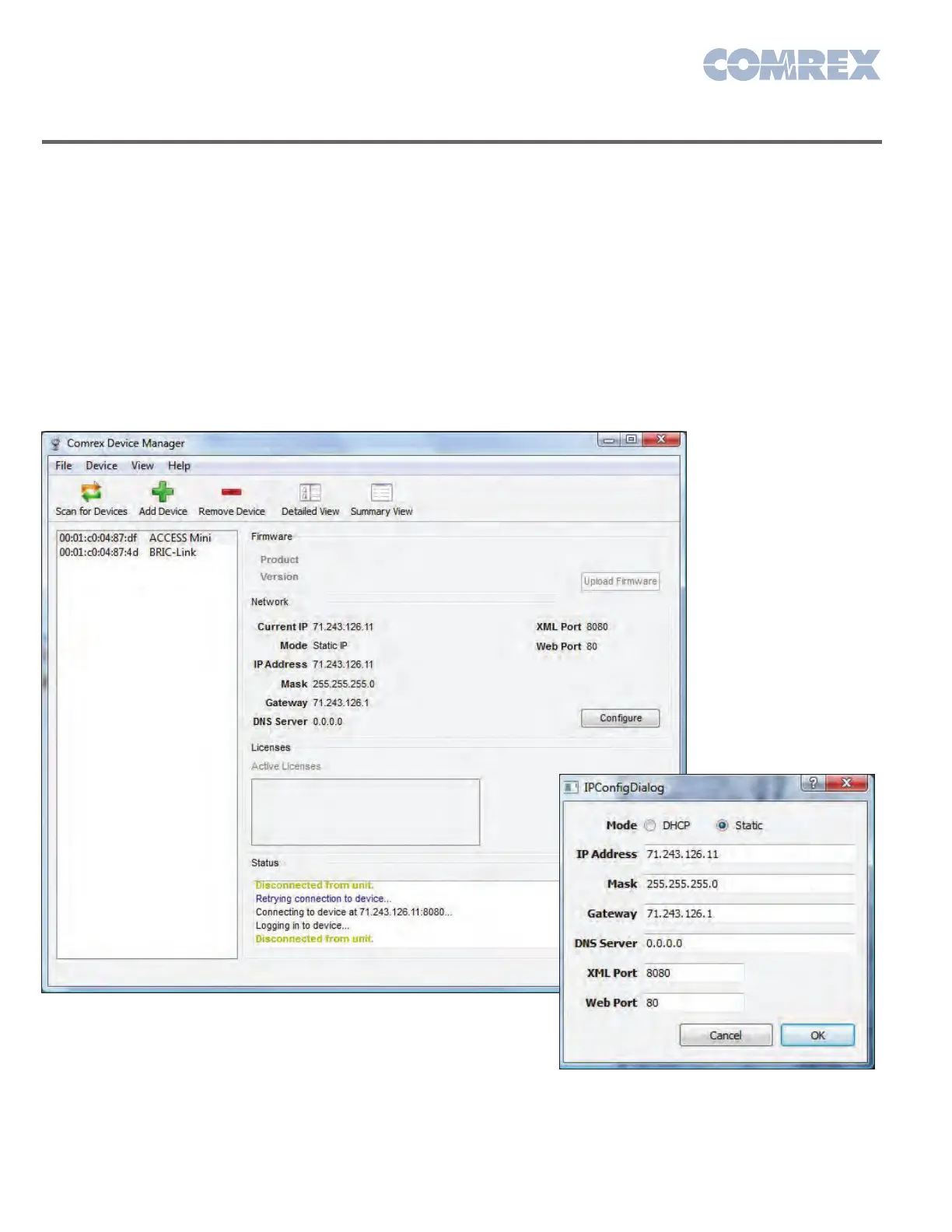
As shown below, running the Device Manager and
clicking the “scan” button will produce a list of all
Comrex IP codecs found on the LAN.
Figure 2 - Device Manager
Figure 3 - IP Confi guration
Using the BRIC-Link Device Manangera
Choosing the codec that appears in the left hand list,
followed by pressing the Confi gure button, allows you
to set the IP parameters of the codec, as shown above.
Once you know the IP address (or have changed it)
using the Device Manager, the rest of the setup and
operation of BRIC-Link is done via the built-in web
page interface.


 To Next Page
 Loading...