2) The USB adapter blue LED flashes to the turn solid to indicate the
headset is connected to the USB adapter. Once successfully paired, you
• Connect to PC
1) Turn on your headset and insert the Bluetooth USB adapter into your
laptop or PC.
will hear “connected”.
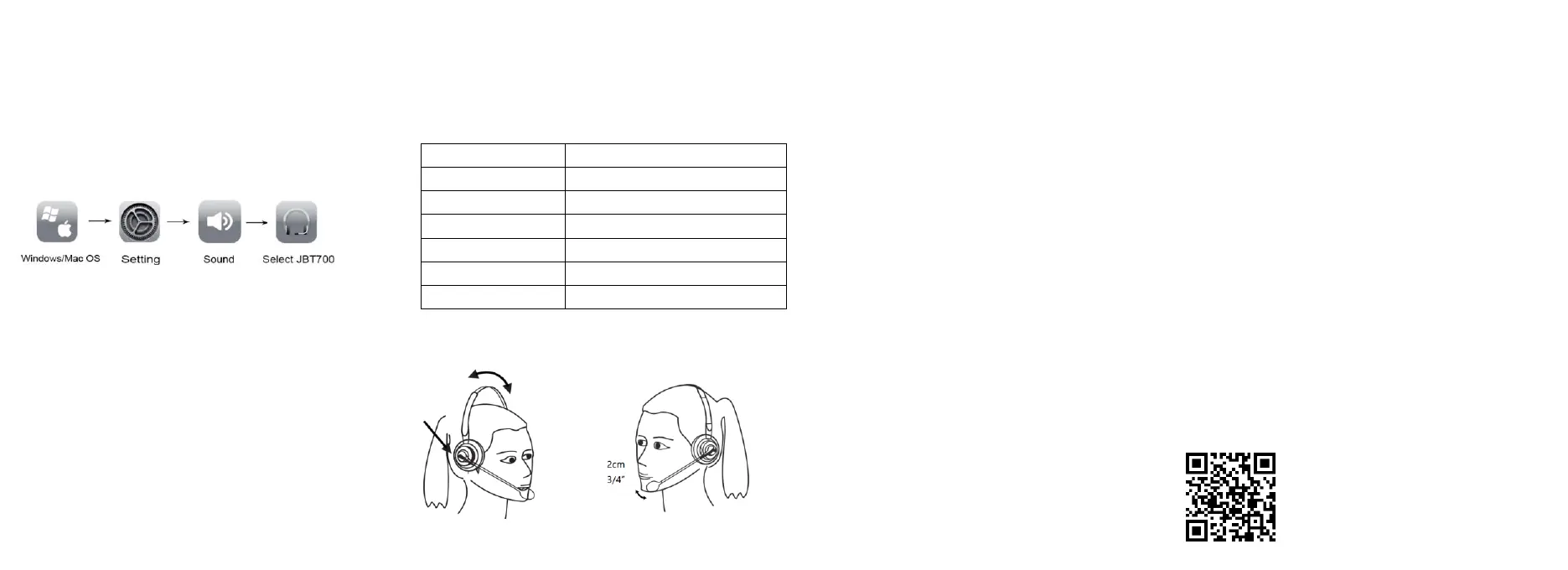
3) Configure for media (Set JBT700 as input & output device):
4.
NOTE: You Bluetooth USB adapter comes pre-paired to your headset,
and it only supports pairing with that headset.
Charging the headset
1) The built-in battery is rechargeable and please use the included micro-
USB cable to charge the headset by connecting to a USB port of your
computer, power bank or into an USB AC adapter (requires 5VDC).
2) Turn off the headset before charging, while charging, the red indicator
stays on.
3) Once fully charged, the blue indicator will light on.
4) When the battery is low, the red indicator light flashes.
NOTE: Do not attach the charger mid-call. This will cause the headset
to reset, and the call will be sent back to the phone.
5. Specifications
Bluetooth Version Bluetooth V5.0
Connection with 2 Multi Point Connection Devices
Profiles A2DP V1.3, AVRCP V1.6, HFP V1.7
Distance 33 feet/10m
Talking/Music Time Up to 25 hours
Standby Time Up to 120 hours
Charging Time 4 hours
6. Wearing
7. Troubleshooting
1) The headset is not under ON and standby state.
2) The headset program is error
I. The mobile phone can’t find the headset
Possible Reasons:
.
3) The program of mobile phone is error.
Solutions:
1) Turn on the headset: press and hold the Multi-Function Button
until you hear "pairing" and the headset LEDs flash red and blue.
2) Please turn off the headset and restart it if the headset program is
error.
3) After restart the mobile phone, remove all pairing data in the
wireless of the mobile phone.
Cautions:
After the wireless headset has entered in the pairing mode, it will
connect within 5mins. Otherwise, the headset will automatically turn
off.
II. No sound from the headset
Possible Reasons:
1) The volume of the mobile phone is unsuitable.
2) The wireless headset and mobile phone are not connected
correctly.
3) The wireless headset is out of the working range.
Solutions:
1) Adjust the volume in the mobile phone.
2) Operate with the reference of the use steps.
3) Keep the headset in the range of 10m to the mobile phone
without any obstacle.
Cautions:
1) Do not have any other operation when searching headset for
avoiding program error.
2) Please use headset near the mobile phone to assure stable signal.
Made by
SHENZHEN KENANBO TECHNOLOGY CO., LTD
Add: RM. 208, Building 2, Jinfanghua E- business Industrial
Zone, NO, 450 Bulong Roa d, Bantian Street, Longgang
District, Shenzhen.
NEED MORE HELP?
TEL: 86-755-88608031
E-mail: Sales@conambo.com
Office Website: www.conambo.com
5 6
7
8


 To Next Page
 Loading...